August 7, 2026
Browser Caching for Images: Complete Performance & SEO Guide (2026)
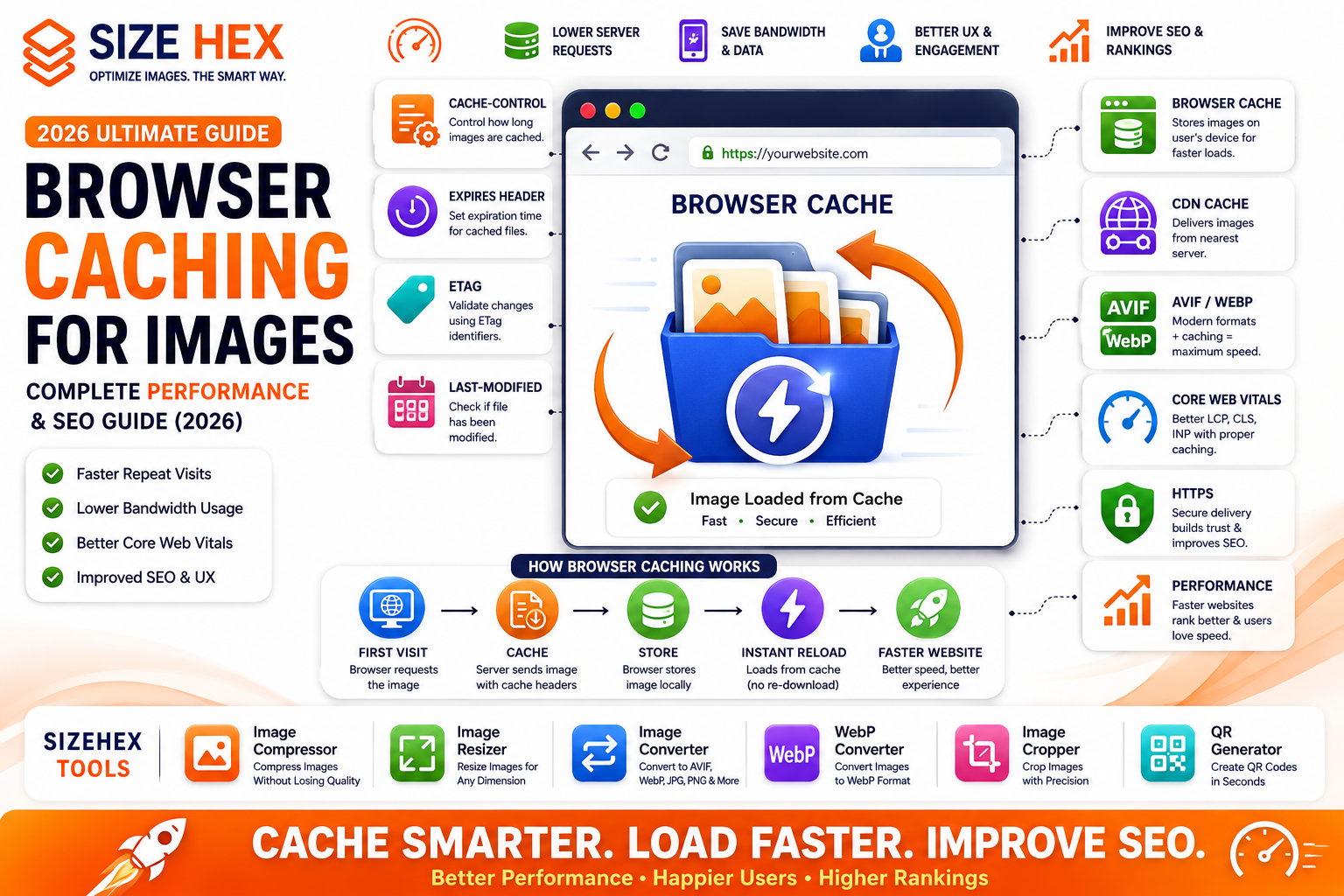
Browser Caching for Images: Complete Performance & SEO Guide (2026)
Website speed has become one of the most important factors affecting user experience, search engine optimization (SEO), and Core Web Vitals. Visitors expect websites to load almost instantly, and every unnecessary request to the server increases loading time.
Images are often the largest assets downloaded by a webpage. If a browser has to download the same images every time a visitor opens a page, bandwidth usage increases, pages become slower, and the browsing experience suffers.
Browser caching solves this problem by allowing the visitor's browser to store copies of images locally. When users return to your website or navigate to another page using the same images, the browser can load them directly from local storage instead of downloading them again.
This reduces loading times, improves performance, lowers bandwidth consumption, and creates a smoother browsing experience.
In this guide, you'll learn how browser caching works, why it's important for image optimization, how it differs from CDN and server caching, and how proper caching strategies improve website performance and SEO in 2026.
What Is Browser Caching?
Browser caching is a technique that stores website resources—such as images, CSS files, JavaScript files, and fonts—inside a visitor's web browser.
Instead of downloading the same file every time a webpage loads, the browser reuses the locally stored copy until the cache expires or the resource changes.
For images, this means:
First visit
↓
Browser downloads image
↓
Image stored locally
↓
Future visits use cached image
↓
Faster loading
Browser caching significantly reduces repeated downloads.
Why Browser Caching Matters
Modern websites reuse many images across multiple pages.
Examples include:
- Logos
- Icons
- Product images
- Background graphics
- Team photos
- Blog thumbnails
Without browser caching, every page visit would require downloading these images again.
Browser caching improves:
- Speed
- User experience
- Mobile performance
- Bandwidth efficiency
- Repeat visits
How Browser Caching Works
When a browser requests an image for the first time:
- The browser sends a request to the server.
- The server responds with the image.
- The server also sends caching instructions using HTTP headers.
- The browser stores the image locally.
- On future visits, the browser checks whether the cached copy is still valid.
- If valid, it loads the local copy instead of downloading the image again.
This process happens automatically without requiring any user interaction.
Browser Cache vs CDN Cache
Although both improve performance, they work differently.
Browser Cache
Stored on:
Visitor's device
Purpose:
Reduce repeated downloads for the same user.
Benefits:
- Faster repeat visits
- Lower bandwidth usage
- Better user experience
CDN Cache
Stored on:
Global edge servers
Purpose:
Deliver files from locations closer to users.
Benefits:
- Lower latency
- Faster global delivery
- Reduced origin server load
Both caching methods complement each other.
Browser Cache vs Server Cache
These caching methods solve different problems.
Browser Cache
Location:
Visitor's browser
Goal:
Avoid downloading files repeatedly.
Server Cache
Location:
Website server
Goal:
Reduce server processing time by serving pre-generated content.
Together, browser caching and server caching create faster websites.
Benefits for Performance
Browser caching provides several performance improvements.
Faster Repeat Visits
Returning visitors load previously cached images almost instantly.
Lower Bandwidth Usage
Images are downloaded once instead of repeatedly.
This reduces both user data usage and server bandwidth.
Reduced Server Requests
Fewer requests reach the server because browsers reuse local copies.
This helps websites scale more efficiently.
Better Mobile Experience
Mobile users often benefit the most because cached images reduce downloads on slower or metered connections.
Faster Navigation
When visitors move between pages sharing common images, those images load immediately from the browser cache.
Benefits for SEO
Browser caching supports technical SEO indirectly.
Benefits include:
- Faster loading pages
- Better Core Web Vitals
- Improved user experience
- Lower bounce rates
- More efficient crawling
Although browser caching itself isn't a direct ranking factor, faster websites generally provide a better experience for users and align with Google's performance recommendations.
Common Browser Caching Myths
Let's clear up some common misconceptions.
Myth 1: Browser caching only helps large websites.
Reality: Even small blogs and business websites benefit from faster repeat visits and reduced bandwidth usage.
Myth 2: Browser caching replaces image compression.
Reality: Compression and browser caching solve different problems.
Compression reduces file size.
Browser caching reduces repeated downloads.
Use both together.
Myth 3: Cached images never update.
Reality: Servers control cache expiration using HTTP caching headers and cache validation mechanisms.
When images change, browsers can fetch updated versions based on those rules.
Myth 4: Browser caching only improves desktop performance.
Reality: Mobile users often experience even greater improvements because caching reduces repeated downloads on slower networks.
Myth 5: Browser caching eliminates the need for a CDN.
Reality: Browser caching and CDNs serve different purposes and work best together.
Real-World Examples
Example 1: E-commerce Store
An online retailer caches product images, brand logos, and category icons.
Returning shoppers experience much faster page loads while browsing products.
Example 2: News Website
A news portal caches article thumbnails and navigation icons.
Readers moving between stories don't repeatedly download identical assets.
Example 3: SaaS Dashboard
A web application caches interface icons, charts, and UI graphics.
Users experience smoother navigation across different dashboard pages.
Example 4: SizeHex
SizeHex helps prepare optimized images through compression, resizing, cropping, and format conversion before they're delivered with browser caching.
Combining optimized images with proper cache settings, responsive images, AVIF/WebP, and CDN delivery creates a faster, more efficient browsing experience.
Key Takeaways
- Browser caching stores images locally on a visitor's device to reduce repeated downloads.
- Proper browser caching improves loading speed, reduces bandwidth usage, and enhances repeat visits.
- Browser caching, CDN caching, and server caching each serve different purposes and work best together.
- Faster image delivery supports better user experience and contributes to stronger Core Web Vitals.
- Browser caching complements image compression, responsive images, AVIF/WebP, and CDN optimization.
- A well-planned caching strategy helps modern websites deliver images more efficiently across devices and networks.
Complete Browser Caching for Images Guide
Now that you understand what browser caching is and why it matters, let's explore the practical techniques used by modern websites to cache images efficiently. A well-planned caching strategy reduces unnecessary downloads, improves repeat visits, supports Core Web Vitals, and enhances the overall browsing experience.
Cache Fundamentals
1. How Browsers Store Images
When a user visits your website for the first time:
Browser requests image
↓
Server sends image
↓
Browser downloads image
↓
Browser stores image in its cache
↓
Future page loads reuse the cached image
If the cached version is still valid, the browser avoids downloading it again.
Benefits:
- Faster page loads
- Lower bandwidth usage
- Reduced server requests
2. Cache-Control Header
The Cache-Control HTTP header tells browsers how long they should store a resource before checking for updates.
Example:
Cache-Control: public, max-age=31536000Meaning:
- public → Resource may be cached by browsers and shared caches.
- max-age=31536000 → Cache for one year (31,536,000 seconds).
Common directives:
Directive Purpose public Allow caching private Cache only in the user's browser max-age Cache lifetime no-cache Revalidate before reuse no-store Never store the resource immutable Resource won't change during its lifetime
3. Expires Header
Before
Cache-Controlbecame the preferred approach, many servers used the Expires header.Example:
Expires: Tue, 31 Dec 2027 23:59:59 GMTThis tells the browser when the cached resource expires.
Today,
Cache-Controlis generally preferred because it provides more flexibility.
4. ETag
An ETag (Entity Tag) acts like a unique fingerprint for a resource.
Example:
ETag: "img-v4-7fa9d"When a browser revisits your website:
- It sends the stored ETag.
- The server compares it.
- If nothing changed:
304 Not ModifiedThe browser continues using the cached image.
This saves bandwidth because the image doesn't need to be downloaded again.
5. Last-Modified Header
Servers may also provide the last modification date.
Example:
Last-Modified: Mon, 03 Aug 2026 10:00:00 GMTDuring future requests, the browser asks:
Has this file changed since this date?
If not:
304 Not ModifiedThe cached version remains valid.
Image Caching Strategy
6. Cache Static Images
Images that rarely change should have long cache durations.
Examples:
- Logos
- Icons
- Background graphics
- Illustrations
These assets often remain unchanged for months.
7. Cache Hero Images
Hero images appear at the top of webpages.
Since visitors often revisit important pages, caching hero images improves repeat visit performance.
Best practices:
- Compress images
- Use AVIF/WebP
- Preload hero images
- Enable long-term caching
8. Cache Icons & Logos
Logos appear on nearly every page.
Icons also repeat throughout a website.
Cache these assets aggressively because:
- They're small.
- They rarely change.
- Every page benefits.
9. Cache Background Images
CSS background images should also be cached.
Examples:
- Hero backgrounds
- Section graphics
- Decorative illustrations
Long cache durations reduce unnecessary downloads.
10. Cache Responsive Images
Responsive images generate multiple image sizes.
Example:
- 480px
- 768px
- 1200px
- 1600px
Each optimized version should have appropriate cache headers.
Browsers cache whichever size they download.
Performance
11. Cache Lifetime
Choose cache durations based on how frequently images change.
Examples:
Image Type Suggested Cache Duration Logos 1 year Icons 1 year Product images Several months (or longer if versioned) Blog featured images Several months Frequently updated banners Shorter cache lifetime If assets are versioned (e.g., filenames change when updated), long cache durations become practical.
12. Immutable Assets
For versioned files:
Example:
logo.4fa7c2.avifUse:
Cache-Control: public, max-age=31536000, immutableBrowsers know the file won't change.
If updates occur:
Generate a new filename.
13. Versioned File Names
Instead of:
logo.avifUse:
logo-v3.avifor
logo.98fd21.avifBenefits:
- Easy cache busting
- Long cache lifetime
- Faster updates
14. CDN + Browser Cache
Modern websites typically combine:
Browser Cache
CDN Cache
↓
Maximum performance
CDNs reduce latency.
Browser caching reduces repeat downloads.
Together they create excellent loading speeds.
15. Core Web Vitals
Browser caching helps improve:
- Faster repeat loads
- Lower bandwidth usage
- Better overall responsiveness
Combined with optimized images, responsive delivery, and preloading important assets, caching contributes to a smoother user experience that supports strong Core Web Vitals.
Technical SEO
16. HTTPS
Serve cached images securely.
HTTPS provides:
- Better security
- Browser trust
- Modern web compatibility
Avoid mixed-content warnings.
17. Image Sitemap
Cached images should still appear in your XML Image Sitemap.
Caching doesn't affect discoverability.
Search engines continue crawling image URLs normally.
18. Compression + Cache
Always combine:
Compression
Browser Cache
↓
Better performance
Compression reduces file size.
Caching reduces repeated downloads.
19. AVIF/WebP + Cache
Modern formats plus browser caching create an excellent performance combination.
Workflow:
Compress
↓
Convert
↓
Cache
↓
Deliver
↓
Fast repeat visits
20. Testing Browser Cache
Review caching behavior using tools such as:
- Chrome DevTools (Network panel)
- Google PageSpeed Insights
- Lighthouse
Check:
- Cache-Control headers
- ETag
- Last-Modified
- Cache hits
- Repeat load performance
Maintenance
21. Cache Busting
When images change:
Don't rely on browsers clearing cache automatically.
Instead:
Change filename.
Example:
logo-v4.avifBrowsers immediately download the new version.
22. Update Cached Images
Review:
- Product photos
- Blog banners
- Hero images
- Logos
Replace outdated assets while keeping versioning consistent.
23. Debugging Cache
If updates don't appear:
Check:
- Browser cache
- CDN cache
- Cache-Control header
- Versioned filenames
- Developer tools
Most issues are caused by cached files remaining valid.
24. Performance Monitoring
Regularly monitor:
- PageSpeed Insights
- Lighthouse
- Core Web Vitals
- Browser DevTools
Review changes after:
- New image uploads
- Hosting changes
- CDN updates
- Website redesigns
25. Browser Caching Checklist
Task Status Cache-Control Configured ✅ Expires Header Configured ✅ ETag Enabled (if used) ✅ Last-Modified Header Sent ✅ Static Images Cached ✅ Hero Images Cached ✅ Icons Cached ✅ Background Images Cached ✅ Responsive Images Cached ✅ Long Cache Lifetime Configured ✅ Immutable Assets Used ✅ Versioned File Names Used ✅ CDN Integrated ✅ HTTPS Enabled ✅ Image Sitemap Updated ✅ Compression Combined with Cache ✅ AVIF/WebP Cached ✅ Browser Cache Tested ✅ Cache Busting Strategy Ready ✅ Performance Monitored ✅
Pro Tips
- Use long cache lifetimes for static assets that rarely change, especially when using versioned filenames.
- Combine browser caching, CDN caching, image compression, and modern formats (AVIF/WebP) for the best performance.
- Always use cache busting (versioned filenames or hashed assets) when updating images to ensure users receive the latest version.
- Regularly inspect HTTP response headers with browser developer tools to verify that caching rules are working as expected.
- Monitor PageSpeed Insights, Lighthouse, and Core Web Vitals after major website updates to ensure your caching strategy continues to deliver optimal performance.
Advanced Browser Caching Strategies, FAQs & Publishing Checklist
You've now learned how browser caching works, how HTTP caching headers control image storage, and why browser caching is an essential part of modern website performance.
In this final section, we'll explore advanced caching strategies, common mistakes, frequently asked questions, and a complete publishing checklist to help you build faster, more efficient websites.
Browser caching is one of the easiest performance optimizations you can implement, especially when combined with modern image formats, compression, responsive images, and CDN delivery.
Before Publishing Checklist
Before publishing your website, review every item below.
Image Optimization
✅ Images compressed
✅ AVIF/WebP generated
✅ Responsive images created
✅ Correct dimensions used
Browser Cache
✅ Cache-Control header configured
✅ Expires header configured (if applicable)
✅ ETag configured (if applicable)
✅ Last-Modified header available
Performance
✅ Hero images optimized
✅ Lazy loading enabled for below-the-fold images
✅ Browser caching verified
✅ CDN enabled
Technical SEO
✅ HTTPS enabled
✅ Image Sitemap updated
✅ Structured data verified
✅ Internal links created
Testing
✅ Chrome DevTools checked
✅ Lighthouse audit completed
✅ Google PageSpeed Insights tested
✅ Core Web Vitals reviewed
Advanced Browser Caching Strategies
1. Use Long Cache Lifetimes
Images that rarely change should remain cached for long periods.
Examples:
- Logos
- Icons
- Brand graphics
- UI illustrations
Long cache durations reduce unnecessary downloads.
2. Use Versioned File Names
Instead of replacing:
logo.avifUse:
logo-v2.avifor
logo.84d29a.avifAdvantages:
- Safe updates
- Easy cache busting
- Long cache lifetime
3. Cache Only Static Assets
Good candidates:
- Images
- CSS
- JavaScript
- Fonts
- SVG icons
Avoid applying very long cache durations to frequently changing resources unless you use versioned filenames.
4. Combine Browser Cache with CDN
Browser Cache
↓
Visitor stores image locally
CDN
↓
Nearest server delivers image
Together they provide excellent performance.
5. Optimize Before Caching
Always optimize images before browsers store them.
Recommended workflow:
Resize
↓
Compress
↓
Convert to AVIF/WebP
↓
Generate responsive images
↓
Upload
↓
Enable caching
6. Test Every Major Update
After:
- Website redesign
- Hosting migration
- CDN migration
- Plugin updates
- Performance optimization
Review browser caching again.
7. Monitor Real Performance
Performance changes over time.
Regularly review:
- Lighthouse
- PageSpeed Insights
- Chrome DevTools
- Core Web Vitals
Continuous monitoring helps identify new optimization opportunities.
Common Browser Caching Mistakes
Avoid these common mistakes.
❌ No Cache-Control header
❌ Extremely short cache duration for static images
❌ No versioned filenames
❌ Forgetting cache busting
❌ Ignoring browser cache after redesigns
❌ Not compressing images before caching
❌ Missing responsive images
❌ No CDN for global traffic
❌ Never testing cache behavior
❌ Relying only on browser cache without other optimizations
Frequently Asked Questions (FAQ)
1. What is browser caching?
Browser caching stores website files locally so they don't need to be downloaded again on every visit.
2. Why is browser caching important?
It improves loading speed, reduces bandwidth usage, lowers server requests, and enhances the user experience.
3. Does browser caching improve SEO?
Indirectly, yes. Faster websites provide a better user experience and support performance metrics such as Core Web Vitals.
4. Does browser caching replace image compression?
No.
Compression reduces file size.
Caching reduces repeated downloads.
Use both together.
5. What is Cache-Control?
An HTTP response header that tells browsers how to cache resources and how long to keep them.
6. What is an Expires header?
An older caching mechanism that specifies when a cached resource becomes invalid.
7. What is an ETag?
A unique identifier that helps browsers determine whether a cached resource has changed.
8. What does Last-Modified do?
It tells browsers when a file was last updated, allowing efficient revalidation.
9. Should logos be cached?
Yes.
Logos rarely change and are excellent candidates for long-term caching.
10. Should hero images be cached?
Yes.
Optimize them carefully because they often affect Largest Contentful Paint (LCP).
11. Does browser caching work with responsive images?
Yes.
Each responsive image version can be cached independently.
12. Does browser caching work with AVIF and WebP?
Yes.
Modern image formats benefit from browser caching just like traditional formats.
13. Is browser caching useful for mobile users?
Absolutely.
It reduces repeated downloads and saves bandwidth, which is especially beneficial on slower or metered connections.
14. What is cache busting?
A technique that changes a file's URL (often by versioning or hashing the filename) so browsers fetch the updated resource instead of using the old cached copy.
15. Should I use a CDN with browser caching?
Yes.
A CDN speeds up first-time delivery, while browser caching speeds up repeat visits.
16. How can I test browser caching?
Use:
- Chrome DevTools
- Lighthouse
- Google PageSpeed Insights
Inspect response headers and repeat-load behavior.
17. How long should images be cached?
Static assets can often be cached for several months or even a year when paired with proper cache-busting strategies.
18. What happens if a cached image changes?
Browsers will continue using the cached version until it expires or a new versioned URL is requested.
19. Does browser caching reduce hosting costs?
Yes.
Fewer repeated downloads reduce bandwidth usage and lower server load.
20. What is the best browser caching strategy?
Combine:
- Image compression
- AVIF/WebP
- Responsive images
- Long cache lifetimes
- Versioned filenames
- CDN delivery
- Performance monitoring
Conclusion
Browser caching is a powerful optimization technique that significantly improves website performance by reducing repeated image downloads. Combined with image compression, responsive delivery, modern formats such as AVIF and WebP, and CDN distribution, browser caching helps create faster, more reliable websites.
A successful caching strategy isn't just about setting HTTP headers. It also includes proper versioning, regular testing, performance monitoring, and continuous optimization. When implemented correctly, browser caching contributes to better user experiences, improved Core Web Vitals, and a more efficient website.
Why Choose SizeHex?
SizeHex helps you prepare images for high-performance websites with an easy-to-use, browser-based toolkit.
Features
- Compress images without noticeable quality loss
- Resize images for any screen size
- Convert between AVIF, WebP, JPG, PNG, GIF, BMP, and TIFF
- Crop images with precision
- Privacy-friendly browser processing
- No software installation required
Whether you're a developer, blogger, designer, marketer, or business owner, SizeHex makes image optimization simple and efficient.
Related Tools
Image Compressor
Reduce image file sizes while maintaining quality.
Image Resizer
https://sizehex.com/image-resizer.html
Resize images for responsive layouts.
Image Converter
https://sizehex.com/image-converter.html
Convert images into modern web formats.
WebP Converter
https://sizehex.com/webp-converter.html
Generate lightweight WebP images.
Image Cropper
https://sizehex.com/image-crop.html
Crop images accurately for websites and social media.
QR Generator
Create QR codes instantly for websites and marketing.