August 4, 2026
Image Accessibility (WCAG) Guide: Make Images Accessible for Everyone (2026)
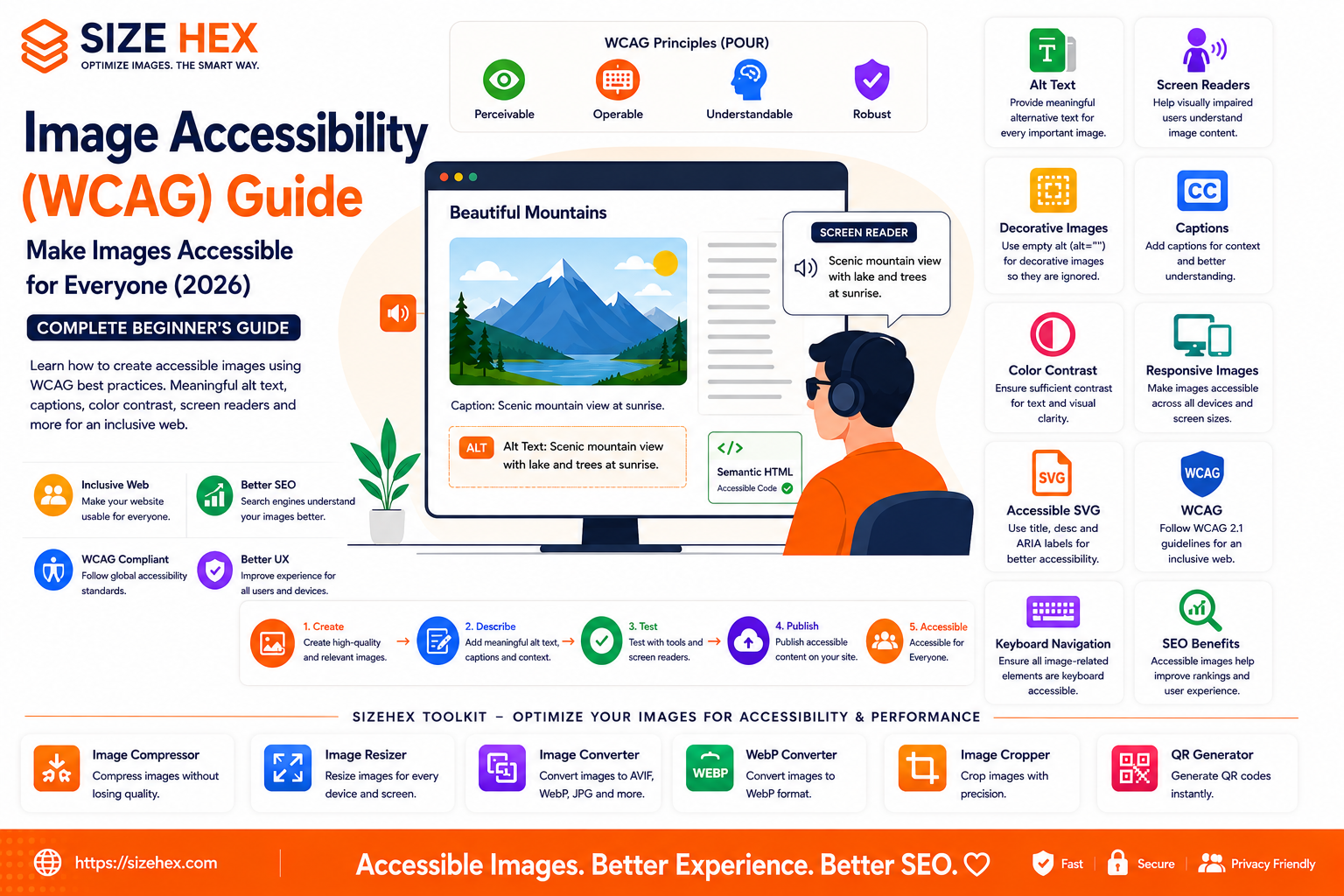
Image Accessibility (WCAG) Guide: Make Images Accessible for Everyone (2026)
The web should be accessible to everyone, regardless of their abilities or the devices they use. Images make websites more engaging, informative, and visually appealing, but they can also create barriers for people who rely on assistive technologies if they are not implemented correctly.
Imagine a visually impaired user visiting your website using a screen reader. If an important image has no description, the user may miss essential information. Likewise, if text is embedded inside an image without an accessible alternative, many visitors may struggle to understand your content.
Image accessibility ensures that everyone—including people with visual impairments, cognitive disabilities, color vision deficiencies, and motor impairments—can access and understand the information your images convey.
It also improves usability for all users, supports better search engine understanding, and contributes to a more inclusive web.
In this guide, you'll learn what image accessibility is, how the Web Content Accessibility Guidelines (WCAG) apply to images, why accessibility matters, the different types of images, common misconceptions, and best practices for creating accessible images in 2026.
What Is Image Accessibility?
Image accessibility is the practice of making images understandable and usable for everyone, including people who use assistive technologies such as screen readers.
Accessible images provide alternative ways to communicate visual information through:
- Alternative text (alt text)
- Captions
- Descriptive surrounding content
- Proper semantic HTML
- Accessible design practices
The goal is not only to display an image but also to communicate its purpose and meaning to all users.
Why Accessibility Matters
Accessibility is about removing barriers.
Millions of people around the world rely on assistive technologies to browse the internet.
Accessible images help:
- Visually impaired users
- Screen reader users
- Users with low vision
- Color-blind users
- Users with cognitive disabilities
- Mobile users with slow connections
- People using text-only browsers
Accessibility benefits everyone—not just users with disabilities.
What Is WCAG?
WCAG (Web Content Accessibility Guidelines) is an internationally recognized set of recommendations for making web content more accessible.
The guidelines are organized around four core principles:
- Perceivable – Information should be presented in ways users can perceive.
- Operable – Users should be able to interact with content using different input methods.
- Understandable – Content should be clear and easy to understand.
- Robust – Content should work with different browsers and assistive technologies.
These principles are often summarized as POUR.
Following WCAG helps create websites that are accessible to a broader audience.
Who Benefits from Accessible Images?
Accessible images benefit many different groups.
Examples include:
- Blind users using screen readers
- Users with low vision
- Color-blind users
- Older adults
- Mobile users
- Users with slow internet connections
- People using voice assistants
- Search engines that analyze page content
Accessibility improves both inclusivity and usability.
Types of Images
Different images require different accessibility approaches.
Common categories include:
- Informative images
- Decorative images
- Functional images
- Complex diagrams
- Charts
- Infographics
- Icons
- Logos
- Product images
Understanding the purpose of an image helps determine the appropriate accessibility technique.
Alt Text Basics
Alternative text (alt text) is one of the most important accessibility features.
It provides a textual description of an image when the image cannot be seen.
Good alt text should:
- Describe the important content.
- Explain the image's purpose.
- Be concise.
- Be meaningful.
- Fit naturally within the page context.
Alt text should communicate what users need to know—not every visual detail.
Decorative Images
Not every image requires descriptive alt text.
Decorative images are used only for visual styling.
Examples:
- Background patterns
- Decorative shapes
- Visual dividers
- Purely aesthetic illustrations
These images should generally use an empty alt attribute:
<img src="divider.svg" alt="">
This tells screen readers to ignore decorative content.
Common Accessibility Myths
Let's clear up some misconceptions.
Myth 1: Accessibility only helps blind users.
Reality: Accessibility improves usability for many different users, including those with low vision, cognitive disabilities, and temporary limitations.
Myth 2: Every image needs a long description.
Reality: The appropriate description depends on the image's purpose. Decorative images often require no description, while complex diagrams may need detailed explanations.
Myth 3: Alt text should contain as many keywords as possible.
Reality: Alt text is written primarily for users, not search engines. Keyword stuffing reduces accessibility and provides a poor user experience.
Myth 4: Accessibility hurts website design.
Reality: Good accessibility complements modern design by making websites more usable without sacrificing aesthetics.
Myth 5: Accessibility is only a legal requirement.
Reality: Accessibility also improves usability, supports SEO, broadens your audience, and creates a better experience for everyone.
Real-World Examples
Example 1: E-commerce Store
An online store provides descriptive alt text for every product image.
Screen reader users can understand product colors, styles, and key features before making purchasing decisions.
Example 2: Educational Website
A science website publishes diagrams with accompanying text explanations.
Students using assistive technologies can understand complex concepts without relying solely on visuals.
Example 3: Travel Blog
A travel blogger includes meaningful captions and descriptive alt text for destination photos.
Both users and search engines gain additional context about each location.
Example 4: SaaS Website (SizeHex)
SizeHex helps users optimize images through compression, resizing, cropping, and format conversion while encouraging accessibility best practices such as meaningful alt text, responsive images, and proper image optimization.
By combining performance optimization with accessibility, websites can improve user experience for a wider audience.
Key Takeaways
- Image accessibility ensures that visual information is available to everyone, including users of assistive technologies.
- WCAG provides internationally recognized guidelines for creating accessible web content.
- Different image types require different accessibility approaches, from informative images to decorative graphics.
- Meaningful alt text, captions, and semantic HTML improve both accessibility and usability.
- Decorative images should generally use empty alt attributes so screen readers ignore them.
- Accessible image practices also support better SEO, user experience, and inclusive web design.
Complete Image Accessibility (WCAG) Guide
Now that you understand what image accessibility is and why it matters, let's explore the practical techniques that make images usable for everyone. Whether you're building a blog, an e-commerce website, a portfolio, or a SaaS platform, these best practices will help create a more inclusive experience while supporting SEO and overall usability.
1. Writing Effective Alt Text
Alternative text (alt text) is one of the most important accessibility features.
Good alt text answers one simple question:
"If someone can't see this image, what information do they need?"
Example:
<img src="image-accessibility-guide.avif"
alt="Infographic explaining WCAG image accessibility best practices">
Good alt text should:
- Describe the important information.
- Match the page context.
- Be concise.
- Avoid keyword stuffing.
- Avoid phrases like "image of" or "picture of" unless necessary.
2. Decorative Images
Decorative images don't communicate meaningful information.
Examples:
- Background textures
- Decorative shapes
- Visual separators
- Abstract artwork
These images should generally use:
<img src="background.svg" alt="">The empty alt attribute tells screen readers to ignore the image.
3. Functional Images
Functional images perform an action.
Examples:
- Search icon
- Shopping cart
- Download button
- Print icon
The alt text should describe the function—not the appearance.
Good:
SearchBad:
Magnifying glass iconThe purpose matters more than the visual design.
4. Informative Images
Informative images communicate useful information.
Examples:
- Product photos
- Team images
- Maps
- Tutorials
- Diagrams
Alt text should explain the important message.
Example:
Customer using the SizeHex Image Compressor on a laptop.
5. Complex Images
Some visuals require more than short alt text.
Examples:
- Flowcharts
- Scientific diagrams
- Technical illustrations
- Architecture diagrams
Use:
- Brief alt text
- Detailed explanation in nearby content
Avoid placing every detail inside the alt attribute.
6. Charts & Graphs
Charts often contain essential data.
Instead of describing every visual element:
Summarize the important takeaway.
Example:
Bar chart showing website traffic increased by 42% between January and June 2026.Provide detailed analysis in the surrounding article.
7. Infographics
Infographics combine:
- Text
- Icons
- Charts
- Diagrams
Since they often contain significant information:
Include:
- Short alt text
- Complete explanation within the article
Never rely only on the image.
8. Image Captions
Captions help all users.
Benefits:
- Additional context
- Better readability
- Improved understanding
- Enhanced accessibility
Example:
"Diagram illustrating the four WCAG accessibility principles."
Captions complement alt text—they don't replace it.
9. Color Contrast
Never rely only on color to communicate information.
Poor example:
Red = Error
Green = Success
Better:
✔ Success
✖ Error
Use sufficient contrast between text and backgrounds to improve readability for users with low vision or color vision deficiencies.
10. Text Inside Images
Avoid placing essential information only inside images.
Instead:
- Keep important text in HTML.
- Use images only when necessary.
- Ensure text remains selectable and readable.
Search engines and assistive technologies work better with actual text.
11. Screen Readers
Screen readers convert webpage content into speech or Braille.
They rely on:
- Alt text
- Semantic HTML
- Proper headings
- Accessible labels
Well-written alt text helps users understand images without seeing them.
12. Responsive Accessibility
Accessibility should work across every device.
Images should remain:
- Readable
- Properly sized
- Well positioned
- Easy to understand
Responsive design improves both usability and accessibility.
13. Accessible SVG
SVG graphics can be highly accessible.
Use:
-
Meaningful
<title> -
Descriptive
<desc> - Proper ARIA attributes when needed
Accessible SVGs help assistive technologies interpret vector graphics correctly.
14. Accessibility Testing
Regular testing helps identify accessibility issues.
Review:
- Missing alt text
- Poor contrast
- Keyboard accessibility
- Screen reader compatibility
- Responsive layouts
Accessibility should be part of every website audit.
15. Keyboard Navigation
Some users browse entirely with a keyboard.
Ensure:
- Interactive images are focusable.
- Buttons are accessible.
- Navigation is logical.
- Focus indicators remain visible.
Users should never be forced to use a mouse.
16. Mobile Accessibility
Mobile accessibility includes:
- Touch-friendly controls
- Readable images
- Responsive layouts
- Adequate spacing
- High contrast
Accessibility should be tested on both desktop and mobile devices.
17. Common Accessibility Mistakes
Avoid these common issues:
❌ Missing alt text
❌ Keyword stuffing
❌ Text embedded only inside images
❌ Low color contrast
❌ Decorative images with unnecessary descriptions
❌ Missing captions for complex visuals
❌ Tiny text inside graphics
❌ Keyboard traps
❌ Poor responsive layouts
❌ No accessibility testing
18. Accessibility Tools
Helpful tools include:
- WAVE Accessibility Evaluation Tool
- axe DevTools
- Lighthouse Accessibility Audit
- NVDA Screen Reader
- VoiceOver (Apple)
- TalkBack (Android)
These tools help identify accessibility improvements before publishing.
19. SEO Benefits
Accessible images also support SEO.
Benefits include:
- Better image understanding
- Improved user experience
- Higher engagement
- Better crawlability
- Stronger semantic content
While accessibility alone doesn't guarantee rankings, it contributes to a higher-quality website.
20. Complete Accessibility Checklist
Task Status Meaningful Alt Text ✅ Decorative Images Ignored ✅ Functional Images Labeled ✅ Informative Images Described ✅ Complex Images Explained ✅ Captions Added ✅ Good Color Contrast ✅ Text Outside Images ✅ Responsive Images ✅ Accessible SVG ✅ Keyboard Accessible ✅ Screen Reader Tested ✅ Mobile Accessibility Verified ✅ Accessibility Audit Completed ✅
Pro Tips
- Write alt text for people first, then consider SEO naturally.
- Treat accessibility as part of your design process, not an afterthought.
- Use captions and surrounding text to explain complex visuals instead of overloading alt text.
- Test your pages with accessibility tools and, when possible, with a screen reader.
- Combining WCAG best practices, responsive design, and optimized images creates a website that's more inclusive, user-friendly, and search-engine friendly.
Advanced Image Accessibility Best Practices, FAQs & Publishing Checklist
You've now learned what image accessibility is, why it matters, and how to make different types of images accessible. In this final section, we'll explore advanced accessibility techniques, common mistakes, frequently asked questions, and a complete publishing checklist that helps create websites everyone can use.
Accessibility isn't only about following standards—it's about designing experiences that work for every visitor, regardless of ability or technology.
Before Publishing Checklist
Before publishing your webpage, review every item below.
Image Accessibility
✅ Meaningful alt text added
✅ Decorative images use empty alt attributes
✅ Functional images describe their purpose
✅ Complex images have detailed explanations
Content
✅ Captions added where helpful
✅ Important information isn't only inside images
✅ Headings provide context
✅ Images support surrounding content
Technical Accessibility
✅ Semantic HTML used
✅ Responsive images implemented
✅ SVGs include accessible labels where appropriate
✅ Keyboard navigation tested
Visual Accessibility
✅ Good color contrast
✅ Readable typography
✅ Touch-friendly controls
✅ Mobile layouts verified
Testing
✅ Screen reader tested
✅ Lighthouse accessibility audit completed
✅ Mobile accessibility verified
✅ Manual accessibility review completed
Advanced Accessibility Best Practices
1. Design for Real Users
Accessibility begins during design.
Ask:
- Can users understand the image?
- Can screen readers describe it?
- Is the information available without seeing the image?
Always design with different users in mind.
2. Keep Alt Text Contextual
The same image may require different alt text depending on the page.
Example:
A laptop image on:
Product page
↓
"Silver laptop with 14-inch display."
Developer tutorial
↓
"Developer using a laptop to optimize website images."
Context matters.
3. Don't Depend on Images Alone
Never communicate critical information only through images.
Always provide:
- Headings
- Paragraphs
- Captions
- Lists
This benefits both users and search engines.
4. Use Consistent Icon Design
Icons should remain consistent throughout your website.
Examples:
- Search
- Download
- Share
- Settings
- Menu
Consistency improves usability and accessibility.
5. Optimize Accessibility on Every Device
Test:
- Desktop
- Laptop
- Tablet
- Smartphone
Ensure:
- Images remain visible.
- Text stays readable.
- Touch targets are large enough.
- Layouts remain responsive.
6. Combine Accessibility with Performance
Accessibility and performance work together.
Recommended workflow:
- Compress images
- Convert to AVIF/WebP
- Generate responsive sizes
- Add meaningful alt text
- Include captions
- Test accessibility
This creates faster and more inclusive websites.
7. Test Continuously
Accessibility isn't a one-time task.
Review regularly:
- New blog posts
- Product images
- Infographics
- Marketing banners
- Tutorials
Continuous testing improves long-term quality.
Common Accessibility Mistakes
Avoid these issues.
❌ Missing alt text
❌ Keyword-stuffed descriptions
❌ Important text only inside images
❌ Poor color contrast
❌ Decorative images announced by screen readers
❌ Tiny unreadable text
❌ Missing keyboard support
❌ Poor mobile layouts
❌ Ignoring accessibility testing
❌ Using accessibility only for compliance instead of user experience
Frequently Asked Questions (FAQ)
1. What is image accessibility?
Image accessibility ensures that visual content can be understood by everyone, including people using assistive technologies like screen readers.
2. What is WCAG?
WCAG (Web Content Accessibility Guidelines) is the internationally recognized standard for making web content accessible.
3. What is alt text?
Alt text is a written description that explains an image's purpose or content when the image cannot be seen.
4. Should every image have alt text?
Informative images should have meaningful alt text.
Decorative images should generally use:
alt=""
5. Does accessibility improve SEO?
Accessibility supports SEO by improving content quality, usability, semantic structure, and image understanding. While it isn't a direct ranking factor, it complements broader SEO best practices.
6. What are decorative images?
Images used purely for visual styling that don't communicate information.
7. How long should alt text be?
Keep it concise while including the essential information users need.
8. Can screen readers read text inside images?
Generally, no.
Important information should be provided as HTML text whenever possible.
9. What is a functional image?
An image that performs an action.
Examples:
- Search button
- Download icon
- Shopping cart
Its description should explain the action.
10. Do captions replace alt text?
No.
Captions and alt text serve different purposes.
Both may be useful.
11. Should logos have alt text?
Yes.
Usually the company or organization name is sufficient unless the logo conveys additional important information.
12. How often should accessibility be tested?
After major redesigns, new pages, feature releases, and periodically during regular website maintenance.
13. Which tools help accessibility testing?
Popular options include:
- WAVE
- axe DevTools
- Lighthouse
- NVDA
- VoiceOver
- TalkBack
14. Does responsive design improve accessibility?
Yes.
Responsive layouts make content easier to use across different devices and screen sizes.
15. Who benefits from accessible websites?
Everyone.
Including:
- Blind users
- Low-vision users
- Color-blind users
- Older adults
- Mobile users
- Users with temporary injuries
- Search engines
Conclusion
Image accessibility is an essential part of modern web design. By creating meaningful alt text, distinguishing decorative images from informative ones, providing captions where needed, maintaining good color contrast, and following WCAG best practices, you make your website more inclusive and easier to use.
Accessibility also complements performance optimization and technical SEO. When combined with responsive images, modern formats like AVIF and WebP, image compression, and fast loading speeds, accessible images contribute to a better experience for all visitors.
Building accessibility into your workflow from the start is far easier than retrofitting it later—and it helps create a web that's usable by everyone.
Why Choose SizeHex?
SizeHex helps you prepare images for modern websites by combining image optimization with accessibility-friendly workflows.
Features
- Compress images without noticeable quality loss
- Resize images for every screen size
- Convert between AVIF, WebP, JPG, PNG, GIF, BMP, and TIFF
- Crop images precisely
- Browser-based processing
- Privacy-friendly workflow
- No software installation required
Whether you're a blogger, developer, designer, educator, marketer, photographer, or business owner, SizeHex makes it easier to prepare optimized, web-ready images.
Related Tools
Image Compressor
Reduce image file sizes while maintaining quality.
Image Resizer
https://www.sizehex.com/image-resizer.html
Resize images for desktop, tablet, and mobile.
Image Converter
https://www.sizehex.com/image-converter.html
Convert images into modern formats.
WebP Converter
https://www.sizehex.com/webp-converter.html
Create lightweight WebP images for faster websites.
Image Cropper
https://www.sizehex.com/image-crop.html
Crop images accurately for websites and social media.
QR Generator
Generate QR codes instantly for websites and marketing campaigns