July 28, 2026
Image Compression Explained: Lossy vs Lossless Compression (Complete 2026 Guide)
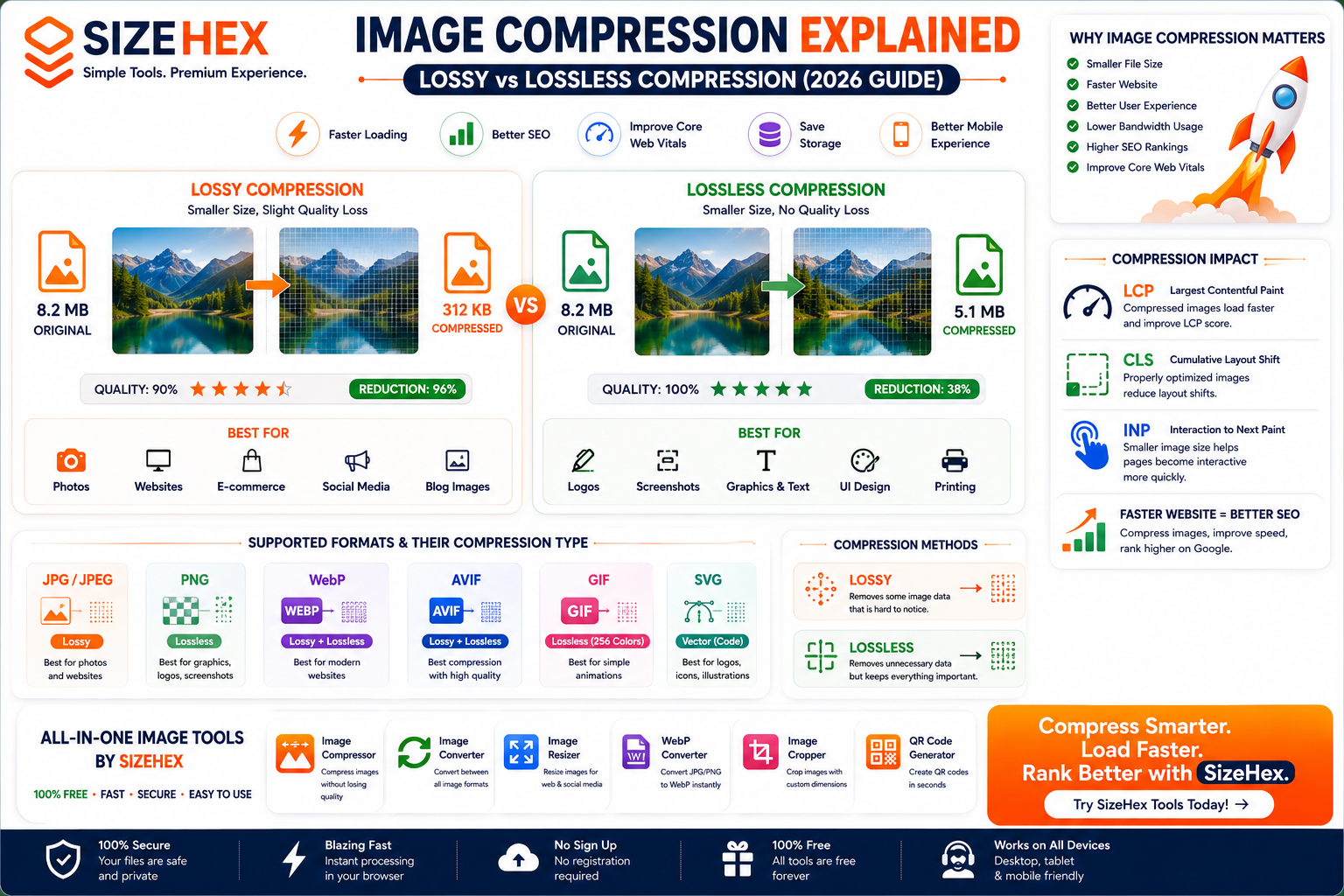
What Is Image Compression?
Images are an essential part of modern websites, blogs, e-commerce stores, and social media. They help capture attention, improve user engagement, and communicate information more effectively than text alone. However, high-quality images often come with large file sizes, which can slow down websites, increase storage usage, and consume more bandwidth.
This is where image compression becomes important.
Image compression is the process of reducing an image's file size while maintaining an acceptable level of visual quality. The goal is to make images smaller so they load faster, use less storage, and improve overall website performance.
Whether you're a blogger, web developer, designer, photographer, or business owner, understanding image compression can help you create faster websites, improve SEO, and provide a better experience for your visitors.
In this guide, you'll learn how image compression works, the differences between lossy and lossless compression, and how to choose the right compression method for different situations.
Why Image Compression Matters
Every image added to a webpage increases the amount of data a visitor's browser must download.
Large image files can cause:
- Slow page loading
- Poor mobile performance
- Higher bandwidth costs
- Increased bounce rates
- Lower PageSpeed scores
- Poor Core Web Vitals
- Reduced user satisfaction
Properly compressed images help solve these issues without significantly reducing visual quality.
Benefits include:
- Faster websites
- Better SEO
- Improved user experience
- Reduced storage requirements
- Lower hosting costs
- Faster uploads and downloads
- Better mobile performance
For websites with many images, compression is one of the easiest ways to improve performance.
How Image Compression Works
Every digital image is made up of tiny colored dots called pixels. Each pixel stores information such as color, brightness, and transparency.
The more information stored in an image, the larger the file becomes.
Image compression works by reducing the amount of data needed to represent the same image. Depending on the compression method, this can involve:
- Removing unnecessary information
- Finding repeating patterns
- Optimizing color storage
- Encoding image data more efficiently
- Removing invisible metadata
The result is a smaller image file that is faster to store, transfer, and display.
Types of Image Compression
There are two primary types of image compression:
- Lossy Compression
- Lossless Compression
Each has its own advantages and ideal use cases.
What Is Lossy Compression?
Lossy compression reduces file size by permanently removing some image data that is considered less noticeable to the human eye.
This allows the file to become significantly smaller while still looking visually similar to the original.
Advantages
- Very small file sizes
- Faster loading
- Lower bandwidth usage
- Excellent for websites
- Better SEO performance
- Faster page speed
Disadvantages
- Some image data is permanently removed
- Repeated editing and saving can reduce quality over time
- Fine details may be slightly softer at high compression levels
Common Lossy Formats
- JPG (JPEG)
- WebP (Lossy Mode)
- AVIF (Lossy Mode)
Best For
- Blog images
- Product photos
- Website banners
- Social media images
- Marketing graphics
- Photography
What Is Lossless Compression?
Lossless compression reduces file size without removing any image data.
Every pixel remains exactly the same after the image is decompressed.
This makes it ideal for situations where preserving image quality is essential.
Advantages
- No quality loss
- Perfect image reproduction
- Ideal for editing
- Great for graphics with text
- Suitable for screenshots and logos
Disadvantages
- Larger file sizes than lossy compression
- Less effective at reducing file size
Common Lossless Formats
- PNG
- TIFF
- WebP (Lossless Mode)
- AVIF (Lossless Mode)
Best For
- Logos
- Screenshots
- UI designs
- Technical illustrations
- Medical images
- Engineering drawings
Lossy vs Lossless: What's the Difference?
| Feature | Lossy Compression | Lossless Compression |
|---|---|---|
| File Size | ⭐⭐⭐⭐⭐ Smaller | ⭐⭐⭐☆☆ Moderate |
| Image Quality | Slightly Reduced | Original Quality |
| Data Removal | Yes | No |
| Editing | Not Ideal | Excellent |
| Website Speed | Excellent | Good |
| SEO Performance | Excellent | Good |
| Best For | Photos & Websites | Graphics & Screenshots |
Understanding Compression Terminology
Knowing a few basic terms makes it easier to understand how image compression works.
File Size
File size refers to the amount of storage space an image occupies.
Common units include:
- Bytes (B)
- Kilobytes (KB)
- Megabytes (MB)
Smaller file sizes generally mean faster loading times.
Resolution
Resolution describes the number of pixels in an image.
Examples:
- 800 × 600
- 1920 × 1080
- 3840 × 2160 (4K)
Higher resolutions usually produce larger file sizes.
Color Depth
Color depth determines how many colors an image can display.
Common examples:
- 8-bit
- 16-bit
- 24-bit
- 32-bit
Higher color depth improves image quality but increases file size.
Metadata
Images often contain extra information known as metadata.
Examples include:
- Camera model
- Lens details
- GPS location
- Date and time
- Copyright information
- Editing history
Removing unnecessary metadata can reduce file size without affecting the appearance of the image.
Compression Ratio
Compression ratio measures how much an image has been reduced.
For example:
- Original: 10 MB
- Compressed: 2 MB
Compression Ratio:
5:1
A higher ratio means greater size reduction, though extremely high compression may affect quality if using a lossy format.
Benefits of Compressing Images
Image compression offers advantages beyond simply saving storage space.
Faster Website Loading
Smaller images load more quickly, improving the browsing experience for visitors.
Better SEO
Search engines favor websites that provide a fast, efficient user experience.
Compressed images help improve technical SEO by reducing page load times and supporting better Core Web Vitals.
Lower Bandwidth Usage
Compressed images require less data to transfer, which benefits both website owners and users, especially on mobile networks.
Reduced Storage Costs
Smaller files take up less disk space, helping lower storage requirements for websites, cloud services, and backups.
Faster Uploads
Uploading compressed images to websites, social media, or cloud storage is quicker and more efficient.
Improved Mobile Experience
Visitors using slower internet connections can access compressed images more quickly, leading to a smoother browsing experience.
Common Myths About Image Compression
Myth 1: Compression Always Ruins Image Quality
Reality: Proper compression can dramatically reduce file size with little to no visible difference in quality, especially with modern formats like AVIF and WebP.
Myth 2: PNG Is Always Better Than JPG
Reality: PNG is excellent for graphics and screenshots, while JPG is usually more efficient for photographs.
Myth 3: Bigger Images Mean Better SEO
Reality: Large, unoptimized images often slow websites down. Well-compressed images are generally better for performance and user experience.
Myth 4: Compression Is Only for Developers
Reality: Anyone who uploads images—including bloggers, marketers, photographers, students, and business owners—can benefit from image compression.
Myth 5: You Only Need to Compress Images Once
Reality: Different platforms and use cases may require different image sizes and compression levels. Optimizing images before each major use is a good practice.
Lossy Compression Explained
Lossy compression is the most widely used image compression method for websites because it significantly reduces file size while keeping the image visually appealing.
Instead of storing every piece of image data, lossy compression removes information that is less noticeable to the human eye.
The result is a much smaller image that loads faster.
For example:
| Original Image | Lossy Image |
|---|---|
| 8 MB | 1.2 MB |
Most users won't notice the difference at normal viewing sizes.
How Lossy Compression Works
Lossy compression reduces file size by:
- Removing redundant image information
- Simplifying color transitions
- Eliminating invisible details
- Using advanced mathematical compression algorithms
- Reducing high-frequency image data
Modern formats like AVIF and WebP perform these optimizations much more efficiently than traditional JPG files.
Advantages of Lossy Compression
✅ Extremely small file sizes
✅ Faster website loading
✅ Better SEO performance
✅ Improved Core Web Vitals
✅ Reduced bandwidth costs
✅ Faster uploads
✅ Better mobile experience
Disadvantages of Lossy Compression
❌ Permanent quality loss
❌ Not ideal for repeated editing
❌ Fine details may disappear at high compression levels
❌ Visible artifacts can appear if compressed excessively
Best Uses
Lossy compression is ideal for:
- Blog images
- Product photos
- Website banners
- Hero images
- News websites
- Social media
- Portfolio galleries
Lossless Compression Explained
Lossless compression reduces file size without removing any image data.
Every pixel remains identical to the original image after decompression.
This makes it perfect when image accuracy is critical.
Example:
| Original | Lossless |
|---|---|
| 8 MB | 5.5 MB |
The reduction is smaller than lossy compression, but image quality stays exactly the same.
How Lossless Compression Works
Instead of deleting information, lossless compression:
- Finds repeated patterns
- Stores repeated pixels efficiently
- Compresses metadata
- Uses mathematical encoding
- Optimizes data storage
When opened again, the image is perfectly reconstructed.
Advantages
✅ No quality loss
✅ Perfect editing workflow
✅ Pixel-perfect graphics
✅ Excellent for screenshots
✅ Great for logos
Disadvantages
❌ Larger file sizes
❌ Less storage savings
❌ Slower websites compared to lossy images
Best Uses
- Logos
- Screenshots
- UI Design
- Medical Imaging
- CAD Drawings
- Technical Graphics
- Print Design
JPG Compression
JPG (JPEG) uses lossy compression.
It has been the standard format for digital photography for decades.
Strengths
- Small file size
- Excellent compatibility
- Fast loading
- Supported everywhere
Weaknesses
- Permanent quality loss
- No transparency
- Repeated saving reduces quality
Best For
- Photography
- Blogs
- Product images
- Marketing banners
Compression Rating
⭐⭐⭐⭐☆
PNG Compression
PNG primarily uses lossless compression.
Unlike JPG, PNG preserves every pixel, making it ideal for graphics.
Strengths
- Perfect quality
- Transparency
- Sharp text
- Great screenshots
Weaknesses
- Large files
- Not ideal for photographs
Best For
- Logos
- UI Design
- Screenshots
- Graphics
Compression Rating
⭐⭐⭐☆☆
WebP Compression
WebP supports both lossy and lossless compression, making it one of the most flexible image formats for the web.
Strengths
- Excellent compression
- Transparency support
- Animation support
- Wide browser compatibility
- Smaller files than JPG and PNG in many cases
Weaknesses
- Slightly less efficient than AVIF for maximum compression
Best For
- Blogs
- E-commerce
- Business websites
- Marketing images
Compression Rating
⭐⭐⭐⭐⭐
AVIF Compression
AVIF is one of the newest and most efficient image formats available.
It also supports both lossy and lossless compression.
Compared to JPG and WebP, AVIF often produces significantly smaller files while maintaining excellent image quality.
Strengths
- Outstanding compression efficiency
- Exceptional image quality
- HDR support
- Transparency support
- Ideal for modern websites
Weaknesses
- Slower encoding during image creation
- Some older software may not fully support it
Best For
- Hero images
- Product photography
- Blog images
- Landing pages
- Portfolio websites
Compression Rating
⭐⭐⭐⭐⭐
GIF Compression
GIF uses lossless compression for its limited 256-color palette and is mainly known for supporting simple animations.
Strengths
- Animation support
- Universal compatibility
Weaknesses
- Limited colors
- Large animated file sizes
- Poor choice for modern photographs
Best For
- Simple animations
- Memes
- Lightweight motion graphics
Compression Rating
⭐⭐☆☆☆
SVG Compression
SVG is different from raster image formats because it stores graphics as vector code instead of pixels.
This means compression works by optimizing the SVG code rather than image pixels.
Strengths
- Extremely small files
- Infinite scalability
- Perfect quality at any size
- Excellent for responsive websites
Weaknesses
- Not suitable for photographs
- Complex vector artwork can increase file size
Best For
- Logos
- Icons
- Charts
- Illustrations
- UI graphics
Compression Rating
⭐⭐⭐⭐⭐
Which Compression Method Is Best?
Blogs
Recommended: AVIF (Lossy)
Why?
- Fast loading
- Excellent image quality
- Smaller file sizes
E-commerce
Recommended: AVIF (Lossy)
For:
- Product photos
- Category banners
- Hero images
Use PNG only when transparency is required.
Photography
Recommended: AVIF (Lossy)
Alternative:
- JPG for compatibility
- PNG for editing workflows
Social Media
Recommended: WebP or JPG
Many social platforms automatically recompress uploaded images, so starting with a well-compressed file helps maintain quality while reducing upload time.
Graphic Design
Recommended: PNG (Lossless)
Maintains crisp edges and preserves every pixel.
Printing
Recommended: TIFF or PNG (Lossless)
Print workflows prioritize quality over file size.
Image Compression & SEO
Image compression is one of the simplest ways to improve technical SEO.
Benefits include:
- Faster page loading
- Better PageSpeed Insights scores
- Improved mobile experience
- Lower bounce rates
- Reduced bandwidth usage
Search engines reward websites that provide a fast and efficient user experience. While compression itself isn't a direct ranking factor, it supports many performance metrics that influence overall site quality.
Image Compression & Core Web Vitals
Largest Contentful Paint (LCP)
Large images often determine the LCP score.
Compressed images load more quickly, helping the main content appear sooner.
Cumulative Layout Shift (CLS)
Compression doesn't directly affect CLS, but properly sized and optimized images help maintain stable page layouts.
Interaction to Next Paint (INP)
Smaller image files reduce network load, allowing pages to become responsive more quickly, especially on slower devices.
Image Compression Best Practices
To achieve the best balance between image quality and performance:
- Compress every image before uploading it.
- Use AVIF whenever possible for photographs and hero images.
- Use WebP as a strong alternative where appropriate.
- Keep PNG for screenshots, logos, and graphics requiring lossless quality.
- Use SVG for logos, icons, and vector illustrations.
- Resize images to the dimensions they'll actually be displayed at.
- Remove unnecessary metadata before publishing.
- Enable lazy loading for below-the-fold images.
-
Use responsive images (
srcset) to serve appropriate sizes for different devices. - Regularly audit your website for oversized or outdated images.
Which Compression Method Should You Choose?
There isn't a single compression method that's ideal for every situation. The right choice depends on the type of image, where it will be used, and whether your priority is file size, quality, or editability.
Modern websites usually combine both lossy and lossless compression to achieve the best balance between performance and image quality.
Here's a practical guide.
For Blogs
Blog articles typically contain:
- Featured images
- Article photos
- Infographics
- Screenshots
Recommended Compression
- Featured Images → AVIF (Lossy)
- Blog Photos → AVIF (Lossy)
- Screenshots → PNG (Lossless)
- Icons → SVG
Why?
Readers expect pages to load quickly. Using lossy compression for photographs dramatically reduces page size while preserving excellent visual quality.
🏆 Best Choice: Lossy Compression (AVIF/WebP)
For E-commerce Websites
Online stores rely heavily on product images.
Recommended Compression
- Product Photos → AVIF (Lossy)
- Category Images → AVIF
- Transparent Images → PNG
- Logos → SVG
Why?
Customers expect high-quality images, but they also expect fast-loading pages.
Modern lossy compression delivers both.
🏆 Best Choice: Lossy Compression
For Business Websites
Business websites often contain:
- Team photos
- Office images
- Service graphics
- Marketing banners
Recommended Compression
- Photos → AVIF
- Banners → AVIF
- Logos → SVG
- Graphics → PNG
🏆 Best Choice: Lossy + SVG
For Photography
Professional photographers require excellent quality while keeping galleries manageable.
Recommended Compression
Publishing Images
- AVIF
- WebP
- JPG
Editing Originals
- TIFF
- PNG
Never compress your master copies using aggressive lossy compression.
🏆 Best Choice: Lossy for publishing, Lossless for originals
For Graphic Design
Graphic design often includes:
- Logos
- Posters
- UI designs
- Mockups
Recommended Compression
- PNG
- SVG
These preserve every detail and maintain crisp text and sharp edges.
🏆 Best Choice: Lossless Compression
For Social Media
Most social media platforms automatically compress uploaded images.
Uploading an already optimized image can reduce upload time and help preserve visual quality after platform processing.
Recommended Formats
- WebP
- JPG
- AVIF (where supported)
🏆 Best Choice: Moderate Lossy Compression
For Printing
Printing requires maximum quality.
Recommended Compression
- TIFF
- PNG
Avoid heavily compressed JPG images for professional printing because compression artifacts may become visible.
🏆 Best Choice: Lossless Compression
Compression Decision Table
Use Case Recommended Compression Recommended Formats Blog Lossy AVIF, WebP E-commerce Lossy AVIF, WebP Business Website Lossy AVIF Photography (Web) Lossy AVIF, JPG Photography (Originals) Lossless TIFF, PNG Screenshots Lossless PNG Logos Lossless SVG UI Design Lossless PNG, SVG Social Media Moderate Lossy JPG, WebP Printing Lossless TIFF, PNG
Common Image Compression Mistakes
Even experienced website owners sometimes make mistakes that negatively affect performance or image quality.
1. Uploading Original Camera Photos
Modern smartphones and DSLR cameras often produce images between 5 MB and 30 MB.
Uploading these files directly can significantly slow down a website.
Solution: Resize and compress images before publishing.
2. Using PNG for Every Image
PNG is excellent for graphics but is usually inefficient for photographs.
Solution: Use AVIF, WebP, or JPG for photos, and reserve PNG for graphics, screenshots, and transparency.
3. Compressing Images Multiple Times
Repeated lossy compression gradually reduces image quality.
Solution: Keep an original copy and compress from the original when creating new versions.
4. Ignoring Image Dimensions
A 4000 × 3000 image displayed in a 600 × 450 space wastes bandwidth.
Solution: Resize images to the dimensions they'll actually be displayed at.
5. Forgetting Alt Text
Compression improves performance, but search engines also rely on descriptive alt text to understand images.
Solution: Write concise, meaningful alt text for every important image.
6. Leaving Metadata Intact
Photos often contain unnecessary EXIF metadata such as:
- Camera model
- GPS coordinates
- Lens information
- Date and time
Solution: Remove unnecessary metadata to reduce file size while preserving the image itself.
7. Skipping Lazy Loading
Loading every image immediately increases the initial page weight.
Solution: Use lazy loading for images below the fold so they load only when needed.
Before You Upload Any Image
Use this checklist to optimize images before publishing.
✅ Resize the image to the correct display dimensions.
✅ Compress the image appropriately.
✅ Choose the right format (AVIF, WebP, PNG, SVG, or JPG).
✅ Remove unnecessary metadata.
✅ Add descriptive alt text.
✅ Use a descriptive filename.
✅ Enable lazy loading where appropriate.
✅ Serve responsive image sizes.
✅ Test your page with performance tools.
Frequently Asked Questions (FAQ)
1. What is image compression?
Image compression reduces an image's file size to make it easier to store, transfer, and display while maintaining an acceptable level of quality.
2. What is the difference between lossy and lossless compression?
Lossy compression permanently removes some image data to achieve smaller file sizes, while lossless compression preserves all image data and reproduces the original image exactly.
3. Which compression method is better?
Neither method is universally better. Lossy compression is generally best for web photos, while lossless compression is preferred for graphics, screenshots, and editing.
4. Does image compression reduce quality?
Lossy compression can slightly reduce quality, especially at high compression levels. Lossless compression does not reduce image quality.
5. Is AVIF better than JPG?
For most web use cases, AVIF offers smaller file sizes and better image quality than JPG, making it a strong choice for modern websites.
6. Is WebP better than PNG?
For photographs, WebP is often more efficient. PNG remains the better option for screenshots, graphics, and images that require lossless quality or transparency.
7. Does image compression improve SEO?
Image compression doesn't directly increase rankings, but it improves page speed and Core Web Vitals, which contribute to a better user experience and stronger technical SEO.
8. How much should I compress an image?
Aim for the smallest file size that still looks visually good. The ideal compression level varies depending on the image and its purpose.
9. Can I recover quality after lossy compression?
No. Once image data has been removed by lossy compression, it cannot be restored.
10. Is PNG always lossless?
PNG uses lossless compression by default, making it ideal for graphics and screenshots.
11. Is SVG compressed?
SVG files are vector-based and can be optimized by removing unnecessary code, resulting in very small file sizes for simple graphics.
12. Should I compress images before uploading them?
Yes. Compressing images before uploading them improves loading speed and reduces storage and bandwidth usage.
13. Which format compresses the most?
AVIF generally provides the best compression efficiency while maintaining excellent visual quality.
14. Can I compress images without losing quality?
Yes. Lossless compression reduces file size while preserving every pixel, though the reduction is usually smaller than with lossy compression.
15. What's the best format for websites?
For most modern websites:
- AVIF → Photographs and hero images
- WebP → General-purpose website images
- PNG → Screenshots and graphics
- SVG → Logos and icons
Conclusion
Image compression is one of the easiest and most effective ways to improve website performance.
By choosing the right compression method and image format, you can reduce file sizes, speed up page loading, lower bandwidth usage, and provide a smoother experience for your visitors.
For most websites:
- Use AVIF for photographs, banners, and product images.
- Use WebP for broad compatibility and excellent compression.
- Use PNG for screenshots and graphics requiring lossless quality.
- Use SVG for logos, icons, and illustrations.
- Keep original master files in a lossless format for future editing.
Combined with responsive images, lazy loading, proper sizing, and descriptive alt text, effective image compression supports better technical SEO and a faster, more user-friendly website.
Try SizeHex Today
Optimize your images in seconds with SizeHex—a free online toolkit built for creators, developers, bloggers, designers, marketers, and businesses.
With SizeHex, you can:
- Compress images while maintaining excellent quality.
- Convert images between popular formats.
- Resize images for websites and social media.
- Crop images with custom dimensions.
- Generate QR codes instantly.
Whether you're improving website performance, preparing images for SEO, or simply saving storage space, SizeHex makes image optimization fast and easy.
Related Tools
Image Compressor
Compress JPG, PNG, WebP, AVIF, GIF, BMP, TIFF, and more while preserving visual quality.
Image Converter
https://www.sizehex.com/image-converter.html
Convert images between AVIF, WebP, JPG, PNG, SVG, GIF, BMP, TIFF, and other popular formats.
Image Resizer
https://www.sizehex.com/image-resizer.html
Resize images for websites, blogs, presentations, e-commerce, and social media.
WebP Converter
https://www.sizehex.com/webp-converter.html
Convert JPG and PNG images into efficient WebP files.
Image Cropper
https://www.sizehex.com/image-crop.html
Crop images using custom dimensions or preset aspect ratios.
QR Code Generator
https://www.sizehex.com/qr-generator.html
Generate QR codes for URLs, contact information, Wi-Fi credentials, email addresses, and more.