July 29, 2026
Image Sitemap Guide: How to Help Google Find & Index Your Images (2026 Guide)
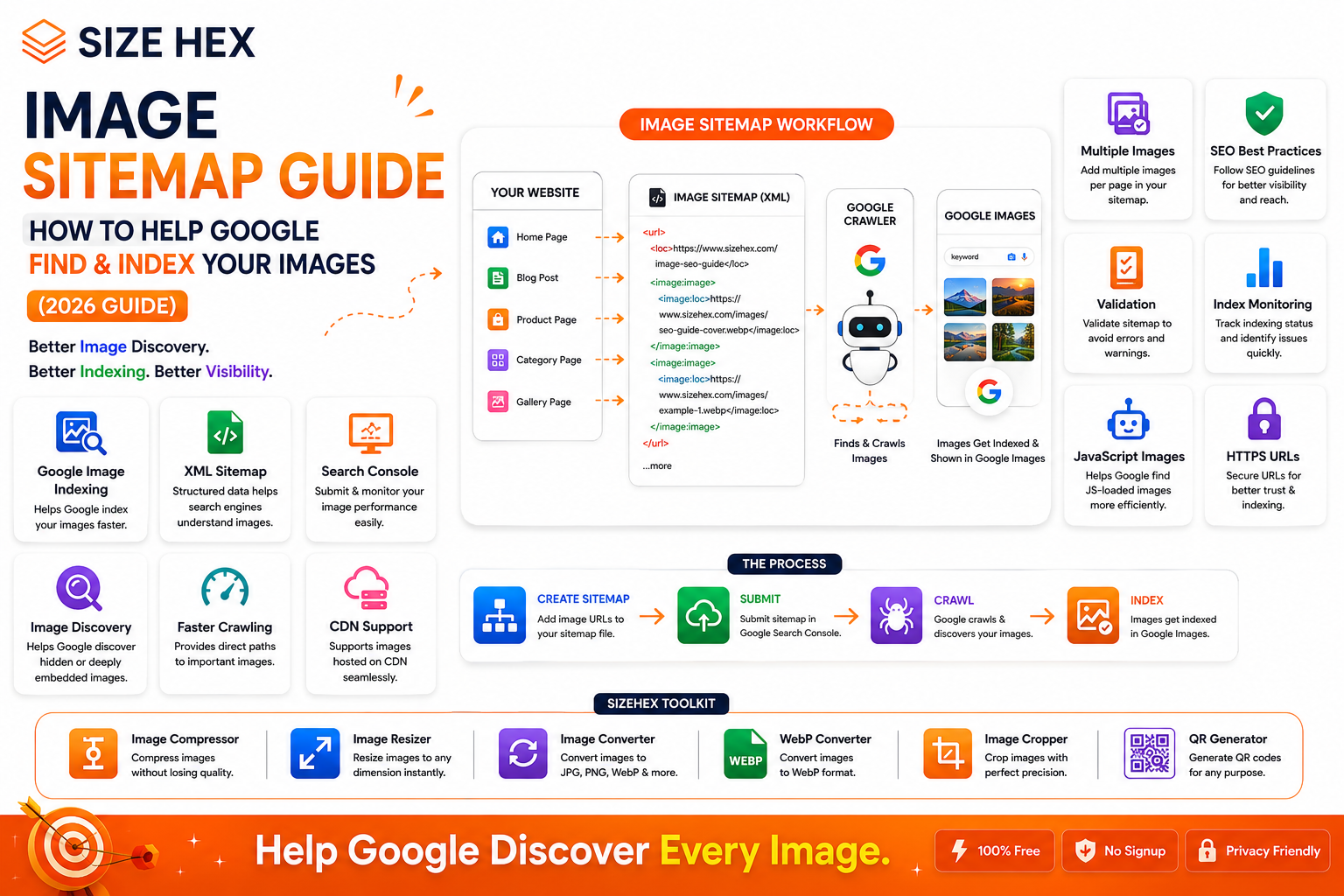
Image Sitemap Guide: How to Help Google Find & Index Your Images
Search engines discover billions of images every day, but not every image uploaded to a website gets indexed. If Google cannot easily find or understand your images, they are less likely to appear in Google Images or other search features, reducing opportunities for organic traffic.
An Image Sitemap helps solve this problem by giving search engines additional information about the images on your website. It acts like a roadmap, making it easier for Google to discover image URLs that might otherwise be missed during normal crawling.
Although Google can often find images through regular crawling, an Image Sitemap becomes especially valuable for websites with large image libraries, JavaScript-loaded content, e-commerce catalogs, galleries, or frequently updated media.
Many website owners focus on compressing images, writing alt text, and choosing the right file format but overlook image discovery. Even perfectly optimized images may not perform well if search engines never find them.
In this guide, you'll learn what an Image Sitemap is, how it works, when you should use one, and the best practices for improving image discovery and indexing in 2026.
What Is an Image Sitemap?
An Image Sitemap is a specialized XML sitemap that provides search engines with additional information about the images on your website.
It tells Google:
- Which pages contain images
- Where each image is located
- Which images belong to which webpage
- Additional metadata about images (when applicable)
Think of it as a navigation guide that helps search engines discover image content more efficiently.
Why Image Sitemaps Matter
Search engines are very good at crawling websites, but they don't always discover every image.
Some images may be:
- Loaded dynamically with JavaScript
- Hidden behind interactive elements
- Hosted on a CDN
- Added after the initial page load
- Buried deep within large websites
An Image Sitemap helps Google find these images more reliably.
How Google Discovers Images
Google primarily discovers images by crawling webpages.
It uses several signals, including:
-
HTML
<img>elements - Internal links
- Structured data
- XML sitemaps
- Image sitemaps
- Page content
- Alt text
- Canonical URLs
The more clearly these signals work together, the easier it is for Google to discover and understand your images.
Image Sitemap vs XML Sitemap
Many beginners think an Image Sitemap replaces a normal XML Sitemap.
It doesn't.
| XML Sitemap | Image Sitemap |
|---|---|
| Lists webpage URLs | Lists image information for webpages |
| Helps Google discover pages | Helps Google discover images |
| Used by all websites | Helpful for image-rich websites |
| Focuses on webpage indexing | Focuses on image discovery |
In many cases, image information is added directly inside your existing XML Sitemap rather than creating a completely separate sitemap.
Benefits of Using an Image Sitemap
Adding image information to your sitemap offers several advantages.
Better Image Discovery
Google can discover images that may otherwise be difficult to find.
Improved Image Indexing
Providing clear image information may help Google understand and process your image content more efficiently.
Better Support for Large Websites
If your website contains hundreds or thousands of images, an Image Sitemap helps organize that information for search engines.
Useful for Dynamic Websites
Modern websites often load images dynamically.
Image Sitemaps provide another way for search engines to learn about those images.
Supports Overall Image SEO
Image Sitemaps work alongside:
- Descriptive filenames
- Alt text
- Image compression
- Responsive images
- Structured data
- Fast loading pages
Together, these practices strengthen your overall image optimization strategy.
Do All Websites Need an Image Sitemap?
Not necessarily.
For a small website with only a few images that are easily discoverable through standard HTML, a regular XML Sitemap may be sufficient.
However, an Image Sitemap is especially helpful if your website includes:
- Large image galleries
- E-commerce products
- Photography portfolios
- News websites
- Travel websites
- Recipe websites
- Real estate listings
- Educational platforms
- Blogs with many images
If images are an important part of your content strategy, adding image information to your sitemap is generally a good practice.
Common Myths About Image Sitemaps
Let's clear up a few misconceptions.
Myth 1: An Image Sitemap guarantees image rankings.
Reality: No. It helps Google discover images, but rankings still depend on image quality, page relevance, and overall SEO.
Myth 2: Every website must have a separate Image Sitemap.
Reality: In many cases, you can include image information within your existing XML Sitemap instead of creating a separate file.
Myth 3: Image Sitemaps replace image optimization.
Reality: They complement other optimization efforts such as compression, descriptive filenames, alt text, and responsive design.
Myth 4: Google cannot find images without an Image Sitemap.
Reality: Google often discovers images through normal crawling. An Image Sitemap simply provides an additional discovery signal.
Myth 5: Once submitted, an Image Sitemap never needs updating.
Reality: Whenever you add, remove, or significantly change image content, your sitemap should be updated to reflect those changes.
Real-World Examples
Example 1: E-commerce Store
An online clothing store has thousands of product images.
An Image Sitemap helps Google discover new product photos more efficiently as inventory changes.
Example 2: Photography Portfolio
A photographer regularly uploads high-resolution galleries.
Including those images in an Image Sitemap improves the likelihood that Google can discover newly published work.
Example 3: Travel Blog
A travel blogger publishes destination guides with dozens of original photos.
An Image Sitemap helps search engines identify and associate those images with each article.
Example 4: SaaS Website (SizeHex)
A platform like SizeHex publishes tutorials featuring screenshots, UI illustrations, comparison charts, and blog graphics.
Adding image information to the sitemap makes it easier for search engines to discover those assets while the rest of the image SEO strategy—such as descriptive filenames, alt text, compression, and fast loading—supports overall visibility.
How Image Sitemaps Fit Into Image SEO
An Image Sitemap is only one part of a complete image optimization strategy.
For the best results, combine it with:
- High-quality original images
- SEO-friendly filenames
- Descriptive alt text
- WebP or AVIF where appropriate
- Image compression
- Responsive images
- Mobile-friendly pages
- Structured data (when relevant)
- Fast page loading
- Internal linking
Together, these elements help search engines discover, understand, and serve your images more effectively.
Key Takeaways
- An Image Sitemap helps search engines discover images on your website more efficiently.
- It is especially useful for image-rich, dynamic, or large websites.
- Image Sitemaps complement—not replace—other image SEO practices like alt text, descriptive filenames, and compression.
- They can be included within an existing XML Sitemap or maintained separately, depending on your site's setup.
- Keeping your sitemap updated supports better image discovery as your content grows.
Complete Image Sitemap Guide
Now that you understand what an Image Sitemap is and why it matters, let's learn how to create, optimize, and maintain one correctly.
An Image Sitemap helps search engines discover image content more efficiently, especially on websites with large image libraries, dynamic pages, or images hosted through a Content Delivery Network (CDN).
1. How Image Sitemaps Work
An Image Sitemap connects webpages with the images displayed on them.
Instead of crawling every image independently, Google can read the sitemap and understand:
- Which page contains the image
- Where the image file is located
- Which images belong to each webpage
Think of it as a directory that points Google toward your website's visual content.
2. Image Sitemap XML Structure
Image information is added inside the XML sitemap using image-specific tags.
A basic structure looks like this:
<?xml version="1.0" encoding="UTF-8"?>
<urlset
xmlns="http://www.sitemaps.org/schemas/sitemap/0.9"
xmlns:image="http://www.google.com/schemas/sitemap-image/1.1">

<url>
<loc>https://www.sizehex.com/image-compressor.html</loc>

<image:image>
<image:loc>
https://www.sizehex.com/images/image-compressor.webp
</image:loc>
</image:image>

</url>

</urlset>
This example tells Google that the webpage contains an image located at the specified URL.
3. Required Image Tags
Every image entry should include the following essential information.
<url>The webpage where the image appears.
<loc>The page URL.
Example
<loc>
https://www.sizehex.com/image-compressor.html
</loc>
<image:image>Contains information about the image.
<image:loc>The direct URL of the image.
Example
<image:loc>
https://www.sizehex.com/images/image-compressor.webp
</image:loc>
This is the most important image-specific element.
4. Optional Image Information
Google has simplified its Image Sitemap support over time, so the image URL is the key requirement. Some older image metadata fields may no longer provide additional value for Google Search.
Instead of focusing on deprecated tags, prioritize:
- Accurate image URLs
- Crawlable image files
- Descriptive filenames
- Relevant page content
- Helpful alt text
5. Multiple Images Per Page
One webpage can contain multiple images.
Example:
<url>

<loc>
https://www.sizehex.com/blog/image-seo-guide
</loc>

<image:image>
<image:loc>
https://www.sizehex.com/images/cover.webp
</image:loc>
</image:image>

<image:image>
<image:loc>
https://www.sizehex.com/images/example1.webp
</image:loc>
</image:image>

<image:image>
<image:loc>
https://www.sizehex.com/images/example2.webp
</image:loc>
</image:image>

</url>
This allows Google to discover every important image on the page.
6. JavaScript-Loaded Images
Modern websites often load images using JavaScript.
Although Google can render many JavaScript pages, adding those image URLs to your sitemap provides another reliable discovery signal.
Examples include:
- Lazy-loaded galleries
- Infinite scrolling
- React applications
- Vue applications
- Angular websites
7. CDN Images
Many websites serve images through a CDN.
Example:
https://cdn.example.com/images/photo.webpThat's perfectly acceptable as long as:
- Google can access the image
-
The CDN isn't blocked by
robots.txt - The image URL is stable
- The image is associated with the correct webpage
CDNs can also improve loading speed, which benefits user experience.
8. Image URL Best Practices
Use image URLs that are:
✅ Permanent
✅ Crawlable
✅ HTTPS
✅ Descriptive
Good:
https://www.sizehex.com/images/webp-converter-interface.webpPoor:
https://www.sizehex.com/images/img_89453.webpDescriptive filenames help provide additional context.
9. Keep Your Sitemap Updated
Whenever you:
- Add new pages
- Upload new images
- Delete images
- Replace featured images
your sitemap should reflect those changes.
An outdated sitemap can slow down image discovery.
10. Large Websites
Large websites often contain:
- Thousands of pages
- Hundreds of thousands of images
Automatically generating sitemaps is generally the best approach for sites of this size, ensuring new content is included as it is published.
11. E-commerce Websites
Online stores rely heavily on images.
Include:
- Product photos
- Product variations
- Lifestyle images
- Category banners
Keeping these images discoverable supports product visibility in search.
12. Blog Websites
Blogs usually contain:
- Featured images
- Infographics
- Screenshots
- Tutorials
- Comparison graphics
Adding them to your sitemap makes discovery more straightforward.
13. Portfolio Websites
Photographers, designers, and artists depend on image visibility.
Include:
- Portfolio images
- Project thumbnails
- Gallery images
- Case studies
High-quality original images can become valuable search assets.
14. Common Image Sitemap Errors
Avoid these mistakes:
❌ Broken image URLs
❌ Images blocked by robots.txt
❌ Non-HTTPS image URLs
❌ Missing webpage URLs
❌ Duplicate sitemap entries
❌ Outdated image references
❌ Images returning 404 errors
Regular maintenance helps prevent these issues.
15. Submit Your Sitemap in Google Search Console
After creating or updating your sitemap:
- Open Google Search Console.
- Select your property.
- Go to Sitemaps.
-
Enter your sitemap URL (for example,
https://www.example.com/sitemap.xml). - Submit it.
If your image information is included within your main sitemap, you don't need a separate submission.
16. Validate Your Sitemap
Before submission, verify that:
- XML syntax is correct
- URLs are valid
- Images return a 200 OK response
- No duplicate entries exist
- The sitemap is accessible
Validation helps avoid crawling problems.
17. Monitor Image Indexing
After submission, periodically monitor:
- Crawling status
- Index coverage
- Search Console reports
- Website logs (if available)
Remember that not every submitted image will necessarily be indexed.
18. Troubleshooting
If images aren't being discovered:
- Check image URLs
- Confirm images aren't blocked
- Verify HTTPS
- Ensure images appear on the page
- Improve page quality
- Review robots.txt
- Inspect the page in Google Search Console
These steps can help identify common issues.
19. Image Sitemap Best Practices
For the best results:
- Use HTTPS image URLs
- Keep image URLs permanent
- Update your sitemap regularly
- Include important images
- Use descriptive filenames
- Combine with alt text
- Compress images
- Use responsive images
- Optimize page speed
- Monitor Search Console
Image Sitemaps work best as part of a complete image SEO strategy.
Part 2 – Complete Image Sitemap Guide
Now that you understand what an Image Sitemap is and why it matters, let's learn how to create, optimize, and maintain one correctly.
An Image Sitemap helps search engines discover image content more efficiently, especially on websites with large image libraries, dynamic pages, or images hosted through a Content Delivery Network (CDN).
1. How Image Sitemaps Work
An Image Sitemap connects webpages with the images displayed on them.
Instead of crawling every image independently, Google can read the sitemap and understand:
- Which page contains the image
- Where the image file is located
- Which images belong to each webpage
Think of it as a directory that points Google toward your website's visual content.
2. Image Sitemap XML Structure
Image information is added inside the XML sitemap using image-specific tags.
A basic structure looks like this:
<?xml version="1.0" encoding="UTF-8"?>
<urlset
xmlns="http://www.sitemaps.org/schemas/sitemap/0.9"
xmlns:image="http://www.google.com/schemas/sitemap-image/1.1">

<url>
<loc>https://www.sizehex.com/image-compressor.html</loc>

<image:image>
<image:loc>
https://www.sizehex.com/images/image-compressor.webp
</image:loc>
</image:image>

</url>

</urlset>
This example tells Google that the webpage contains an image located at the specified URL.
3. Required Image Tags
Every image entry should include the following essential information.
<url>The webpage where the image appears.
<loc>The page URL.
Example
<loc> https://www.sizehex.com/image-compressor.html </loc><image:image>Contains information about the image.
<image:loc>The direct URL of the image.
Example
<image:loc>
https://www.sizehex.com/images/image-compressor.webp
</image:loc>
This is the most important image-specific element.
4. Optional Image Information
Google has simplified its Image Sitemap support over time, so the image URL is the key requirement. Some older image metadata fields may no longer provide additional value for Google Search.
Instead of focusing on deprecated tags, prioritize:
- Accurate image URLs
- Crawlable image files
- Descriptive filenames
- Relevant page content
- Helpful alt text
5. Multiple Images Per Page
One webpage can contain multiple images.
Example:
<url>

<loc>
https://www.sizehex.com/blog/image-seo-guide
</loc>

<image:image>
<image:loc>
https://www.sizehex.com/images/cover.webp
</image:loc>
</image:image>

<image:image>
<image:loc>
https://www.sizehex.com/images/example1.webp
</image:loc>
</image:image>

<image:image>
<image:loc>
https://www.sizehex.com/images/example2.webp
</image:loc>
</image:image>

</url>
This allows Google to discover every important image on the page.
6. JavaScript-Loaded Images
Modern websites often load images using JavaScript.
Although Google can render many JavaScript pages, adding those image URLs to your sitemap provides another reliable discovery signal.
Examples include:
- Lazy-loaded galleries
- Infinite scrolling
- React applications
- Vue applications
- Angular websites
7. CDN Images
Many websites serve images through a CDN.
Example:
https://cdn.example.com/images/photo.webpThat's perfectly acceptable as long as:
- Google can access the image
-
The CDN isn't blocked by
robots.txt - The image URL is stable
- The image is associated with the correct webpage
CDNs can also improve loading speed, which benefits user experience.
8. Image URL Best Practices
Use image URLs that are:
✅ Permanent
✅ Crawlable
✅ HTTPS
✅ Descriptive
Good:
https://www.sizehex.com/images/webp-converter-interface.webpPoor:
https://www.sizehex.com/images/img_89453.webpDescriptive filenames help provide additional context.
9. Keep Your Sitemap Updated
Whenever you:
- Add new pages
- Upload new images
- Delete images
- Replace featured images
your sitemap should reflect those changes.
An outdated sitemap can slow down image discovery.
10. Large Websites
Large websites often contain:
- Thousands of pages
- Hundreds of thousands of images
Automatically generating sitemaps is generally the best approach for sites of this size, ensuring new content is included as it is published.
11. E-commerce Websites
Online stores rely heavily on images.
Include:
- Product photos
- Product variations
- Lifestyle images
- Category banners
Keeping these images discoverable supports product visibility in search.
12. Blog Websites
Blogs usually contain:
- Featured images
- Infographics
- Screenshots
- Tutorials
- Comparison graphics
Adding them to your sitemap makes discovery more straightforward.
13. Portfolio Websites
Photographers, designers, and artists depend on image visibility.
Include:
- Portfolio images
- Project thumbnails
- Gallery images
- Case studies
High-quality original images can become valuable search assets.
14. Common Image Sitemap Errors
Avoid these mistakes:
❌ Broken image URLs
❌ Images blocked by robots.txt
❌ Non-HTTPS image URLs
❌ Missing webpage URLs
❌ Duplicate sitemap entries
❌ Outdated image references
❌ Images returning 404 errors
Regular maintenance helps prevent these issues.
15. Submit Your Sitemap in Google Search Console
After creating or updating your sitemap:
- Open Google Search Console.
- Select your property.
- Go to Sitemaps.
-
Enter your sitemap URL (for example,
https://www.example.com/sitemap.xml). - Submit it.
If your image information is included within your main sitemap, you don't need a separate submission.
16. Validate Your Sitemap
Before submission, verify that:
- XML syntax is correct
- URLs are valid
- Images return a 200 OK response
- No duplicate entries exist
- The sitemap is accessible
Validation helps avoid crawling problems.
17. Monitor Image Indexing
After submission, periodically monitor:
- Crawling status
- Index coverage
- Search Console reports
- Website logs (if available)
Remember that not every submitted image will necessarily be indexed.
18. Troubleshooting
If images aren't being discovered:
- Check image URLs
- Confirm images aren't blocked
- Verify HTTPS
- Ensure images appear on the page
- Improve page quality
- Review robots.txt
- Inspect the page in Google Search Console
These steps can help identify common issues.
19. Image Sitemap Best Practices
For the best results:
- Use HTTPS image URLs
- Keep image URLs permanent
- Update your sitemap regularly
- Include important images
- Use descriptive filenames
- Combine with alt text
- Compress images
- Use responsive images
- Optimize page speed
- Monitor Search Console
Image Sitemaps work best as part of a complete image SEO strategy.
20. Complete Image Sitemap Checklist
Task Status XML Sitemap Created ✅ Image URLs Added ✅ HTTPS Used ✅ Crawlable Images ✅ Descriptive File Names ✅ Multiple Images Included ✅ CDN Verified ✅ JavaScript Images Considered ✅ Sitemap Updated ✅ Search Console Submitted ✅ Sitemap Validated ✅ Image Performance Monitored ✅ Pro Tips
- Include your most important images in the sitemap, especially featured images and original graphics.
- Keep image URLs stable to avoid unnecessary reprocessing by search engines.
- Review your sitemap whenever you redesign pages or change image locations.
- Pair your Image Sitemap with descriptive alt text, fast-loading images, responsive design, and high-quality content.
- Monitor Google Search Console periodically to identify crawl or indexing issues and address them promptly.
Advanced Image Sitemap Strategies, FAQs & Publishing Checklist
You've learned what an Image Sitemap is, how it works, and how to create one correctly. In this final section, we'll explore advanced strategies, common mistakes, a practical publishing checklist, and frequently asked questions.
An Image Sitemap doesn't guarantee higher rankings by itself, but it helps search engines discover and understand your images more efficiently. Combined with strong image SEO practices, it can contribute to better visibility in Google Images and other search features.
Before Publishing Checklist
Review this checklist before publishing new content.
Images
✅ High-quality images
✅ Original images whenever possible
✅ Proper image dimensions
✅ Compressed images
SEO
✅ SEO-friendly filenames
Example:
image-sitemap-guide.webp✅ Descriptive alt text
✅ Responsive images
Sitemap
✅ Image URLs added
✅ Valid XML structure
✅ HTTPS image URLs
✅ Crawlable images
Technical SEO
✅ No broken image URLs
✅ robots.txt allows crawling
✅ Canonical URLs configured
✅ Structured data (where appropriate)
Performance
✅ Fast page loading
✅ CDN configured (if used)
✅ Mobile-friendly
✅ Core Web Vitals optimized
Advanced Image Sitemap Tips
1. Include Only Important Images
Not every decorative icon needs to be included.
Focus on:
- Featured images
- Product images
- Portfolio images
- Blog graphics
- Infographics
- Original illustrations
This helps search engines prioritize meaningful content.
2. Automate Sitemap Generation
If your website publishes content regularly, automate sitemap updates whenever new pages or images are added.
Automatic updates reduce the risk of outdated sitemap entries.
3. Keep Image URLs Stable
Avoid frequently changing image URLs.
Stable URLs help search engines maintain a consistent understanding of your content and reduce unnecessary recrawling.
4. Use Original Images
Original visuals are more valuable than generic stock photos.
Examples:
- Custom graphics
- Product photography
- Screenshots
- Tutorials
- Comparison charts
Original content supports both user engagement and image SEO.
5. Monitor Search Console
Regularly check Google Search Console for:
- Crawl issues
- Sitemap errors
- Indexed pages
- Performance reports
Monitoring helps you identify problems before they affect visibility.
6. Review Broken Images
Broken image links reduce user experience and prevent search engines from accessing your content.
Regularly audit your website to find:
- 404 images
- Missing files
- Redirect loops
- Invalid image URLs
Fix these issues promptly.
7. Combine with Complete Image SEO
Image Sitemaps work best alongside:
- Image compression
- WebP or AVIF formats
- Alt text
- Descriptive filenames
- Responsive images
- Structured data
- Fast hosting
- Internal linking
Together, these practices create a stronger image SEO strategy.
Common Image Sitemap Mistakes
Avoid these common errors.
❌ Forgetting to update the sitemap
❌ Using broken image URLs
❌ Blocking images with robots.txt
❌ Including deleted images
❌ Missing HTTPS
❌ Duplicate sitemap entries
❌ Ignoring Search Console warnings
❌ Uploading oversized images
❌ Weak image SEO
❌ Poor page quality
Frequently Asked Questions (FAQ)
1. What is an Image Sitemap?
An Image Sitemap is an XML sitemap that helps search engines discover the images associated with your webpages.
2. Is an Image Sitemap required?
No. Many websites perform well without one, but it can be especially helpful for image-rich or dynamic sites.
3. Does an Image Sitemap improve rankings?
Not directly. It improves image discovery, while rankings still depend on content quality, relevance, and overall SEO.
4. Can I use my existing XML Sitemap?
Yes. In many cases, image information can be included within your existing XML Sitemap instead of creating a separate file.
5. How often should I update my Image Sitemap?
Update it whenever you add, remove, or significantly change images or webpages.
6. Can one page contain multiple images?
Yes. A single webpage can include multiple image entries in the sitemap.
7. Do CDN-hosted images work?
Yes. As long as the images are publicly accessible and crawlable.
8. Are WebP images supported?
Yes. Google supports modern image formats such as WebP and AVIF when they are properly served.
9. Does Google crawl every image?
Google attempts to discover images, but not every image will necessarily be crawled or indexed.
10. Should I include logos?
If a logo is an important image on your site, it can be included, but prioritize meaningful content images first.
11. Can JavaScript images be indexed?
Yes. Google can render many JavaScript-based pages, but including image URLs in your sitemap can provide an additional discovery signal.
12. How do I know if my images are indexed?
Use Google Search Console to monitor indexing and performance. You can also use the URL Inspection tool for individual pages.
13. What happens if my sitemap has errors?
Errors may prevent Google from processing parts of the sitemap correctly, so validate your sitemap and resolve reported issues.
14. Does an Image Sitemap replace alt text?
No. Image Sitemaps and alt text serve different purposes and should be used together.
15. Is an Image Sitemap enough for Image SEO?
No. It should be combined with image compression, descriptive filenames, responsive design, accessibility, and high-quality content.
Conclusion
An Image Sitemap is an effective way to help search engines discover the important images on your website. While it doesn't guarantee rankings or indexing, it complements a strong image SEO strategy by making your visual content easier to find and understand.
For the best results, keep your sitemap accurate and up to date, use descriptive filenames, write meaningful alt text, optimize image performance, and regularly review your site in Google Search Console. Together, these practices create a solid foundation for long-term image visibility.
Why Choose SizeHex?
SizeHex provides simple, fast, and privacy-friendly tools to optimize your images before publishing.
Features
- Compress images without noticeable quality loss
- Resize images for websites and social media
- Convert between JPG, PNG, WebP, AVIF, GIF, BMP, and TIFF
- Crop images with precision
- Browser-based processing
- No software installation required
- Free and easy to use
Whether you're a blogger, developer, marketer, photographer, or business owner, SizeHex helps streamline your image optimization workflow.
Related Tools
Image Compressor
Reduce image file size while preserving quality.
Image Resizer
https://www.sizehex.com/image-resizer.html
Resize images for websites and social media.
Image Converter
https://www.sizehex.com/image-converter.html
Convert images between popular formats.
WebP Converter
https://www.sizehex.com/webp-converter.html
Create efficient WebP images for faster websites.
Image Cropper
https://www.sizehex.com/image-crop.html
Crop images to the perfect dimensions.
QR Generator
Generate QR codes for websites, products, and marketing campaigns.