July 29, 2026
WebP SEO Guide: Benefits, Best Practices & Common Mistakes (2026 Guide)
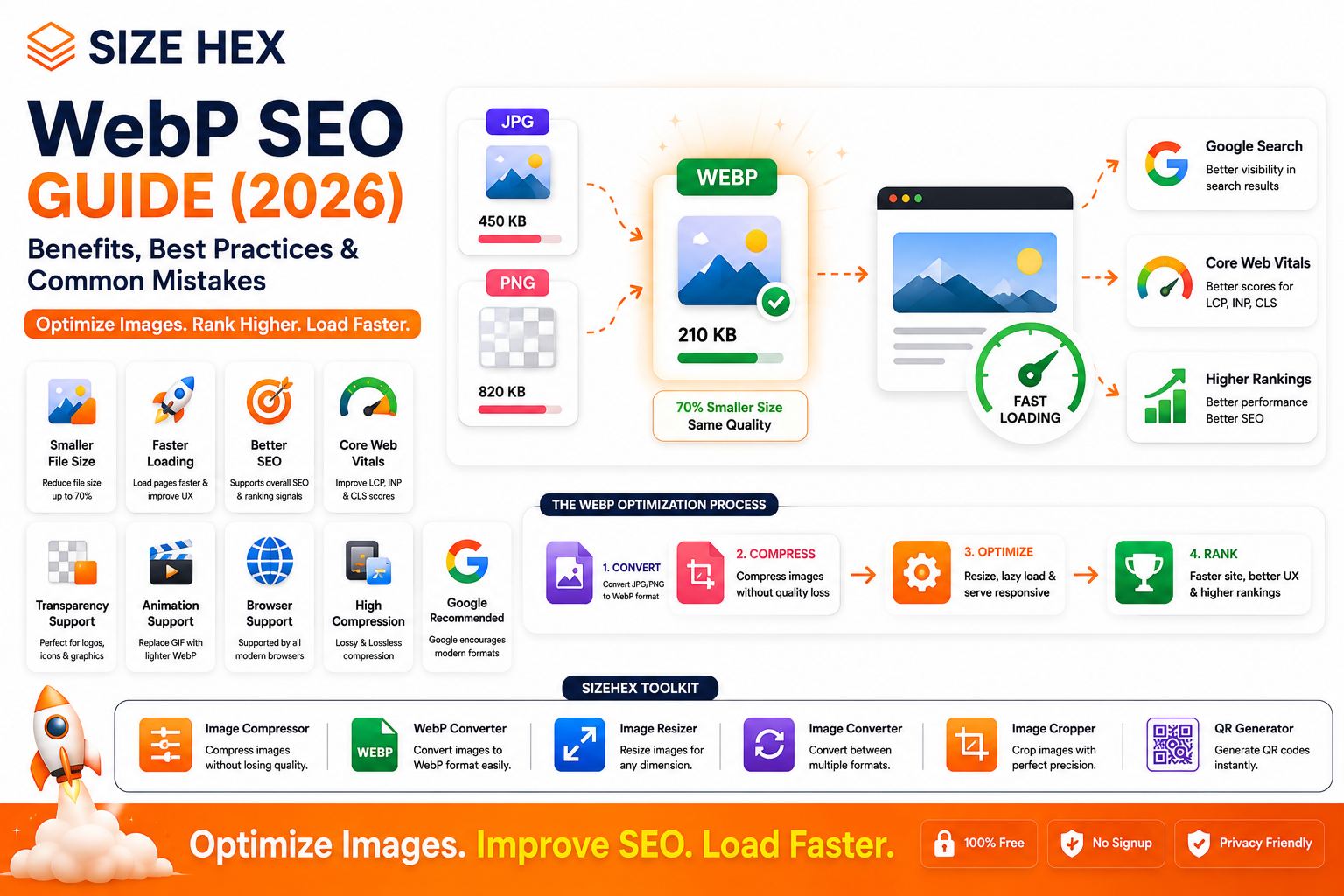
WebP SEO Guide: Benefits, Best Practices & Common Mistakes (2026)
Website speed has become one of the most important factors for delivering a great user experience. Whether you run a blog, an e-commerce store, a portfolio, or a SaaS platform, visitors expect pages to load almost instantly. Slow-loading images are often one of the biggest reasons websites feel sluggish.
Traditional image formats like JPG and PNG have served the web for years, but modern websites need more efficient solutions. That's where WebP comes in.
Developed by Google, WebP is a next-generation image format designed to reduce file sizes while maintaining excellent visual quality. Smaller image files mean faster loading pages, lower bandwidth usage, and a better browsing experience across desktop and mobile devices.
While using WebP alone won't automatically boost your Google rankings, it can improve important performance metrics such as page speed and Core Web Vitals. These improvements enhance user experience and support a stronger overall SEO strategy.
In this guide, you'll learn what WebP is, how it works, why it matters for SEO, how it compares with other image formats, and when you should use it in 2026.
What Is WebP?
WebP is a modern image format developed by Google that provides efficient compression for images without sacrificing visual quality.
It supports:
- Lossy compression
- Lossless compression
- Transparency (Alpha Channel)
- Animation
This makes WebP a flexible replacement for several traditional image formats.
Instead of using separate formats like JPG for photos, PNG for transparency, and GIF for animations, WebP can handle all of these use cases in a single modern format.
History of WebP
Google introduced WebP in 2010 as part of its effort to make the web faster.
The project was based on technology from the VP8 video codec and aimed to reduce image sizes while preserving quality.
Over the years:
- Browser support expanded significantly.
- Website builders and CMS platforms adopted WebP.
- CDNs began converting images automatically.
- Image editing software added export support.
- Search engines recognized WebP as a modern image format.
Today, WebP is widely supported across major browsers and is commonly used on performance-focused websites.
Why Google Created WebP
Images account for a large percentage of webpage data.
Larger images result in:
- Slower loading pages
- Higher bandwidth consumption
- Poor mobile performance
- Increased hosting costs
- Lower user satisfaction
Google created WebP to address these challenges by offering:
- Smaller file sizes
- High visual quality
- Faster downloads
- Better mobile experiences
- Improved website performance
The goal wasn't just to create another image format—it was to help make the web faster for everyone.
How WebP Works
WebP uses advanced compression techniques to reduce image size while preserving visual detail.
Depending on your needs, WebP supports two compression methods:
Lossy Compression
Lossy compression removes some image data that is less noticeable to the human eye.
Benefits include:
- Much smaller file sizes
- Faster page loading
- Ideal for photographs
- Excellent balance between quality and size
Lossless Compression
Lossless compression preserves all original image data.
Benefits include:
- No quality loss
- Perfect for graphics
- Suitable for screenshots
- Great for logos and UI elements
Because WebP supports both methods, it works well for a wide range of image types.
Why WebP Matters for SEO
Search engines aim to provide users with fast, high-quality websites.
Although WebP itself is not a direct ranking factor, it contributes to several aspects that support SEO.
Using WebP can help by:
- Reducing image file sizes
- Improving page load speed
- Supporting better Core Web Vitals
- Lowering bandwidth usage
- Enhancing mobile performance
- Improving user experience
- Reducing bounce rates caused by slow-loading pages
When combined with good content, proper image optimization, descriptive alt text, and responsive design, WebP becomes an important part of a complete image SEO strategy.
WebP vs JPG
| Feature | WebP | JPG |
|---|---|---|
| File Size | Smaller | Larger |
| Compression | Better efficiency | Standard |
| Transparency | ✅ Yes | ❌ No |
| Animation | ✅ Yes | ❌ No |
| SEO Benefits | Better performance | Good but less efficient |
| Best For | Modern websites | Photography compatibility |
For most modern websites, WebP provides better performance while maintaining similar visual quality.
WebP vs PNG
| Feature | WebP | PNG |
|---|---|---|
| File Size | Much Smaller | Larger |
| Transparency | ✅ Yes | ✅ Yes |
| Lossless Support | ✅ Yes | ✅ Yes |
| Loading Speed | Faster | Slower |
| Website Performance | Better | Moderate |
PNG remains useful for certain workflows, but WebP often delivers similar quality with significantly smaller file sizes.
WebP vs AVIF
| Feature | WebP | AVIF |
|---|---|---|
| Compression | Excellent | Often Better |
| Browser Support | Excellent | Growing |
| Encoding Speed | Faster | Slower |
| Compatibility | Very High | Good |
| Best Choice | Most websites | Maximum compression |
AVIF can achieve even smaller file sizes in many cases, but WebP currently offers a strong balance of performance, compatibility, and ease of adoption.
Browser Support
One of the biggest concerns website owners have is compatibility.
The good news is that WebP is supported by all major modern browsers, including:
- Google Chrome
- Microsoft Edge
- Mozilla Firefox
- Safari
- Opera
- Android Browser
Most users today can view WebP images without any additional configuration.
Common Myths About WebP
Let's clear up a few misconceptions.
Myth 1: WebP automatically improves SEO rankings.
Reality: WebP supports SEO by improving performance, but rankings depend on many factors such as content quality, relevance, backlinks, and overall user experience.
Myth 2: WebP always has lower quality.
Reality: Properly optimized WebP images often look nearly identical to JPG or PNG while using much smaller file sizes.
Myth 3: Every image should be converted to WebP.
Reality: While WebP is a great choice for most web images, always test image quality and consider your audience and workflow before converting everything.
Myth 4: WebP replaces all image formats.
Reality: Different formats still have their place. For example, AVIF may offer higher compression in some scenarios, while SVG remains the preferred choice for vector graphics.
Myth 5: WebP is only useful for photographers.
Reality: WebP benefits blogs, e-commerce websites, SaaS platforms, educational sites, portfolios, news websites, and many other types of websites.
Real-World Examples
Example 1: E-commerce Website
An online fashion store converts thousands of product images from JPG to WebP.
The result:
- Faster product pages
- Reduced bandwidth usage
- Better mobile browsing experience
Example 2: Travel Blog
A travel blogger publishes high-resolution destination photos in WebP format.
Readers experience faster loading galleries, especially on mobile networks.
Example 3: News Website
A news portal serves WebP versions of article images.
Smaller files help pages load more quickly during traffic spikes.
Example 4: SaaS Website (SizeHex)
A platform like SizeHex uses WebP for blog featured images, tool previews, UI screenshots, and tutorials.
Combined with image compression, descriptive filenames, responsive images, and lazy loading, WebP helps improve performance while maintaining excellent visual quality.
Key Takeaways
- WebP is a modern image format developed by Google to improve website performance.
- It supports both lossy and lossless compression, along with transparency and animation.
- Smaller image sizes contribute to faster page loading and a better user experience.
- WebP supports an overall SEO strategy by improving performance metrics, though it is not a direct ranking factor.
- It is widely supported across modern browsers and is an excellent choice for most websites in 2026.
- Combining WebP with compression, responsive images, descriptive alt text, and lazy loading creates a stronger image optimization strategy.
Part 2 – Complete WebP SEO Guide
Now that you understand what WebP is and why it matters, let's learn how to use it effectively to improve website performance and support your overall SEO strategy.
1. How WebP Improves Website Speed
Images usually account for the largest portion of a webpage's total size.
Large images lead to:
- Slower page loads
- Increased bandwidth usage
- Higher bounce rates
- Poor mobile performance
WebP reduces image file sizes while maintaining high visual quality.
Smaller images mean:
- Faster downloads
- Faster rendering
- Better user experience
- Reduced server bandwidth
Example:
Format File Size JPG 450 KB PNG 820 KB WebP 210 KB Although results vary by image, WebP often provides significant savings compared to traditional formats.
2. Impact on Core Web Vitals
Google's Core Web Vitals measure real-world user experience.
WebP helps improve important metrics such as:
Largest Contentful Paint (LCP)
Large hero images are often the LCP element.
Using WebP reduces download time, helping the main content appear faster.
Interaction to Next Paint (INP)
Smaller images reduce network activity, allowing browsers to respond more efficiently during user interactions.
Cumulative Layout Shift (CLS)
CLS is improved by specifying image dimensions.
WebP itself doesn't prevent layout shifts, but using proper width and height attributes alongside optimized images creates a more stable page.
3. Better User Experience
Visitors appreciate fast websites.
Benefits include:
- Faster loading pages
- Less waiting
- Smoother scrolling
- Better mobile browsing
- Improved engagement
- Lower bounce rates
A better experience encourages users to stay longer and interact more with your content.
4. Lossy vs Lossless WebP
WebP offers two compression modes.
Lossy WebP
Best for:
- Blog images
- Photographs
- Product photos
- Travel websites
- News articles
Advantages:
- Smaller file sizes
- Excellent visual quality
- Faster loading
Lossless WebP
Best for:
- Logos
- Screenshots
- UI graphics
- Technical diagrams
- Illustrations
Advantages:
- No quality loss
- Sharp edges
- Perfect text rendering
Choose the mode that matches your content.
5. Transparency Support
Unlike JPG, WebP supports transparent backgrounds.
Ideal for:
- Logos
- Icons
- Stickers
- UI components
- Product cut-outs
This makes WebP a strong replacement for many PNG images.
6. Animation Support
WebP also supports animated images.
Instead of using GIF files, many websites now use animated WebP because it generally provides:
- Smaller file sizes
- Better quality
- Faster loading
Suitable for:
- Tutorials
- Product demos
- Small animations
- UI interactions
7. Converting Images to WebP
You can convert:
- JPG → WebP
- PNG → WebP
- TIFF → WebP
- BMP → WebP
Before converting:
- Keep a backup of the original image.
- Compare visual quality after conversion.
- Avoid repeatedly converting the same image between formats, as this can reduce quality.
8. Best Compression Settings
There is no universal compression level for every image.
General recommendations:
Photographs
- Medium to high compression
- Preserve important details
Logos
- Lossless mode
- Maximum sharpness
Screenshots
- Lossless mode
- Crisp text
Blog Images
- Balanced compression
- Optimized for fast loading and good visual quality
Always preview the result before publishing.
9. Responsive WebP Images
Visitors use:
- Smartphones
- Tablets
- Laptops
- Desktop monitors
Serving the same large image to every device wastes bandwidth.
Responsive images deliver different image sizes based on the visitor's screen size, improving performance without sacrificing quality.
10. Lazy Loading
Lazy loading delays image downloads until they are needed.
Instead of loading every image immediately, the browser loads images as users scroll.
Benefits include:
- Faster initial page load
- Reduced bandwidth usage
- Better mobile experience
- Improved perceived performance
Combine lazy loading with WebP for even better results.
11. CDN Optimization
A Content Delivery Network (CDN) stores copies of your images on servers around the world.
Benefits include:
- Faster delivery
- Reduced latency
- Improved global performance
- Lower server load
Many CDNs can automatically serve WebP images to supported browsers while providing fallback formats when necessary.
12. Mobile Performance
Most internet users browse on mobile devices.
WebP helps by:
- Reducing download sizes
- Loading pages faster on slower networks
- Saving mobile data
- Improving browsing experience
This is especially valuable for users on 3G, 4G, or congested networks.
13. WordPress Support
Most modern WordPress installations support WebP.
Many themes, optimization plugins, and image optimization services can:
- Upload WebP images
- Convert existing images
- Serve WebP automatically
- Generate responsive image versions
Always test your site after enabling WebP to ensure images display correctly.
14. Google Search Console
Google Search Console doesn't report WebP usage directly, but it can help you monitor the impact of your optimization efforts.
Look for improvements in:
- Page Experience
- Core Web Vitals
- Crawl reports
- Indexed pages
- Search performance
Combine these insights with PageSpeed Insights and Lighthouse for a complete performance review.
15. Common SEO Mistakes
Avoid these common errors.
❌ Converting images without checking quality
❌ Using oversized WebP images
❌ Missing alt text
❌ Poor filenames
❌ No responsive images
❌ Forgetting width and height attributes
❌ Ignoring lazy loading
❌ Blocking images in
robots.txt❌ Removing original backups
❌ Not testing across browsers
16. WebP Best Practices
Follow these recommendations:
- Compress images before uploading.
- Use descriptive filenames.
- Write meaningful alt text.
- Specify image dimensions.
- Enable lazy loading.
- Use responsive images.
- Serve images over HTTPS.
- Keep originals as backups.
- Test visual quality.
- Monitor performance regularly.
17. Testing WebP
After converting images, verify that:
- Images display correctly.
- File sizes are reduced.
- Quality remains acceptable.
- Pages load quickly.
- Mobile experience is smooth.
- Browser compatibility is maintained.
Regular testing helps maintain a high-quality website.
18. Migration Strategy
If you're switching an existing website to WebP:
- Audit your current images.
- Identify high-traffic pages.
- Convert images gradually.
- Test quality and performance.
- Update image references where needed.
- Monitor analytics and Search Console.
- Keep backups until you're confident in the migration.
A phased approach minimizes risk.
19. Troubleshooting
If WebP images aren't working properly:
- Check image paths.
- Confirm server support.
- Verify MIME types.
- Clear caches.
- Review CDN settings.
- Test on multiple browsers.
- Ensure fallback formats are available if needed.
These checks resolve most common issues.
20. Complete WebP SEO Checklist
Task Status Images Converted to WebP ✅ Compression Optimized ✅ Visual Quality Verified ✅ Responsive Images Used ✅ Lazy Loading Enabled ✅ Width & Height Set ✅ Alt Text Added ✅ Descriptive Filenames ✅ HTTPS Enabled ✅ CDN Configured (if used) ✅ Performance Tested ✅ Core Web Vitals Reviewed ✅
Pro Tips
- Use WebP for most photographs and blog images to reduce file sizes.
- Choose lossless WebP for logos, screenshots, and graphics that require maximum sharpness.
- Combine WebP with responsive images and lazy loading for the best performance.
- Regularly review Core Web Vitals and PageSpeed Insights to measure the impact of your optimizations.
- Remember that WebP is part of a broader image SEO strategy—quality content, accessibility, descriptive alt text, and fast hosting are equally important.
Advanced WebP SEO Strategies, FAQs & Publishing Checklist
You've learned what WebP is, how it works, and how to use it effectively. In this final section, we'll cover advanced optimization strategies, common mistakes, frequently asked questions, and a practical checklist to help you get the most out of WebP in 2026.
Remember, WebP is not a magic SEO solution. It works best when combined with high-quality content, responsive images, descriptive alt text, fast hosting, and a well-optimized website.
Before Publishing Checklist
Before publishing a page with WebP images, review the following checklist.
Images
✅ High-quality original images
✅ Correct image dimensions
✅ WebP format
✅ Proper compression
SEO
✅ Descriptive filenames
Example:
webp-seo-guide.webp✅ Meaningful alt text
✅ Responsive images
Performance
✅ Lazy loading enabled
✅ Width and height attributes specified
✅ Browser compatibility verified
Technical SEO
✅ HTTPS enabled
✅ Images crawlable
✅ XML Sitemap updated
✅ No broken image URLs
Testing
✅ Mobile tested
✅ Desktop tested
✅ PageSpeed Insights checked
✅ Core Web Vitals reviewed
Advanced WebP Optimization Tips
1. Convert Hero Images First
Large hero banners usually have the biggest impact on loading speed.
Optimizing these images first often provides noticeable performance improvements.
2. Use Responsive Images
Don't serve large desktop images to mobile devices.
Responsive images help deliver appropriately sized files for each screen.
Benefits include:
- Faster loading
- Less bandwidth
- Better user experience
3. Keep Original Files
Always store:
- Original JPG
- Original PNG
- Original PSD
- Original AI
Generate WebP versions from the originals whenever updates are needed.
4. Compress Before Uploading
Even WebP images should be optimized.
Avoid uploading unnecessarily large images.
Instead:
- Resize
- Compress
- Export
- Upload
5. Use Lazy Loading
Only load images when users need them.
This reduces:
- Initial page weight
- Server requests
- Mobile data usage
6. Optimize Featured Images
Blog featured images appear in:
- Homepage
- Category pages
- Search pages
- Related posts
Optimizing these images improves loading across multiple pages.
7. Monitor Performance
Regularly review:
- PageSpeed Insights
- Lighthouse
- Core Web Vitals
- Google Search Console
Performance should be monitored continuously as your site grows.
Common WebP Mistakes
Avoid these common issues.
❌ Using WebP for every possible asset without testing
❌ Excessive compression causing visible quality loss
❌ Missing alt text
❌ Oversized dimensions
❌ Forgetting responsive images
❌ Not specifying image width and height
❌ Ignoring mobile optimization
❌ Not updating the sitemap after adding important images
❌ Forgetting browser compatibility testing
❌ Deleting original image files
Frequently Asked Questions (FAQ)
1. What is WebP?
WebP is a modern image format developed by Google that provides efficient lossy and lossless compression for web images.
2. Does WebP improve SEO?
Not directly. WebP improves website performance, which supports a better user experience and complements an overall SEO strategy.
3. Is WebP better than JPG?
For most web use cases, WebP offers similar visual quality with significantly smaller file sizes than JPG.
4. Is WebP better than PNG?
For many web graphics, yes. WebP supports transparency while often producing much smaller files than PNG.
5. Should every image be WebP?
Not necessarily. Test quality and choose the format that best fits the image and your workflow.
6. Can WebP replace GIF?
Yes, WebP supports animation and often provides better compression than GIF.
7. Is WebP supported by browsers?
Yes. All major modern browsers support WebP.
8. Does WebP reduce bandwidth?
Yes. Smaller image files reduce the amount of data transferred to visitors.
9. Does WebP improve Core Web Vitals?
It can contribute by reducing image download sizes, especially for large images that affect loading performance.
10. Does Google recommend WebP?
Google encourages using modern image formats like WebP and AVIF where appropriate to improve web performance.
11. Can I convert PNG to WebP?
Yes. PNG images can be converted to WebP while preserving transparency when needed.
12. Can I convert JPG to WebP?
Yes. This is one of the most common uses of WebP and often results in substantial file size savings.
13. Is WebP suitable for e-commerce?
Yes. Product images, banners, and category thumbnails are common candidates for WebP optimization.
14. Can WebP improve mobile speed?
Yes. Smaller image files reduce download times, especially on slower mobile connections.
15. Which tool should I use to convert images?
Use a reliable converter that preserves quality while reducing file size. For example, SizeHex WebP Converter offers a simple browser-based workflow.
Conclusion
WebP has become one of the most practical image formats for modern websites. By reducing image file sizes without significantly affecting visual quality, it helps improve loading speed, supports Core Web Vitals, and enhances the overall browsing experience.
While WebP is not a direct Google ranking factor, faster websites often provide a better experience for users. Combined with descriptive alt text, responsive images, proper compression, and high-quality content, WebP is an important part of a complete image SEO strategy.
Whether you're running a blog, an online store, a portfolio, or a SaaS platform, adopting WebP can help you deliver faster pages and a smoother experience across devices.
Why Choose SizeHex?
SizeHex makes image optimization simple, fast, and privacy-friendly.
Features
- Convert JPG, PNG, BMP, TIFF, and GIF to WebP
- Compress images without noticeable quality loss
- Resize images for websites and social media
- Crop images with precision
- Browser-based processing
- No software installation required
- Free and easy to use
Whether you're a blogger, developer, designer, marketer, or business owner, SizeHex helps you optimize images quickly while maintaining excellent quality.
Related Tools
Image Compressor
Compress images while maintaining quality.
WebP Converter
https://www.sizehex.com/webp-converter.html
Convert images to efficient WebP format.
Image Resizer
https://www.sizehex.com/image-resizer.html
Resize images for every device.
Image Converter
https://www.sizehex.com/image-converter.html
Convert between popular image formats.
Image Cropper
https://www.sizehex.com/image-crop.html
Crop images with precision.
QR Generator
https://www.sizehex.com/qr-generator.html
Generate QR codes instantly.