October 23, 2026
How to Convert PDF to Word Without Losing Formatting (Complete Guide 2026)
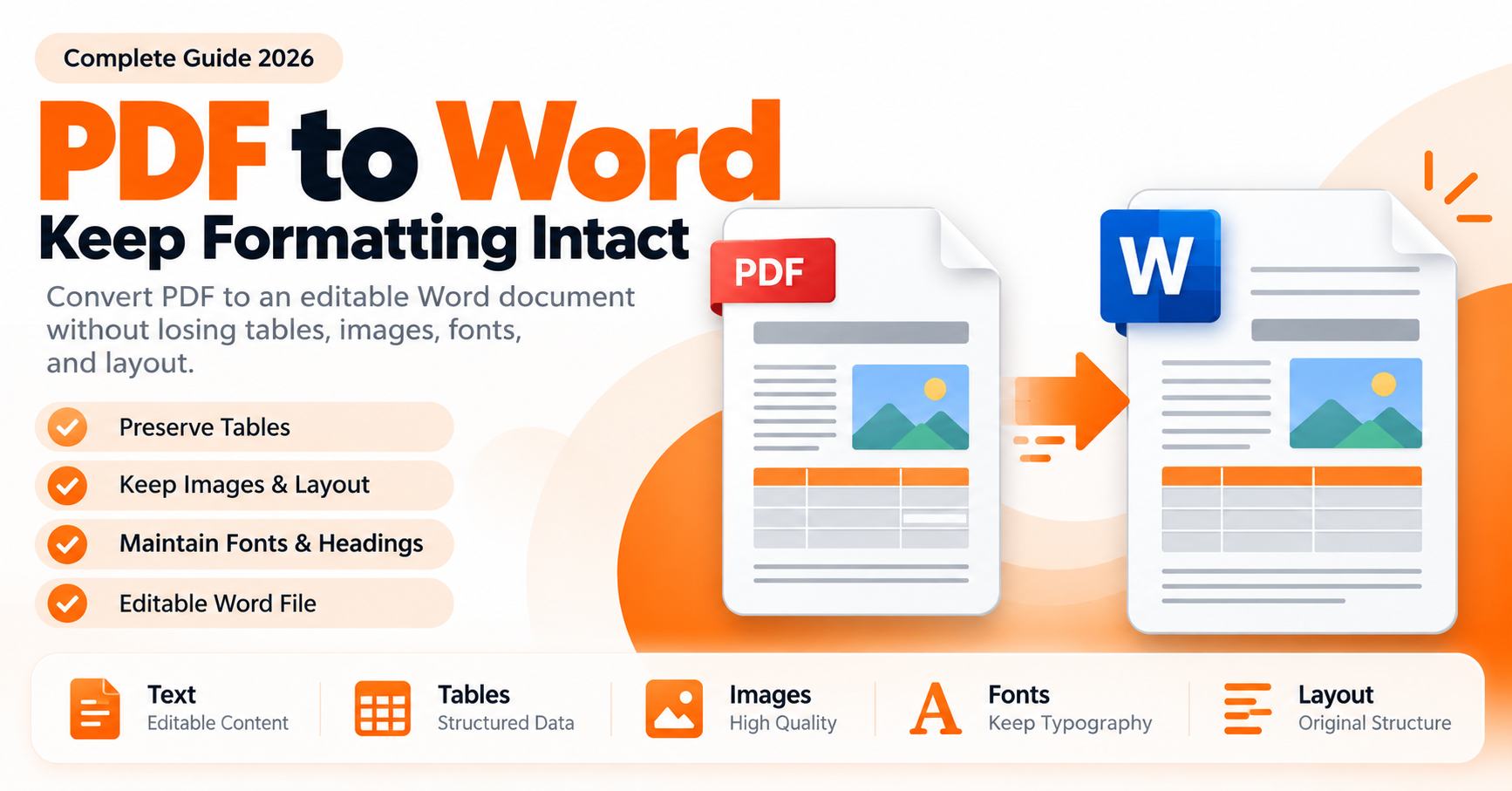
How to Convert PDF to Word Without Losing Formatting
PDF files are useful for sharing documents because they help preserve a consistent layout across devices. However, editing a PDF can be difficult when you need to update a paragraph, correct a spelling mistake, change a table, or reuse information in another document.
Converting a PDF into a Microsoft Word document makes editing easier, but the conversion does not always preserve the original formatting. Fonts may change, tables can shift, images may move, and line breaks can appear in unexpected places.
The good news is that understanding how PDF conversion works can help you avoid many of these problems.
In this guide, you will learn how to convert PDF files into editable Word documents, preserve important formatting, handle scanned documents, troubleshoot common conversion errors, and check the final document before using it.
Part 1: Understanding PDF to Word Conversion
1. What Is PDF to Word Conversion?
PDF to Word conversion is the process of transforming a Portable Document Format (PDF) file into an editable Word document, usually in DOCX format.
A PDF is designed primarily to preserve how a document looks. A Word document, by comparison, is designed for editing and rearranging content.
During conversion, software attempts to interpret the PDF's text, fonts, paragraphs, tables, images, and layout and reconstruct them as editable document elements.
The accuracy of this process depends on how the original PDF was created.
For example:
A PDF exported directly from a word processor may convert relatively cleanly.
A PDF containing complex columns may require manual adjustments.
A scanned PDF may need Optical Character Recognition (OCR).
A PDF with unusual fonts may display differently on another computer.
Conversion quality therefore depends on the original file, the conversion technology, and the complexity of the layout.
2. Why Does PDF Formatting Change After Conversion?
PDF and Word documents represent page layouts differently. A PDF can position text and graphics at specific coordinates, whereas Word typically reconstructs content using paragraphs, styles, tables, and flowing text.
Several issues can occur during conversion.
Font substitution: If the original font is unavailable or cannot be reproduced correctly, Word may substitute another font. This can change line lengths and page breaks.
Table misalignment: Tables with merged cells, narrow columns, or complex borders may not convert accurately.
Image movement: Images may become floating objects or shift relative to the surrounding text.
Paragraph and line-break problems: Text that appears to be one paragraph in the PDF may be reconstructed as several separate lines.
Header and footer changes: Page numbers, headers, footers, and footnotes may need adjustments.
Multi-column layouts: Newsletters, brochures, and magazines can be particularly difficult to convert because reading order may not match the visual layout.
Understanding these limitations helps you identify which parts of the converted document need attention.
3. How to Prepare a PDF Before Converting It
A few simple checks can improve the conversion process.
Open the PDF and confirm that it displays correctly.
Check whether you can select and copy its text.
Identify whether the document contains tables, images, columns, or special fonts.
Check whether the file is password-protected or restricted.
Keep an unchanged copy of the original PDF.
Determine whether the document contains confidential information before uploading it to an online service.
If you can select individual words in the PDF, it probably contains a text layer. If every page behaves like a photograph, it may be a scanned document that requires OCR.
Do not assume that every PDF can be converted into a perfectly editable Word document automatically.
4. How to Convert PDF to Word Step by Step
The exact steps depend on the conversion tool you choose, but the general workflow is similar.
Step 1: Select your PDF file
Choose the document you want to convert. Confirm that you have selected the correct file, especially when working with multiple versions.
Step 2: Start the conversion
Upload or open the PDF using a suitable PDF-to-Word conversion tool. Follow the tool's instructions to begin converting the document.
Step 3: Download the Word document
When conversion finishes, save the resulting DOCX file to your device.
Step 4: Open the converted file
Open the DOCX document in Microsoft Word or another compatible word processor.
Step 5: Review the formatting
Compare the Word document with the original PDF. Check headings, paragraphs, tables, images, page numbers, and spacing.
Step 6: Make necessary corrections
Fix any misplaced images, broken tables, incorrect line breaks, or substituted fonts before sharing the document.
The conversion is complete only when the resulting document is usable for your intended purpose.
5. How to Preserve Fonts, Images, and Tables
If formatting matters, review each important element separately rather than checking only the first page.
Fonts and headings
Use fonts that are available in your editing environment.
Check heading sizes and paragraph spacing.
Review bold, italic, and underlined text.
Confirm that page breaks still occur in sensible places.
Images and graphics
Check whether images remain in the correct positions.
Confirm that images have not been stretched or cropped unexpectedly.
Inspect diagrams, logos, and screenshots at their intended size.
Tables
Check column widths and row heights.
Review merged cells and borders.
Confirm that numbers remain in the correct columns.
Verify that long tables continue across pages sensibly.
Headers and footers
Check page numbers.
Review document titles and dates.
Confirm that repeating headers and footers remain consistent.
For documents containing contracts, reports, financial tables, or academic formatting, a careful final review is especially important.
Part 2: Scanned PDFs, Troubleshooting, and Document Quality
6. How to Convert a Scanned PDF to Word
A scanned PDF often contains photographs of printed pages rather than selectable text. A standard conversion process cannot always reconstruct editable paragraphs from these images.
This is where Optical Character Recognition, or OCR, becomes useful.
OCR analyzes the shapes of characters in an image and attempts to identify the corresponding text.
A typical workflow is:
Open the scanned PDF using a tool that supports OCR.
Select the appropriate document language when the option is available.
Run text recognition.
Export or convert the recognized content to Word.
Review the output for recognition errors.
Correct the text and restore formatting where necessary.
OCR accuracy can be affected by low image resolution, skewed pages, poor contrast, handwriting, unusual fonts, and complex page layouts.
For example, OCR may confuse the number 0 with the letter O, or the number 1 with the letter I. These errors can be especially serious in identification numbers, formulas, and financial documents.
Always proofread OCR output before relying on it.
7. How to Fix Common PDF to Word Conversion Problems
Problem: The text appears in the wrong order
This can happen when a PDF contains multiple columns, sidebars, or text positioned independently.
What to do: Review the reading order, reorganize paragraphs, and remove unnecessary line breaks.
Problem: Tables are broken
Complex tables may be reconstructed as separate text blocks.
What to do: Rebuild the affected table in Word when necessary. Confirm that values remain in the correct rows and columns.
Problem: The document has too many pages
Font substitutions, different margins, or changed paragraph spacing can increase page count.
What to do: Compare page size, margins, fonts, paragraph spacing, and line spacing with the original.
Problem: Images have moved
The conversion process may change image anchoring or text wrapping.
What to do: Adjust image placement and wrapping settings in the Word document.
Problem: The converted document contains incorrect characters
This often happens with scanned PDFs or unusual fonts.
What to do: Use OCR with an appropriate language setting and proofread the result.
Problem: The output is not editable
The converted document may contain full-page images rather than editable text.
What to do: Check whether OCR is required. If the document is image-based, simply changing its file format will not make its text editable.
8. Can You Convert PDF to Word on a Mobile Phone?
Yes. Many PDF conversion services and document applications work on mobile browsers or mobile devices.
A typical mobile workflow is:
Open the conversion service in your browser.
Select the PDF from your device or supported cloud storage.
Start the conversion.
Download the resulting Word file.
Open it in a compatible document editor.
Review the layout before sharing or editing further.
Large documents may take longer to process, and mobile screens can make formatting problems harder to notice.
For documents containing detailed tables or multiple columns, reviewing the result on a larger screen may be helpful.
9. Is Online PDF to Word Conversion Safe?
Online conversion can be convenient, but you should consider the sensitivity of the document before uploading it.
A PDF may contain personal information, financial records, business contracts, private correspondence, or confidential company data.
Before using an online service:
Read its privacy policy.
Understand how uploaded files are processed and retained.
Check whether files are deleted automatically and under what conditions.
Avoid uploading sensitive documents to services you do not trust.
Use an approved offline workflow when organizational policies require it.
Remove unnecessary sensitive information when appropriate and permitted.
Do not assume that a service is private merely because it is free or easy to use.
10. Is PDF to Word Conversion Free?
Some conversion tools offer free usage, while others provide limited free conversions, file-size restrictions, or paid plans.
Before choosing a service, check:
Whether conversion requires registration.
Maximum file size and page limits.
Whether OCR is included.
Whether tables and images are supported.
Whether there are daily usage restrictions.
How uploaded documents are handled.
The best option depends on the document's complexity, your privacy requirements, and how frequently you need to convert files.
11. PDF to Word vs. Recreating the Document Manually
Both approaches have advantages.
PDF to Word conversion is useful when you want to reuse existing text, edit a report, or make changes without recreating the entire document.
Manual recreation may be preferable when the original contains complicated layouts, intricate forms, or highly designed pages that do not convert cleanly.
For simple documents, conversion can save time. For visually complex documents, a hybrid approach—converting the text and then rebuilding selected elements—may produce a better result.
The right approach is the one that produces an accurate and usable document with a reasonable amount of effort.
12. Best Practices Before Sharing the Converted Word File
Before sending the converted document to someone else, use this checklist:
Compare the first and last pages with the original.
Check every table containing important data.
Verify names, dates, amounts, and reference numbers.
Review headings, paragraphs, and page numbering.
Confirm that images are clear and correctly positioned.
Run spelling and grammar checks.
Remove accidental blank pages.
Check tracked changes and comments.
Save the document in the required format.
Keep the original PDF for reference.
If the document is legally or financially important, do not rely on visual similarity alone. Verify the actual text and figures.
Frequently Asked Questions
1. How can I convert PDF to Word without losing formatting?
Use a reliable conversion tool, start with a good-quality PDF, and review the converted DOCX file carefully. Simple text-based PDFs usually convert more easily than complex layouts or scanned documents.
2. Why does my Word document look different from the original PDF?
PDF and Word handle layout differently. Font substitutions, line wrapping, image positioning, and table reconstruction can cause differences after conversion.
3. Can I convert a scanned PDF into an editable Word document?
Yes, if the conversion workflow supports OCR. OCR recognizes text in scanned page images, but its results should be proofread for errors.
4. Will tables and images remain in the Word document?
Many conversion tools attempt to preserve tables and images, but complex layouts may need manual correction. Always check important data and visual elements.
5. Can I convert PDF to Word without Microsoft Word?
Yes. You can use a compatible online conversion service or another word processor that supports DOCX files. You do not necessarily need Microsoft Word just to perform the conversion.
6. Is PDF to Word conversion safe for confidential files?
It depends on the service and its data-handling practices. Review the privacy terms before uploading sensitive documents and use an approved offline solution when required.
7. Can PDF conversion preserve the exact original layout?
Not always. PDF-to-Word conversion reconstructs an editable document, so exact reproduction is not guaranteed. Complex layouts may require manual adjustments.
8. What is the difference between OCR and PDF conversion?
PDF conversion changes a document into another format. OCR recognizes text from images or scanned pages. A scanned PDF may require OCR before its content can become editable.
Conclusion
Converting PDF files into Word documents can make editing, updating, and reusing information much easier. However, successful conversion involves more than downloading a DOCX file.
The quality of the original PDF, the complexity of its layout, the availability of fonts, and the use of OCR all affect the result.
For the best outcome, prepare the source file, select a suitable conversion method, inspect the output, and correct formatting issues before sharing the document. Always verify important text and figures, particularly in professional, academic, legal, and financial documents.
A careful conversion workflow helps you save time without sacrificing document accuracy.
Why Choose SizeHex?
SizeHex aims to make everyday digital tasks easier through accessible online tools. When using a PDF-to-Word tool on SizeHex, follow the instructions shown on the actual tool page, review the converted file, and confirm that its formatting meets your needs.
Explore the available SizeHex tools at https://sizehex.com/.
Before publishing: Add the verified PDF-to-Word tool URL to this section and ensure that the tool supports the conversion features described in this article. Do not promise exact formatting preservation or OCR capabilities unless the live tool actually provides them.