October 7, 2026
How to Compress Images Before Uploading Them to a Website
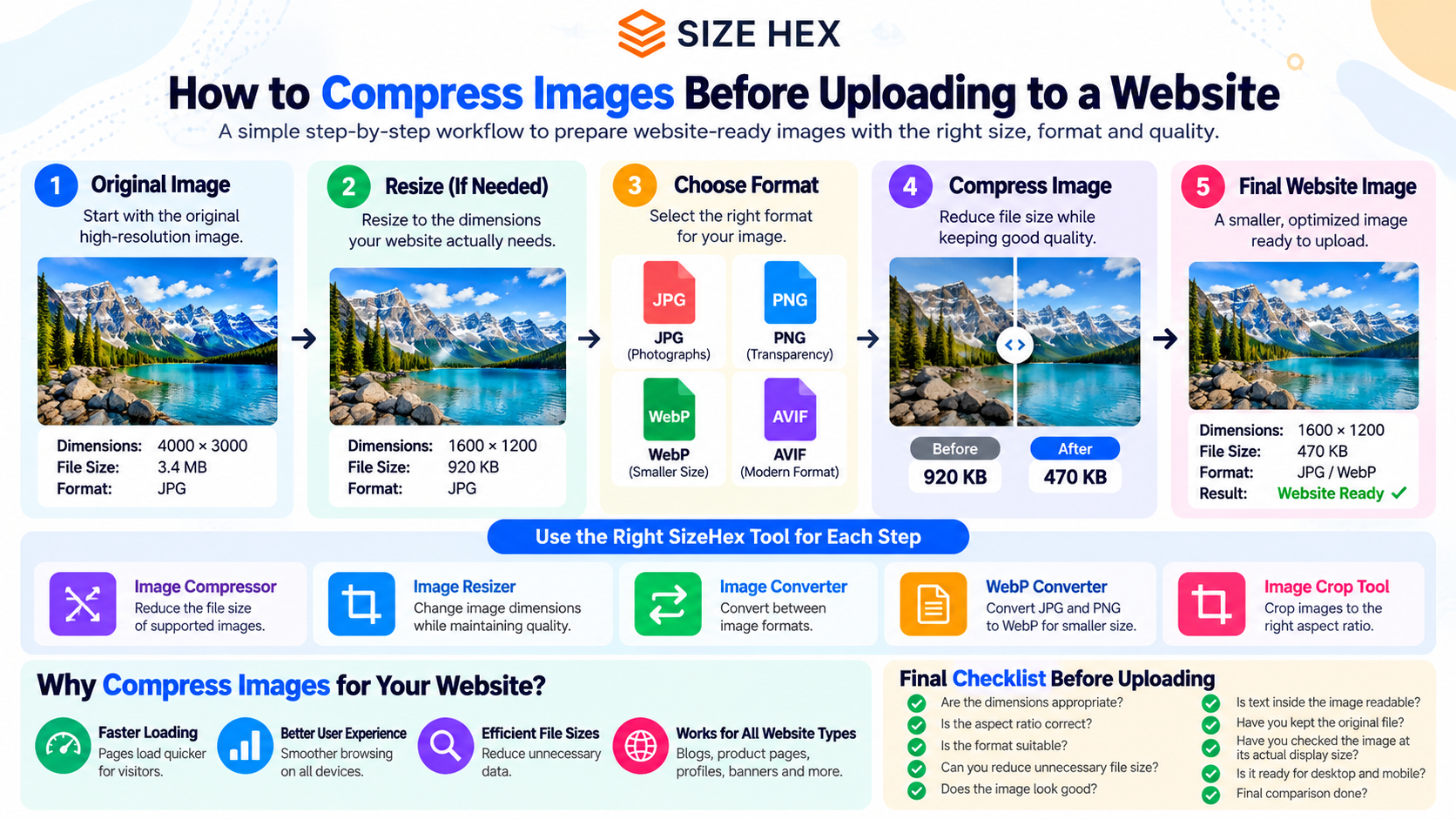
How to Compress Images Before Uploading Them to a Website
Uploading an image to a website sounds simple, but the original file is often much larger than necessary.
A photo taken with a modern phone or camera may contain thousands of pixels and a large amount of image data. If that original file is uploaded directly to a website, visitors may end up downloading much more data than the page actually needs.
The better approach is to prepare the image before uploading it.
A practical workflow is:
Check dimensions → Resize if necessary → Choose the right format → Compress → Check quality → Upload
This guide explains how to follow that workflow and what to consider before putting an image on your website.
Why You Should Prepare Images Before Uploading
A website doesn't always need the original camera file.
For example, imagine you have a photograph that is:
4000 × 3000 pixels
But the website displays it at approximately:
1200 × 900 pixels
Uploading the original image means the browser may download an image containing far more pixels than the page needs.
Preparing the image first can reduce unnecessary file size while keeping an appropriate level of visual quality.
The important point is that compression isn't the only part of image optimization.
Dimensions, format and compression all matter.
Step 1: Check the Original Image
Before compressing an image, check:
- Pixel dimensions
- File format
- File size
- Whether transparency is required
- Where the image will be used
For example:
Original image
4000 × 3000 pixels
2.8 MB
JPG
That may be perfectly reasonable as an original photo, but it may be excessive for a website thumbnail or blog image.
Step 2: Decide How Large the Image Actually Needs to Be
Think about the image's final location.
A blog featured image, product image, thumbnail and small card image don't necessarily need the same dimensions.
For example:
| Use | Possible working size |
|---|---|
| Small thumbnail | 400–600 px wide |
| Content image | 1000–1400 px wide |
| Large blog image | 1200–1600 px wide |
| Full-width visual | Depends on layout |
These are starting points, not universal requirements.
Your actual website layout should determine the appropriate dimensions.
Step 3: Resize Before Compressing When Necessary
Suppose the original image is:
4000 × 3000
but you only need:
1200 × 900
Resize it first.
The workflow becomes:
4000 × 3000
↓
1200 × 900
↓
Compression
↓
Website-ready image
This can remove a large amount of unnecessary pixel data before compression.
You can use the SizeHex Image Resizer when you need to change the dimensions before compressing an image.
Step 4: Choose an Appropriate Format
The correct format depends on the image.
JPG
A practical choice for many photographs.
PNG
Useful when lossless raster quality or transparency is important.
WebP
A modern format that can provide efficient file sizes for many photographs and graphics.
AVIF
Another modern format worth considering when your workflow and browser support requirements allow it.
Don't convert every image automatically.
The best format depends on the image content and how it will be used.
Step 5: Compress the Prepared Image
Now compress the appropriately sized image.
For example:
Before
1200 × 900
1.2 MB
↓
After
1200 × 900
420 KB
The dimensions haven't changed.
The file simply contains less data.
This is where an image compressor becomes useful.
With the SizeHex Image Compressor, you can compress supported images before uploading them to your website.
Step 6: Don't Chase the Smallest Possible File
A smaller file isn't automatically a better file.
Consider two versions:
Version A
150 KB
Visible artifacts
Version B
320 KB
Clean and visually similar to the original
For many website uses, Version B may be the better choice.
The goal should be:
Reduce unnecessary file size while keeping the image visually appropriate for its purpose.
How Much Should You Compress an Image?
There isn't one compression percentage that works for every image.
A photograph, screenshot, logo and illustration can behave very differently.
For example, you might get:
Photo
2.0 MB → 500 KB
while another image might only change from:
800 KB → 550 KB
That's normal.
File-size reduction depends on:
- Original format
- Image content
- Dimensions
- Compression settings
- Quality requirements
- Output format
Therefore, don't judge an image compressor only by a fixed percentage such as “80% smaller”.
Judge the actual result.
Before and After: A Practical Workflow
Imagine you're preparing a blog image.
Original
4000 × 3000
3.1 MB
JPG
After resizing
1600 × 1200
850 KB
JPG
After compression
1600 × 1200
430 KB
JPG
Optional format conversion
1600 × 1200
WebP
File size depends on the image and encoding settings
The important improvement isn't simply the final number.
You've removed unnecessary dimensions and unnecessary file data while keeping a suitable image for the website.
How to Check Whether Compression Went Too Far
After compression, inspect the image for:
- Blurry details
- Block artifacts
- Jagged edges
- Color banding
- Loss of texture
- Distorted text
- Unnatural colors
Also check the image at approximately the size visitors will see it.
An image can look slightly different when zoomed to 400% but still look completely acceptable at its normal website display size.
Common Mistakes Before Website Uploads
Uploading Camera Originals
Camera and phone images can be much larger than necessary for web pages.
Prepare a web version instead of always uploading the original.
Compressing Without Checking Dimensions
If an image is unnecessarily large in pixel dimensions, compression alone may not solve the problem.
Using PNG for Every Photograph
PNG can be useful, but it isn't automatically the best choice for photographic images.
Converting Everything to WebP
WebP is useful, but conversion should be based on the actual result and your website's requirements.
Repeatedly Compressing the Same Image
Keep an original copy and create optimized versions from it.
Repeated lossy processing can progressively reduce visual quality.
A Simple SizeHex Workflow
If you're preparing an image for a website, you can use this workflow:
1. Original Image
↓
2. Resize if necessary
Use SizeHex Image Resizer
↓
3. Choose an appropriate format
Use SizeHex Image Converter or WebP Converter when appropriate
↓
4. Compress
Use SizeHex Image Compressor
↓
5. Compare the result
Check visual quality and file size
↓
6. Upload to your website
This approach is more useful than simply asking:
“How much can I compress this image?”
When You Shouldn't Compress Further
Stop when additional compression creates noticeable visual problems.
For example:
- Important text becomes difficult to read
- Product details disappear
- Hair or fine textures become muddy
- Edges become visibly distorted
- Gradients develop obvious banding
At that point, saving another few kilobytes may not be worth the visual trade-off.
Final Website Image Checklist
Before uploading an image, ask:
✓ Are the dimensions appropriate for where the image will appear?
✓ Is the format suitable for the image?
✓ Can unnecessary file data be removed?
✓ Does the compressed image still look good?
✓ Did I keep the original file separately?
✓ Is the final file reasonably sized for its intended use?
If the answer is yes, the image is ready for the next stage of your website workflow.
Final Takeaway
Image compression works best when it is treated as one part of a larger preparation process.
Instead of uploading a large original file directly, use:
Resize → Choose Format → Compress → Check Quality → Upload
The goal isn't to make every image as small as possible.
The goal is to deliver an image that is appropriately sized, visually useful and reasonably efficient for the website.
Related SizeHex Tools
Image Compressor — Compress supported images before uploading them to your website.
Image Resizer — Resize images to appropriate pixel dimensions.
WebP Converter — Convert supported images to WebP and compare the result.
Image Converter — Convert between supported image formats.
Practical Image Compression for Websites
How Image Dimensions Affect Website File Size
Image dimensions have a direct relationship with the amount of visual data stored in an image.
Consider an image that is 4000 × 3000 pixels.
That image contains 12 million pixels.
If the same image is resized to 1600 × 1200 pixels, it contains 1.92 million pixels.
That is a substantial reduction in pixel data before compression is even applied.
This is why resizing can be an important part of preparing images for a website.
However, the correct dimensions depend on the actual display size and the website's design.
You shouldn't automatically resize every image to the same width.
Don't Resize Every Image to the Same Dimensions
Different website elements need different image dimensions.
For example, a small card image may only need a few hundred pixels, while a large hero image may require much more.
Consider the difference between:
- Blog thumbnail
- Blog featured image
- Product image
- Profile image
- Website banner
- Full-width photograph
- Small icon or illustration
Using a 4000-pixel-wide image for a small thumbnail can be unnecessary.
On the other hand, making a large hero image too small can make it appear blurry.
The objective is to choose dimensions that are appropriate for the actual use case.
What Happens When You Enlarge an Image?
Resizing isn't only about making images smaller.
Sometimes you may need to enlarge an image.
For example:
800 × 600 → 1600 × 1200
This increases the pixel dimensions, but it doesn't recreate details that weren't present in the original.
Depending on the resizing method and the amount of enlargement, the result may appear softer or less detailed.
For website optimization, reducing unnecessarily large images is usually more straightforward than aggressively enlarging small ones.
Choosing Between JPG, PNG and WebP
The format should match the type of image you're working with.
For Photographs
JPG and WebP are often practical choices because they can store photographic images efficiently.
For Images With Transparency
PNG can be useful when transparency is important.
WebP can also support transparency, making it another option depending on your workflow and compatibility requirements.
For Graphics and Screenshots
The best choice depends on the content.
A screenshot containing small text may behave differently during compression than a photograph with natural textures.
That's why it's useful to compare the actual output rather than relying on a format rule for every situation.
Why the Same Image Can Have Different File Sizes
Two images with identical dimensions can still have very different file sizes.
For example, consider two 1600 × 1200 photographs.
Both have exactly the same pixel dimensions, but one might be much larger because of differences in:
- Image complexity
- Compression settings
- Quality level
- Format
- Metadata
- Color information
A photograph of a detailed forest may require more data than a photograph containing large areas of plain sky.
Therefore, pixel dimensions alone don't determine the final file size.
Lossy and Lossless Compression
Understanding the difference between lossy and lossless compression helps when choosing an optimization workflow.
Lossy Compression
Lossy compression removes some information to achieve a smaller file.
JPG is a common example.
At moderate settings, the visual difference may be difficult to notice.
At aggressive settings, artifacts can become obvious.
Lossless Compression
Lossless compression preserves the encoded image information while reducing unnecessary data.
PNG commonly uses lossless compression.
Lossless methods are useful when preserving exact image information is important, although the resulting files can sometimes be larger than lossy alternatives.
Why “No Quality Loss” Can Be Misleading
You may see image tools advertise:
“Compress images without losing quality.”
This phrase should be interpreted carefully.
With lossy compression, reducing file size can involve discarding some information.
A more realistic goal is:
Reduce file size while keeping the visual difference acceptable for the intended use.
For a website image displayed at 800 pixels wide, a compression level that looks excellent at normal viewing size may be perfectly acceptable even if a detailed pixel-by-pixel comparison reveals small differences.
How to Evaluate Compression Quality
File size is only one part of the result.
After compressing an image, look at the areas that are most likely to reveal compression problems.
Fine Details
Check hair, grass, fabric, foliage and other detailed textures.
Edges
Look for jagged edges or unnatural halos around objects.
Text
If the image contains text, check whether small characters remain readable.
Gradients
Look for visible banding in skies, backgrounds and smooth color transitions.
Colors
Compare important colors with the original.
This is especially important for product photography and branding images.
Overall Appearance
Finally, view the image at approximately its intended website display size.
An image doesn't need to look perfect at extreme zoom if it looks good where visitors will actually see it.
How to Find a Practical Compression Level
Instead of selecting an arbitrary compression percentage, create a few versions and compare them.
For example:
Original
1.8 MB
↓
Moderate compression
750 KB
↓
Higher compression
450 KB
↓
Very high compression
220 KB
Now compare all three versions.
You may find that the 450 KB version provides a better balance than the 220 KB version.
This is why image optimization is a balance rather than a race toward the smallest possible file.
Preparing Different Types of Website Images
Blog Images
Blog images are often displayed at a predictable width.
Prepare the image according to the content area rather than uploading the camera original.
Product Images
Product images need particular attention to detail.
Over-compression can make product edges, textures and colors look worse.
Check the final image carefully before publishing.
Profile Photos
Profile images are often displayed relatively small.
A very large original photograph may be unnecessary.
Resize it to match the largest expected display size.
Website Banners
Large banners can contain substantial amounts of visual information.
Resize them according to the actual layout and test their appearance on both desktop and mobile screens.
Screenshots
Screenshots often contain text and sharp edges.
Aggressive lossy compression can make small text and interface elements look blurry.
For screenshots, compare formats and compression levels carefully.
What to Do With the Original Image
Keep the original image separately.
For example:
Original
product-photo-original.jpg
↓
Website version
product-photo-web.webp
This gives you a source file that can be used later if you need:
- A different size
- A different format
- A higher-quality version
- A print version
- A new crop
Avoid repeatedly editing and recompressing the same already-compressed file when you can work from the original.
A Practical Workflow for SizeHex Users
If you are preparing a photo for a website, you don't necessarily need to perform every possible optimization step.
A simple workflow can be enough:
Step 1
Start with the original image.
Step 2
Determine where the image will appear.
Step 3
Resize it if the original dimensions are unnecessarily large.
Step 4
Choose an appropriate format.
Step 5
Compress the image.
Step 6
Compare the result with the original.
Step 7
Use the optimized version on your website.
For example:
Original photo
4000 × 3000
3.2 MB
↓
Resize
1600 × 1200
900 KB
↓
Compress
1600 × 1200
450 KB
↓
Final website image
1600 × 1200
450 KB
The exact numbers will vary from image to image. The important part is the workflow.
When a Larger Image Is Actually Useful
Smaller isn't always better.
A larger image may be appropriate when:
- Visitors can zoom into the image
- It is a large product photograph
- It is a full-width visual
- The image contains important fine details
- It is used as a high-resolution background
- The website design requires a larger source image for responsive layouts
The goal is not to make every image tiny.
The goal is to avoid delivering significantly more image data than the user experience requires.
Compression and Responsive Websites
Modern websites may display the same image at different sizes depending on the visitor's device.
A desktop screen might display an image at 1200 pixels wide, while a mobile device may display it at only 500–700 pixels.
This is one reason responsive image techniques can be useful.
Instead of serving one huge image to every visitor, websites can sometimes provide appropriately sized versions for different display conditions.
Image compression is therefore only one part of a broader image delivery strategy.
Compression Does Not Replace Good Image Dimensions
Imagine two versions of the same photograph.
Image A
4000 × 3000
500 KB
Image B
1600 × 1200
450 KB
Image A may still contain considerably more pixels than the website needs, even though its compressed file size is relatively small.
This demonstrates why:
File size and image dimensions are separate considerations.
A good optimization workflow considers both.
A Simple Decision Guide
When preparing an image, ask these questions in order:
Is the image much larger than its display area?
Yes → Resize it.
Does it need transparency?
Yes → Choose a format that supports transparency.
Is it a photograph?
Yes → Compare JPG/WebP or other suitable formats.
Is the image already appropriately sized?
Yes → Move directly to compression/testing.
Does compression create visible artifacts?
Yes → Reduce the compression level or reconsider the format.
Is the file still unnecessarily large?
Yes → Test another appropriate format or compression setting.
This decision-based approach is more useful than applying the same settings to every image.
The Main Principle
There is no universal:
“Compress every image by 80%”
rule.
A good website image is the result of balancing:
Dimensions + Format + Compression + Visual Quality + Actual Use Case
Once you start looking at these factors together, image optimization becomes much more predictable.
Practical Website Image Optimization Workflow
A Complete Workflow for Preparing Images Before Uploading
Once you understand image dimensions, formats and compression, the process becomes much easier.
You don't need to apply complicated optimization techniques to every image.
For most websites, a practical workflow is:
Choose the image → Check dimensions → Resize if necessary → Choose format → Compress → Compare → Upload
Each step solves a different problem.
Step 1: Start With the Original Image
Always keep the original image as your source file.
For example:
Original
4000 × 3000 pixels
3.2 MB
Don't overwrite this file during optimization.
Instead, create a separate web-ready version.
This gives you the flexibility to create another size or format later without repeatedly processing an already-compressed image.
Step 2: Determine Where the Image Will Be Used
Before changing the image, identify its purpose.
Ask:
- Is it a blog featured image?
- A product image?
- A thumbnail?
- A profile image?
- A website banner?
- A content illustration?
- A screenshot?
The answer determines how large the image needs to be.
An image displayed at 500 pixels wide doesn't necessarily need to be delivered as a 4000-pixel-wide original.
Step 3: Resize When Necessary
If the original image is significantly larger than the required display dimensions, resize it.
For example:
Original: 4000 × 3000
↓
Website version: 1600 × 1200
You can use the SizeHex Image Resizer to change the dimensions while maintaining the desired aspect ratio.
Remember that resizing and compression are different operations.
Resizing changes the number of pixels.
Compression changes how efficiently those pixels are stored.
Step 4: Choose the Right Format
After deciding the dimensions, select an appropriate format.
For example:
Photographs: JPG or WebP can be practical options.
Transparent graphics: PNG or WebP may be appropriate.
Screenshots: Compare formats based on text clarity, sharp edges and file size.
Modern web workflows: WebP or AVIF may be useful when they fit your browser and content requirements.
There isn't a single format that is best for every image.
Step 5: Compress the Image
Now reduce unnecessary file data.
For example:
1600 × 1200 JPG
900 KB
↓
Compressed version
450 KB
The exact result depends on the image and compression settings.
Use the SizeHex Image Compressor to compress supported images and then compare the output with the original.
Step 6: Compare Before and After
This step should not be skipped.
Check:
File size
How much smaller is the image?
Dimensions
Did the pixel dimensions remain appropriate?
Details
Are fine textures still visible?
Text
Is text inside the image still readable?
Edges
Are there visible artifacts?
Colors
Do important colors still look natural?
If the compressed version looks good at its intended display size, it may be suitable for your website.
Example: Preparing a Blog Image
Imagine you have a photograph for a blog post.
Original
4000 × 3000
3.4 MB
JPG
Resize
1600 × 1200
920 KB
Compress
1600 × 1200
470 KB
Final
1600 × 1200
470 KB
Instead of uploading the original 3.4 MB image, you're using a smaller version that is better suited to the intended website use.
The exact dimensions and file size will vary depending on your website layout and the image itself.
Example: Preparing a Product Image
Product images require a slightly different approach.
Suppose an original product photograph is:
5000 × 5000
4.5 MB
The product page may display it at approximately 1200 × 1200.
A practical workflow could be:
5000 × 5000
↓
1200 × 1200
↓
Choose suitable format
↓
Compress
↓
Inspect product details
Pay particular attention to:
- Product edges
- Text printed on the product
- Fine textures
- Brand colors
- Small details
Aggressive compression may save additional file size but can make a product look less professional.
Example: Preparing a Screenshot
Screenshots are different from photographs.
A screenshot may contain:
- Small text
- Icons
- Straight lines
- UI elements
- Sharp edges
Heavy lossy compression can make these elements look blurry.
For screenshots, compare the output carefully and prioritize readability.
A slightly larger file may be preferable if it keeps important text and interface details clear.
Example: Preparing a Social Media Image
Social platforms often have their own recommended dimensions.
Instead of uploading a huge original image and allowing the platform to process it, you can prepare a suitable version first.
A practical workflow is:
Original
↓
Crop to the required aspect ratio
↓
Resize to the intended dimensions
↓
Compress
↓
Check text and graphics
↓
Upload
The SizeHex Image Crop Tool can be useful when the original image has a different aspect ratio from the intended layout.
Use the Right SizeHex Tool for Each Job
One of the easiest ways to avoid unnecessary processing is to use each tool for its specific purpose.
Need smaller dimensions?
Use Image Resizer.
Need a smaller file?
Use Image Compressor.
Need to change formats?
Use Image Converter.
Need JPG or PNG converted to WebP?
Use WebP Converter.
Need a different aspect ratio?
Use Image Crop Tool.
This creates a simple image preparation workflow instead of trying to make one tool solve every problem.
Don't Over-Process Your Images
You don't always need to run an image through every SizeHex tool.
For example, if an image already has suitable dimensions and format, you may only need compression.
Likewise, if the image is already small enough but needs to be converted from JPG to WebP, there is no reason to resize it first unless the dimensions are actually too large.
A good rule is:
Only perform an optimization step when it solves a real problem.
This keeps your workflow simple and reduces unnecessary processing.
What If the Image Still Looks Bad After Compression?
If the compressed image doesn't look good, don't immediately assume that the image compressor is the problem.
Check the workflow.
First: Check the dimensions
The image may be too small for its intended display size.
Second: Check the compression level
You may have compressed it too aggressively.
Third: Try another format
Some images work better in one format than another.
Fourth: Check the original
If the original image is already low-resolution or blurry, compression cannot restore missing detail.
Image optimization can preserve available quality, but it cannot create information that wasn't present in the original.
Should You Always Convert Images to WebP?
No.
WebP can be an efficient choice for many website images, but there is no requirement to convert every image automatically.
Consider:
- The type of image
- Transparency requirements
- Browser support requirements
- Your website's image pipeline
- The resulting file size
- Visual quality
The best approach is to compare the result.
If WebP produces a useful reduction while maintaining appropriate quality, it may be a good choice.
If the difference is insignificant, there may be little reason to convert that particular image.
Should You Compress Images Before or After Resizing?
In a typical website workflow, resizing first can make sense when the original image is significantly larger than necessary.
For example:
4000 × 3000
↓
1600 × 1200
↓
Compression
This avoids spending compression effort on pixels that you don't intend to deliver.
However, the best workflow can depend on the image-processing tool and your specific requirements.
The important principle is to prepare the image for its intended use rather than applying a fixed sequence blindly.
How to Know When an Image Is Ready
Your image is generally ready for upload when:
- The dimensions match its intended use
- The format is appropriate
- The file size is reasonable
- Important details remain visible
- Text remains readable
- Colors look acceptable
- There are no distracting compression artifacts
At this point, further optimization may provide diminishing returns.
Saving another few kilobytes isn't always worth making the image visibly worse.
Website Image Optimization Checklist
Before uploading an image, use this checklist:
Dimensions
Is the image larger than necessary?
Aspect Ratio
Does it match the intended layout?
Format
Is the chosen format appropriate?
File Size
Can you reduce unnecessary file data?
Visual Quality
Does the image still look good?
Text
If the image contains text, is it still readable?
Original
Have you kept a copy of the original?
Display Size
Have you checked the image at approximately its real website size?
Responsive Use
Does your website need different image sizes for different devices?
Final Test
Have you compared the optimized version with the original?
A Practical Image Optimization Workflow
For most website images, this is a useful starting point:
1. Keep the original
↓
2. Identify the image's purpose
↓
3. Determine the required dimensions
↓
4. Crop if the aspect ratio needs to change
↓
5. Resize if the image is larger than necessary
↓
6. Select an appropriate format
↓
7. Compress the image
↓
8. Compare the result
↓
9. Upload the optimized version
This workflow keeps image optimization focused on the actual needs of the website rather than arbitrary compression targets.
Related SizeHex Tools
If you're preparing images for your website, these SizeHex tools can help:
Image Compressor — Reduce the file size of supported images.
Image Resizer — Change image dimensions while maintaining the desired proportions.
Image Converter — Convert supported images between formats.
WebP Converter — Convert supported JPG and PNG images to WebP.
Image Crop Tool — Crop an image to a suitable aspect ratio or composition.
Related SizeHex Guides
If you want to learn more about image optimization, explore the relevant SizeHex guides on:
Image formats — Understand the differences between JPG, PNG, WebP and other formats.
Image dimensions — Learn how pixel dimensions affect website images.
Image compression — Understand how compression affects file size and visual quality.
Image metadata — Learn what information can be stored inside image files.
Final Takeaway
Preparing images before uploading them to a website doesn't have to be complicated.
Start with the original image, determine how it will be used, choose appropriate dimensions and format, compress it, and then check the final result.
The most important principle is simple:
Don't optimize an image just to make a number smaller. Optimize it so the website receives an image that is appropriately sized, visually useful and reasonably efficient.
A good image workflow is therefore:
Crop when necessary → Resize when necessary → Choose the right format → Compress → Check → Upload
That approach gives you a practical balance between image quality and file size without relying on a single compression percentage or a one-size-fits-all rule.