September 15, 2026
How to Remove EXIF Metadata from Images: Complete Guide for 2026
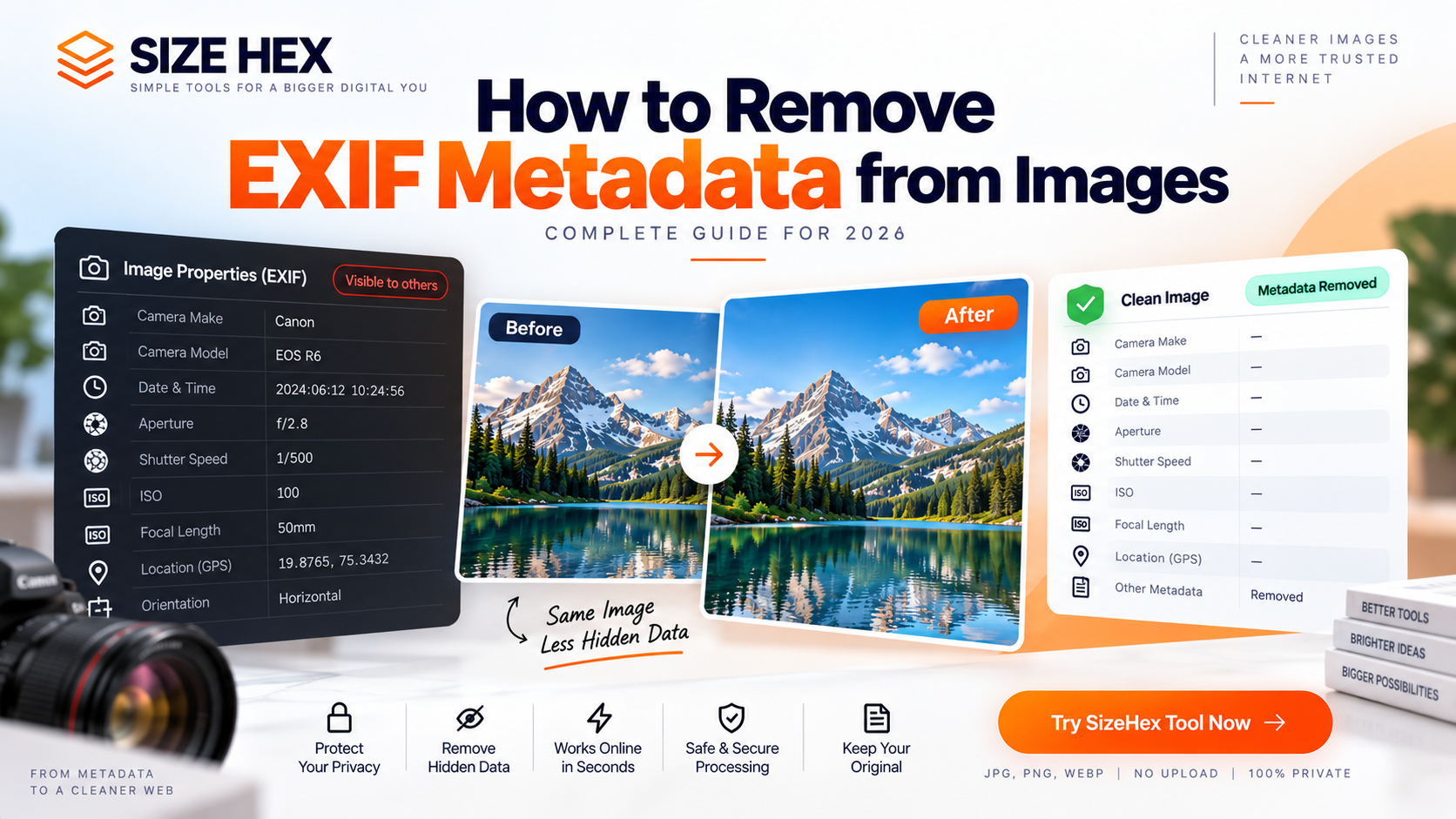
How to Remove EXIF Metadata from Images: Complete Guide for 2026
Every digital image can contain more information than what you see on the screen.
When you take a photo with a smartphone or digital camera, the image may store additional information such as the camera model, capture date, exposure settings, orientation, and sometimes GPS location.
This information is called EXIF metadata.
EXIF metadata can be useful for photographers and image-management workflows, but some fields—especially location information—may also raise privacy concerns when an original image is shared publicly. The C2PA specification also recognizes EXIF-related metadata, including fields such as camera and GPS information, as metadata that can be represented within a Content Credential. C2PA Spec
If you don't need this information, you may want to create a clean copy of the image without unnecessary metadata.
In this guide, we'll explain what EXIF metadata is, what information it can contain, why you may want to remove it, and how to remove EXIF metadata from images online.
What Is EXIF Metadata?
EXIF stands for Exchangeable Image File Format.
It is metadata associated with image files, particularly photographs captured by digital cameras and smartphones.
Depending on the device and software, EXIF can contain information such as:
• Camera manufacturer
• Camera model
• Lens information
• Date and time
• Aperture
• Shutter speed
• ISO
• Focal length
• Image orientation
• GPS coordinates
• Other technical image information
The exact metadata stored in a file depends on the device, application, and workflow used to create or edit the image.
For example, when you take a photograph using a smartphone, the original image may contain both technical camera information and location information if location tagging is enabled.
Why Does EXIF Metadata Matter?
EXIF metadata is not automatically harmful.
In fact, photographers often use it to understand how a photograph was captured.
For example, a photographer can use EXIF information to check:
ISO: 400
Aperture: f/2.8
Shutter Speed: 1/500
Focal Length: 50mm
This information can be extremely useful when organizing photographs or learning from previous camera settings.
However, the same metadata can contain information that you may not want to share with everyone.
The biggest privacy concern is often location data.
If GPS coordinates are stored inside an original photograph, someone with the right tools may be able to inspect that metadata and determine where the image was captured.
That's why it's worth checking metadata before publicly sharing sensitive original photographs.
What Information Can EXIF Metadata Contain?
EXIF can contain many different fields.
Camera Information
An image may contain the manufacturer and model of the camera or smartphone used to capture it.
For example:
Camera Make → Example Camera Manufacturer
Camera Model → Example Smartphone Model
This information can help identify the device used to create the photograph.
Capture Information
EXIF can contain technical capture settings such as:
• ISO
• Aperture
• Shutter speed
• Focal length
• Exposure mode
• Flash information
These values are commonly useful in photography workflows.
Date and Time
Some images contain the date and time associated with the original capture.
This can help photographers organize their photo libraries.
However, it can also reveal information about when an image was created or captured.
GPS Location
Some devices can store GPS information inside image metadata.
This may include:
• Latitude
• Longitude
• Altitude
• GPS timestamp
The C2PA technical specification explicitly includes GPS-related EXIF properties among supported EXIF metadata fields. C2PA Spec
If you are sharing a photograph publicly, checking whether location metadata is present can therefore be an important privacy step.
Why Remove EXIF Metadata?
There are several legitimate reasons to remove EXIF metadata.
1. Protect Location Privacy
If an image contains GPS coordinates, removing the metadata can help prevent those coordinates from being shared with the image.
2. Remove Unnecessary Technical Information
You may simply not need to distribute camera and capture information with a public image.
3. Prepare Images for Public Sharing
Before uploading original photographs to websites, forums, marketplaces, or social platforms, some users prefer to create a clean copy.
4. Clean Images for a Specific Workflow
Developers, designers, marketers, and content creators may want a standardized image file without unnecessary metadata.
5. Remove Multiple Types of Hidden Metadata
EXIF isn't the only metadata that can exist inside an image.
Depending on the file and workflow, there may also be other metadata such as IPTC, XMP, or C2PA-related information.
C2PA itself provides mechanisms for representing metadata, including EXIF, within a signed provenance structure. C2PA Spec
Does Removing EXIF Remove the Image?
No.
EXIF metadata is information associated with the image file.
Removing metadata is different from deleting the visible image.
The photograph itself remains visually recognizable.
For example:
Original Image
Photo + EXIF Metadata
↓
Metadata Cleaning
EXIF information removed
↓
Clean Image
Photo remains available without the targeted metadata
However, the exact result depends on the tool and processing method used.
Does Removing EXIF Reduce Image Quality?
Removing metadata itself is not the same operation as reducing image quality.
Metadata consists of information associated with the file rather than the visible pixels.
However, some image-processing tools may also re-encode or convert the image while cleaning it.
Therefore, if image quality is important, check the final output rather than assuming that every metadata-cleaning workflow behaves identically.
EXIF vs C2PA: Why the Difference Matters
If you are working with modern AI-generated images, it is important not to treat EXIF and C2PA as exactly the same thing.
EXIF is traditionally associated with technical and capture-related image metadata.
C2PA is a framework for content provenance and verifiable Content Credentials.
An image can contain EXIF metadata, C2PA information, both, or neither.
The C2PA specification itself includes mechanisms for representing EXIF and other metadata within provenance information. C2PA Spec
So if your goal is to create a truly clean image, checking only EXIF may not tell you everything that is contained in the file.
Can You Remove EXIF Metadata Online?
Yes.
A browser-based metadata-cleaning tool can process an image and create a cleaned version without requiring traditional desktop software.
For privacy-sensitive files, however, it's important to understand where the image is processed.
A tool that uploads your image to a remote server has a different privacy model from a tool that processes the file locally in your browser.
For example, the SizeHex metadata-removal tool states that processing happens locally in the browser and that images are not uploaded to a server. It also states that the tool targets EXIF and C2PA-related metadata. SizeHex
That makes client-side processing particularly relevant when you're working with private images.
Before You Remove EXIF Metadata
There is one important rule:
Always keep your original file.
If you remove metadata from an image, some useful information may no longer be available in the cleaned copy.
A simple workflow is:
Original Image → Keep Safe
↓
Create Copy → Clean Metadata
↓
Publish Clean Copy
This way, you can preserve the original photograph and its metadata while using a separate version for public sharing.
Key Takeaway
EXIF metadata can contain useful technical information about an image, but it can also contain privacy-sensitive information such as GPS coordinates.
If you don't need that information when sharing an image, creating a clean copy can be a practical approach.
And if you're dealing with modern AI-generated images, remember that EXIF is only one part of the metadata landscape. C2PA and other metadata systems may also be present, so a broader metadata check can be useful.
How to Remove EXIF Metadata from an Image
Removing EXIF metadata is generally a simple process, but the exact steps depend on the device, operating system, and tool you use.
The most convenient option for occasional use is an online metadata-cleaning tool.
For example, if you have a photograph that contains camera information, GPS data, or other hidden metadata, you can create a cleaned copy instead of modifying your original file.
The basic workflow is:
Upload Image → Inspect Metadata → Remove Metadata → Download Clean Image
However, before doing this, make sure you understand what information you actually want to remove.
Method 1: Remove EXIF Metadata Online
An online metadata remover can be useful when you don't want to install software.
A typical workflow looks like this:
Step 1: Select Your Image
Choose the JPG, PNG, or WebP image that you want to clean.
If the image contains private information, consider using a tool that processes the file locally in your browser rather than uploading it to a remote server.
Step 2: Process the Image
The tool analyzes the image and identifies supported metadata.
Depending on the tool, this can include information such as:
• EXIF data
• GPS information
• Camera information
• Date and time metadata
• Other supported image metadata
Step 3: Remove the Metadata
The tool creates a new version of the image with the selected metadata removed.
The visible image can remain intact while the targeted hidden information is cleaned.
Step 4: Download the Clean Copy
Save the cleaned image separately.
Keep your original file untouched so that you can access its original metadata later if required.
Remove EXIF Metadata with SizeHex
If you want a simple browser-based option, you can use the SizeHex AI Image Watermark Remover.
The tool is designed to remove supported hidden image information, including EXIF and C2PA-related metadata.
It works directly in the browser according to the tool's stated processing model, which means you can use it without installing traditional desktop software.
Tool:
https://sizehex.com/ai-image-watermark-remover
A simple workflow is:
Choose Image
↓
Process Image
↓
Remove Supported Metadata
↓
Download Clean Image
This can be useful for photographers, designers, developers, bloggers, and content creators who want to prepare a cleaner image before publishing it online.
How to Remove EXIF Metadata on Windows
Windows users have several ways to manage image metadata.
For some supported file types, Windows provides metadata-related options through the file's properties.
You can right-click an image and open:
Properties → Details
Here you may see metadata associated with the image.
Depending on the file type and Windows version, you may also see options for removing certain properties.
However, Windows' built-in functionality does not necessarily provide a complete solution for every type of metadata.
If you need to clean multiple metadata systems, a dedicated metadata-cleaning tool may be more appropriate.
How to Remove EXIF Metadata on Mac
On macOS, image metadata can be inspected using applications that support EXIF information.
Apple's Preview application can display some image information, but it is not intended to be a complete metadata-cleaning solution for every type of image metadata.
If your objective is privacy-focused metadata removal, use a dedicated tool that clearly identifies which metadata it removes.
This is especially important if you're working with images that may contain GPS information.
How to Remove EXIF Metadata from Photos on a Phone
Smartphones can automatically add metadata to photographs.
Depending on your phone's settings, the image may contain information such as:
• Device information
• Date and time
• Location
• Camera settings
When sharing an image, some apps and platforms may process or strip certain metadata, but you shouldn't assume that this happens in every situation.
If the original file contains sensitive information, inspect or clean it before sharing when privacy matters.
For particularly sensitive photographs, creating a separate cleaned copy is a safer workflow than relying on the receiving platform to remove metadata.
How to Remove GPS Location from a Photo
GPS information is one of the most privacy-sensitive types of image metadata.
If your camera or smartphone records location information, the original photograph may contain geographic coordinates.
To remove it:
1. Select the original photograph
2. Check whether GPS metadata exists
3. Create a separate copy
4. Remove the supported metadata
5. Verify the cleaned file
6. Share the cleaned copy
This is particularly useful when publishing photographs taken at your home, workplace, private property, or other locations you don't want to disclose.
Does WhatsApp Remove EXIF Metadata?
You should not rely on a messaging platform as your primary metadata-cleaning method.
Different sharing methods can process images differently.
For example, sending an image as a compressed photo can behave differently from sending the original file as a document.
If privacy is important, the better approach is to clean the image before sharing it, rather than assuming the platform will remove everything you don't want to share.
Does Social Media Remove EXIF Metadata?
Many social platforms process uploaded images, and the resulting version may not contain exactly the same metadata as the original.
However, platform processing can change over time and can vary depending on how the image is uploaded.
Therefore, don't use social-media compression or image processing as your metadata-management strategy.
If you're concerned about EXIF privacy, clean the image yourself before uploading it.
EXIF Metadata and Image Compression Are Different
This is an important distinction for website owners.
Metadata removal and image compression are two different processes.
Metadata removal targets information associated with the image file.
Image compression targets the amount of data required to store or deliver the image.
For example:
Metadata Cleaning
Removes unnecessary metadata.
Image Compression
Reduces file size while attempting to preserve acceptable visual quality.
You may want to perform both operations when preparing images for a website.
For example:
Original Image
↓
Remove Unnecessary Metadata
↓
Resize Image
↓
Compress Image
↓
Convert to WebP if Appropriate
↓
Publish
If your goal is faster website loading, removing EXIF alone should not be considered a replacement for proper image optimization.
You can also use the SizeHex Image Compressor when you want to reduce image file size after preparing your image.
Does Removing EXIF Make an Image Smaller?
It can reduce the file size slightly because metadata occupies space inside the file.
However, the reduction is usually much smaller than what you can achieve through proper image compression or resizing.
For example, removing a small amount of metadata won't transform a multi-megabyte photograph into a tiny web image.
If your primary goal is website performance, focus on:
• Appropriate image dimensions
• Efficient compression
• Modern formats such as WebP when suitable
• Responsive image delivery
• Avoiding unnecessarily large original files
Metadata cleaning can be an additional optimization step, but it isn't the main image-compression technique.
Can EXIF Metadata Be Recovered After Removal?
If metadata has been permanently removed from a copy of the image, you generally shouldn't expect the original metadata to magically return.
That's why keeping the original file is important.
Think of the two files as:
Original.jpg
Contains the original image and metadata.
Cleaned.jpg
Contains the processed image with targeted metadata removed.
Keep both when the original information may be useful later.
What About PNG and WebP Metadata?
EXIF is most commonly associated with photographs, but modern image workflows can involve several metadata standards and formats.
PNG and WebP files can also contain metadata depending on how they were created or processed.
Therefore, don't assume:
“It's not a JPG, so there is no metadata.”
Different image formats and applications support different types of metadata.
If you're trying to create a privacy-focused clean image, inspect the actual file rather than relying only on its extension.
EXIF Is Not the Only Hidden Information
One of the biggest mistakes people make is thinking:
“I removed EXIF, so everything hidden is gone.”
Not necessarily.
An image can contain different types of metadata.
These may include:
• EXIF
• XMP
• IPTC
• GPS information
• Software-related metadata
• C2PA Content Credentials
The exact metadata depends on the image format and the software or devices involved.
That's why a complete metadata-cleaning workflow should clearly explain which types of information it supports.
If you're interested in the difference between EXIF and C2PA, read our guide on C2PA vs EXIF to understand how these two systems differ.
Should You Remove EXIF Metadata Before Uploading to Your Website?
It depends on your website and your workflow.
For a public website, removing unnecessary metadata can be useful when:
• You don't need the metadata
• The image contains location information
• You're concerned about privacy
• You're preparing images for public distribution
• You want a standardized set of image files
However, photographers may intentionally preserve certain metadata for organizational or professional purposes.
Therefore, there isn't a universal rule that says every website image must have all metadata removed.
The right approach is to decide based on the purpose of the image.
A Safe Image Metadata Workflow
For most users, a simple workflow is enough:
Step 1 — Keep the Original
Never overwrite the original if you may need its metadata later.
Step 2 — Inspect
Check what information exists in the file.
Step 3 — Decide
Determine which metadata is actually unnecessary or sensitive.
Step 4 — Clean
Remove the metadata you don't want to distribute.
Step 5 — Verify
Check the resulting file again.
Step 6 — Optimize
Resize or compress the image if it is going to be used on a website.
Step 7 — Publish
Upload the cleaned and optimized version.
This approach gives you much better control over your images than simply uploading the original file everywhere.
Key Takeaway
EXIF metadata can be useful, but it can also contain information you may not want to distribute publicly.
The most important information to pay attention to is often GPS location data, especially when sharing original photographs.
Removing EXIF metadata can help create a cleaner copy of an image, but remember that EXIF is only one type of image metadata.
If you're dealing with AI-generated or AI-edited images, you may also need to consider C2PA Content Credentials and other metadata systems.
For a broader explanation, see our guide on C2PA vs EXIF.
And if you want to clean supported image metadata directly in your browser, you can try the SizeHex AI Image Watermark Remover.
Keep the original. Clean a copy. Then publish the version that fits your privacy and workflow requirements.
Best Practices for Removing EXIF Metadata
Removing EXIF metadata is useful when you want more control over the information attached to your images, but it should be treated as one part of a broader image-management workflow.
Before cleaning an image, ask yourself:
What information do I actually need to keep?
If you're a photographer, camera settings may be valuable.
If you're sharing a personal photograph publicly, GPS information may be unnecessary.
If you're preparing website images, you may want to clean unnecessary metadata and then optimize the image for performance.
The goal isn't to remove everything blindly.
The goal is to remove unnecessary information while keeping the information you actually need.
5 Things to Check Before Sharing an Image
Before uploading an original photograph publicly, consider checking these five areas.
1. GPS Location
Check whether the image contains latitude or longitude information.
This is especially important for photographs taken at private locations.
2. Camera Information
Check whether the camera manufacturer, model, or lens information is stored.
This information is usually harmless, but you may not need to share it.
3. Date and Time
Some images can contain capture-related date and time information.
Consider whether this information is necessary for your intended use.
4. Editing Information
Some image-processing workflows can add software or editing-related metadata.
This can provide useful information, but it may not always be necessary in a public copy.
5. C2PA Content Credentials
If you're working with AI-generated or AI-edited images, check whether the file contains C2PA Content Credentials.
C2PA serves a different purpose from traditional EXIF metadata and is focused on content provenance.
EXIF Metadata Removal for Photographers
Photographers have a particularly good reason to understand EXIF metadata.
EXIF can help photographers analyze their own work.
For example, after taking hundreds of photographs, a photographer can review camera settings to understand which combinations of ISO, aperture, shutter speed, and focal length were used.
Therefore, completely removing metadata from the original photography archive may not be a good idea.
A better workflow is:
Original Photo → Preserve Metadata
Public Copy → Remove Unnecessary Metadata
This gives you both flexibility and privacy.
EXIF Metadata Removal for Bloggers
Bloggers often download, edit, resize, and upload images to websites.
If you're publishing images regularly, metadata cleaning can become part of your content workflow.
A simple process is:
Create or source image
↓
Check metadata
↓
Remove unnecessary metadata
↓
Resize image
↓
Compress image
↓
Convert to an efficient format if appropriate
↓
Upload to website
This workflow can help keep your media library organized while reducing unnecessary information in publicly distributed image files.
EXIF Metadata Removal for Website Developers
Website developers should understand the difference between metadata cleaning and image optimization.
Removing metadata is primarily about the information stored with the image.
Optimization is primarily about delivering an appropriately sized and efficient image to the browser.
For example, suppose you have a 4000 × 3000 pixel photograph.
Removing EXIF metadata does not automatically make the image suitable for a website.
You may still need to:
• Resize the image
• Compress the image
• Choose an appropriate format
• Use responsive images
• Avoid serving unnecessarily large files
Therefore:
Metadata cleaning ≠ Image optimization
Both can be useful, but they solve different problems.
EXIF Metadata Removal for AI-Generated Images
AI-generated images introduce another important consideration.
Traditional EXIF metadata was designed around digital image information and is particularly associated with camera-based workflows.
AI-generated content may not have traditional camera information because no physical camera was involved.
However, a supported AI workflow may include C2PA Content Credentials that provide provenance information about the creation or editing process.
This means that checking only EXIF isn't enough when you're analyzing an AI-generated image.
You should consider:
EXIF → Traditional image metadata
C2PA → Content provenance
Other metadata → Additional file information
This is why modern image metadata tools increasingly need to support more than just traditional EXIF fields.
Does Removing EXIF Remove C2PA?
No.
This is one of the most important points in this guide.
EXIF and C2PA are not the same thing.
Removing EXIF metadata does not automatically mean that C2PA-related provenance information has also been removed.
If your goal is to create a clean image, use a tool that explicitly states which metadata systems it supports.
This is particularly important when working with AI-generated images.
Does Removing Metadata Affect SEO?
Removing EXIF metadata is not an SEO ranking strategy.
Google Search rankings are influenced by many factors, including relevance, content quality, technical accessibility, and other signals.
You should therefore not remove EXIF metadata expecting your website to suddenly rank higher.
For website images, focus primarily on:
• Relevant image content
• Descriptive filenames
• Appropriate alt text
• Proper image dimensions
• Efficient compression
• Fast page loading
• Good overall page experience
Metadata cleaning can be part of a clean publishing workflow, but it shouldn't be treated as a shortcut for SEO.
Does EXIF Metadata Affect Website Speed?
Metadata contributes some amount of data to an image file, but EXIF removal alone usually isn't the main factor determining image loading performance.
Large dimensions and image encoding generally have a much greater impact on file size.
For example, reducing an unnecessarily large photograph from several thousand pixels wide to an appropriate display size can make a much larger difference than simply removing a few metadata fields.
For website optimization, think about:
Dimensions + Compression + Format + Delivery
rather than relying only on metadata removal.
How to Create a Privacy-Friendly Image
If privacy is your main concern, follow this workflow:
Step 1
Keep your original image in a safe location.
Step 2
Create a copy specifically for sharing.
Step 3
Inspect the metadata in the copy.
Step 4
Remove unnecessary EXIF and other supported metadata.
Step 5
Check whether GPS information has been removed.
Step 6
If you're working with AI content, check C2PA-related information as well.
Step 7
Verify the final file before publishing.
This workflow gives you control over what information travels with your image.
Why Use a Browser-Based Metadata Remover?
For occasional metadata cleaning, installing specialized desktop software may feel unnecessary.
A browser-based tool can provide a simpler workflow:
Open Tool
↓
Select Image
↓
Process
↓
Download Clean Copy
SizeHex provides a browser-based AI Image Watermark Remover that states it can remove supported EXIF, C2PA, GPS/location, and other hidden metadata. The tool also states that processing happens locally in the browser.
For privacy-sensitive images, always review a tool's current processing and privacy information before using it.
Remove EXIF Metadata Online with SizeHex
If you want to create a clean copy of an image without installing software, you can try the SizeHex AI Image Watermark Remover.
It is particularly useful when your workflow involves AI-generated images or images containing hidden metadata.
The tool is designed around browser-based processing and supports common image formats including JPG, PNG, and WebP according to its current tool information.
Try the SizeHex AI Image Watermark Remover
Remember that removing hidden metadata is different from removing a visible watermark, logo, or text that is physically part of the image.
Final Checklist
Before publishing an image online, use this checklist:
☑ Keep the original file
☑ Check EXIF metadata
☑ Check GPS/location information
☑ Check camera information
☑ Check date and time information
☑ Consider C2PA Content Credentials for AI-generated content
☑ Remove unnecessary metadata when appropriate
☑ Resize oversized images
☑ Compress images for the web
☑ Use an appropriate image format
☑ Verify the final image
This simple process can help you maintain better control over your digital images.
Frequently Asked Questions
What is EXIF metadata?
EXIF is metadata associated with digital images that can contain technical and capture-related information such as camera details, exposure settings, orientation, date, and GPS information.
Why should I remove EXIF metadata?
You may want to remove EXIF metadata to reduce unnecessary information in a publicly shared image, particularly privacy-sensitive information such as GPS coordinates.
Does removing EXIF improve image quality?
No. EXIF removal is a metadata operation and should not be confused with improving image quality.
Does removing EXIF compress an image?
Not necessarily. Metadata removal and image compression are separate processes.
Can I remove EXIF metadata online?
Yes. Browser-based metadata-cleaning tools can create cleaned copies of images without requiring traditional desktop software.
Does removing EXIF remove GPS?
If the cleaning process specifically removes GPS metadata, the GPS fields can be removed from the resulting image.
Does removing EXIF remove C2PA?
No. EXIF and C2PA are different systems. A tool needs to specifically support C2PA-related information if that is what you want to remove.
Should I remove EXIF from every image?
Not necessarily. EXIF can be useful, especially for photographers. Consider creating a cleaned copy instead of modifying your original.
Is EXIF metadata bad for SEO?
No. EXIF metadata should not be treated as a major SEO ranking factor. Website owners should focus on content quality, technical SEO, image optimization, and overall user experience.
Does removing metadata make an image completely anonymous?
Not necessarily. Removing metadata does not guarantee complete anonymity. Other information may exist in the file, and the visible content itself can also reveal information.
Conclusion
EXIF metadata is a useful part of modern digital photography, but it can also contain information that you may not want to distribute publicly.
Camera settings can help photographers understand their work, while GPS information can potentially reveal where a photograph was taken.
That's why the best approach isn't simply “remove all metadata.”
Instead:
Understand → Inspect → Decide → Clean → Verify
Keep the original file when its metadata may be valuable.
Create a separate clean copy when you need a privacy-focused version for public sharing.
And remember that modern images can contain more than traditional EXIF. If you're working with AI-generated or AI-edited content, C2PA and other metadata systems may also be relevant.
For a simple browser-based workflow, you can use the SizeHex AI Image Watermark Remover to create a cleaned copy of supported images.
Remove supported image metadata with SizeHex
Related SizeHex Tools
AI Image Watermark Remover — remove supported hidden image metadata and C2PA-related information.
Image Compressor — reduce image file size for web use.
Image Converter — convert images between supported formats.
WebP Converter — convert compatible images to WebP.
These tools can fit naturally into a broader workflow:
Clean → Resize → Compress → Convert → Publish