October 8, 2026
How to Resize an Image to Exact Dimensions for Your Website
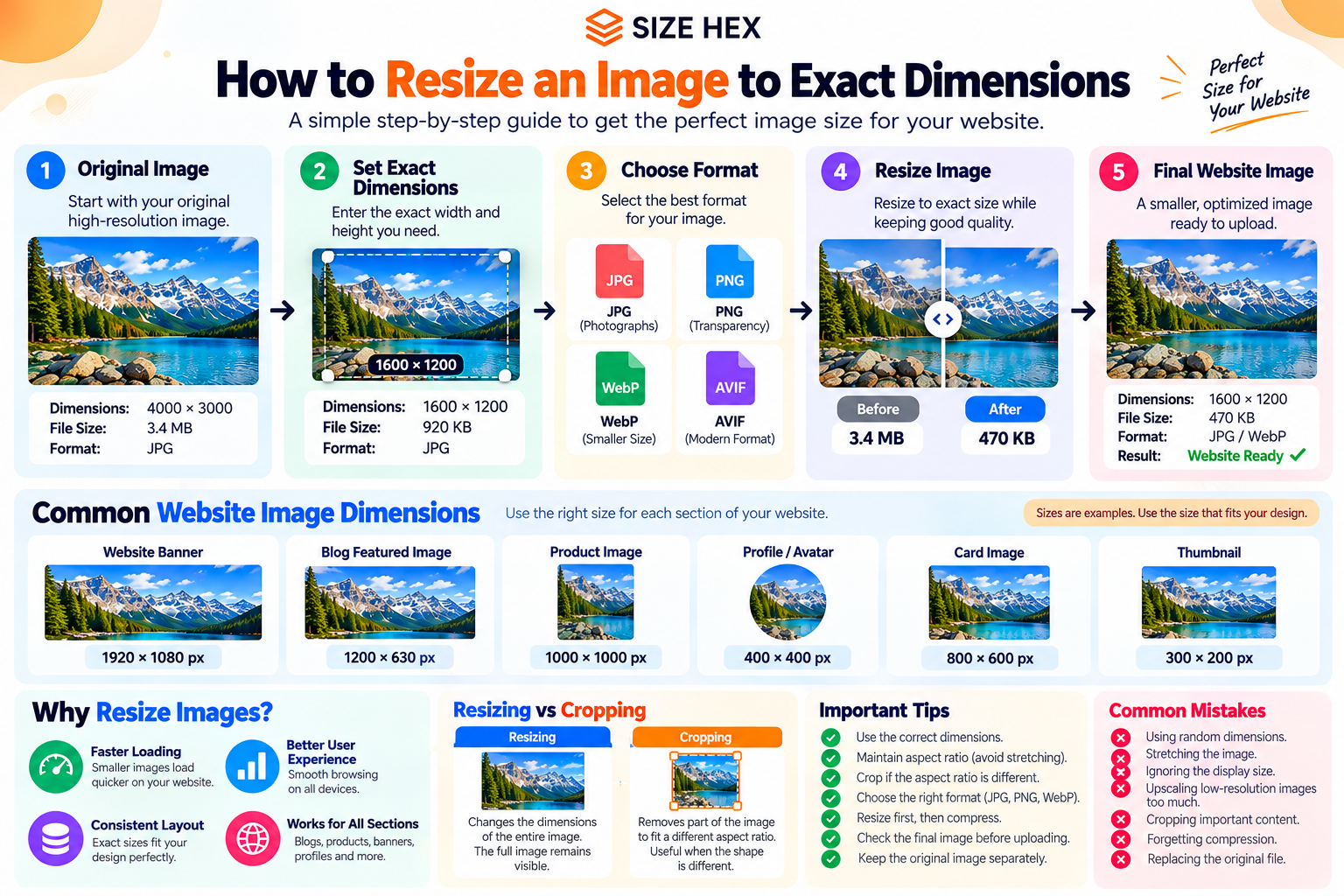
How to Resize an Image to Exact Dimensions for Your Website
Images are rarely displayed at the same size they were originally created.
A photograph might be captured at 4000 × 3000 pixels, while the website only needs a 1200-pixel-wide version.
A profile image may need to be square.
A blog thumbnail may need a specific aspect ratio.
A product image may need consistent dimensions across an entire store.
This is where exact image resizing becomes useful.
Instead of simply making an image “smaller,” you can prepare it for a specific location by controlling its pixel dimensions and aspect ratio.
What Does Image Size Actually Mean?
When someone says an image is:
1200 × 800 pixels
the first number represents its width and the second represents its height.
So:
Width = 1200 pixels
Height = 800 pixels
These dimensions determine the image's aspect ratio and the amount of pixel data it contains.
File size is different.
For example, two images can both be:
1200 × 800 pixels
but one might be 300 KB while another is 1.2 MB.
That's because file size also depends on the format, compression settings and image content.
Why Exact Dimensions Matter
Using appropriate dimensions can help you prepare consistent images for different website sections.
For example:
- Blog thumbnails may use one size
- Product images may use another
- Profile images may be square
- Hero images may require wider dimensions
- Social graphics may use specific aspect ratios
If you upload an unnecessarily large image, you're keeping more pixels than the page may need.
If you resize it too aggressively, the image may become too small for its intended display.
The goal is to find dimensions that match the actual use case.
Dimensions vs File Size
These two concepts are often confused.
Image dimensions
1200 × 800 pixels
describe the physical pixel dimensions of the image.
File size
450 KB
describes how much storage data the file occupies.
Changing the dimensions can change the file size, but they are not the same thing.
You can have:
1200 × 800 → 450 KB
and another:
1200 × 800 → 1.1 MB
Both images have exactly the same dimensions.
This is why resizing and compression are separate image optimization steps.
How to Resize an Image to Exact Dimensions
A practical workflow is simple.
Step 1: Identify the Required Dimensions
First determine where the image will be used.
For example:
Blog image: 1200 × 800
Square profile image: 800 × 800
Thumbnail: 600 × 400
These are examples, not universal requirements.
The correct dimensions depend on your website's layout.
Step 2: Check the Original Image
Suppose your original image is:
4000 × 3000 pixels
and your website needs:
1200 × 900 pixels
The original is significantly larger than necessary.
You can resize it to the required dimensions while maintaining its 4:3 aspect ratio.
Step 3: Maintain the Aspect Ratio When Appropriate
The aspect ratio describes the relationship between width and height.
For example:
4000 × 3000
has a 4:3 ratio.
If you resize it proportionally:
2000 × 1500
or:
1200 × 900
the image keeps the same shape.
This prevents unwanted stretching or squeezing.
Step 4: Use Exact Dimensions When the Layout Requires Them
Sometimes proportional resizing isn't enough.
For example, you may need:
1200 × 630 pixels
but your original image has a different shape.
In that situation, simply forcing the image into 1200 × 630 can distort it.
A better workflow may be:
Crop → Resize
First adjust the composition to the required aspect ratio, then resize it to the final dimensions.
Step 5: Check the Result
After resizing, inspect:
- Subject position
- Image proportions
- Edges
- Text
- Important details
- Overall sharpness
Make sure the image still looks correct at its intended display size.
Resizing vs Cropping
These two operations are often confused.
Resizing
Changes the dimensions of the entire image.
Example:
2000 × 1500 → 1200 × 900
The complete image remains visible.
Cropping
Removes part of the image.
Example:
2000 × 1500 → crop to 1:1 → 1500 × 1500
Some parts of the original image are removed.
A practical workflow
If your image has the wrong shape:
Crop → Resize
If the shape is already correct:
Resize
This simple distinction can prevent many common image-sizing problems.
What Happens If You Stretch an Image?
Suppose an image is originally:
1600 × 900
and you force it into:
1200 × 1200
without maintaining the aspect ratio.
The image can become visibly distorted.
People may appear wider or narrower.
Circles can become ovals.
Logos can look stretched.
Text can appear unnaturally compressed.
This is why maintaining the correct aspect ratio is important unless the distortion is intentionally required.
What Happens When You Make an Image Larger?
Resizing isn't limited to reducing dimensions.
You can also enlarge an image.
For example:
800 × 600 → 1600 × 1200
However, increasing the pixel dimensions doesn't automatically create new real detail.
A small, blurry source image may remain blurry after enlargement.
Aggressive upscaling can make edges look softer or introduce interpolation artifacts.
If you need a high-resolution image, starting with a sufficiently detailed original is usually better than heavily enlarging a small image.
Practical Rule for Website Images
Before resizing an image, ask:
Where will this image appear?
Then ask:
How large will it actually be displayed?
Then choose dimensions that make sense for that use.
Don't automatically resize every image to one fixed size.
A blog thumbnail and a full-width hero image have different requirements.
Use SizeHex Image Resizer
When you know the dimensions you need, the SizeHex Image Resizer can be used to change an image's width and height directly in the browser.
A simple workflow is:
Upload Image
↓
Enter Width and Height
↓
Maintain Aspect Ratio if Needed
↓
Resize
↓
Download
After resizing, you can optionally compress the result if the file is still larger than necessary.
Key Takeaway
Resizing an image to exact dimensions isn't simply about entering two numbers.
You need to consider:
Dimensions + Aspect Ratio + Cropping + Display Size + Image Quality
For most website workflows:
Identify the required size → Check the aspect ratio → Crop if necessary → Resize → Check the result → Compress if needed
This produces an image that is better matched to its intended use without unnecessarily stretching, shrinking or delivering excessive pixel data.
How to Resize an Image to Exact Dimensions for Your Website
How to Choose the Right Dimensions
The correct dimensions depend on where the image will be used. A website may use different image sizes for hero banners, blog thumbnails, product images, profile images, and other sections.
For example, a wide website banner may need a landscape image, while a profile card may require a square image.
Before resizing, check the actual space where the image will appear. If the website design expects a 1200 × 630 pixel image, resizing the image to 1200 × 1200 will not produce the intended layout.
A simple rule is:
Match the image dimensions to the intended display area whenever possible.
This can help avoid unnecessary scaling by the browser and make your image workflow more predictable.
Common Website Image Dimensions
There is no single standard size that works for every website, but these are common examples:
| Use Case | Example Dimensions |
|---|---|
| Website hero/banner | 1920 × 1080 px |
| Blog featured image | 1200 × 630 px |
| Social sharing image | 1200 × 630 px |
| Square product image | 1000 × 1000 px |
| Profile/avatar image | 400 × 400 px |
| Website card image | 800 × 600 px |
| Small thumbnail | 300 × 200 px |
These are examples rather than strict requirements. Always prioritize the actual dimensions required by your website layout.
What Happens When You Change Only the Width?
Suppose your original image is:
3000 × 2000 px
If you change the width to 1500 px while maintaining the aspect ratio, the height becomes 1000 px.
The image changes from:
3000 × 2000 → 1500 × 1000
The image has been reduced to half its original dimensions while maintaining its proportions.
This is usually preferable to independently changing width and height because it prevents distortion.
When You Need an Exact Width and Height
Sometimes you need a specific output such as:
1200 × 630 px
But your original image may be:
3000 × 2000 px
The aspect ratios are different.
If you force the original image directly into 1200 × 630, important parts of the image may appear stretched or compressed.
Instead, you generally have two better options:
Option 1: Crop and resize
First crop the image to the required aspect ratio, then resize it to the exact dimensions.
Option 2: Resize and add space
Resize the image while maintaining its aspect ratio and use a background or padding to fit the required canvas.
The right choice depends on the design.
Cropping vs Resizing
Resizing changes the dimensions of the entire image.
Cropping removes part of the image.
For example, imagine a landscape photograph that needs to become a square profile image.
Simply resizing it to 500 × 500 may distort the photograph.
Instead, you can crop the sides to create a square composition and then resize it to 500 × 500.
This preserves the proportions of the remaining image.
Don't Stretch Images to Force Dimensions
One of the most common mistakes when creating website images is manually changing both dimensions without considering the original aspect ratio.
For example:
Original: 1600 × 900 px
Forcing it directly to:
800 × 800 px
changes the aspect ratio from 16:9 to 1:1.
The result can make people, objects, logos, or other visual elements look unnaturally wide or narrow.
Whenever possible, maintain the original aspect ratio or crop the image before applying the final dimensions.
What About Increasing Image Size?
Resizing an image from a larger dimension to a smaller dimension is generally straightforward.
Increasing the dimensions is different.
For example:
800 × 600 → 2400 × 1800
The image now has more pixels, but those additional pixels do not contain new information from the original photograph.
An image editor may use interpolation or AI-based methods to estimate additional detail, but this does not guarantee that the enlarged image will contain the same level of detail as a photograph originally captured at 2400 × 1800 pixels.
For website use, it is usually better to start with an image that is large enough for its intended display size and then resize it down when appropriate.
Resize Images Before Uploading to Your Website
Uploading an unnecessarily large image can create an inefficient workflow.
For example, imagine a blog image that will normally appear around 1200 pixels wide, but the original camera image is 6000 pixels wide.
Uploading the 6000-pixel version may be unnecessary if the website never needs to display it at that size.
A better workflow can be:
Original Image → Resize → Compress → Check Quality → Upload
This also works well together with image compression.
Resizing reduces the pixel dimensions, while compression can reduce the file size of the resulting image.
These are two different optimization steps.
Resize Images Using SizeHex
If you need to change an image to specific pixel dimensions, the SizeHex Image Resizer can be used as part of the workflow.
A practical process is:
- Open the SizeHex Image Resizer.
- Upload or select your image.
- Enter the required width and height.
- Maintain the aspect ratio when appropriate.
- Crop the image first if the required dimensions have a different aspect ratio.
- Export the resized image.
- Check the final image before uploading it to your website.
For website images, don't choose dimensions randomly. Start with the actual requirements of the page or component where the image will be displayed.
Example: Preparing a Blog Featured Image
Suppose your blog design uses a featured image of 1200 × 630 px.
Your original image is 4000 × 2500 px.
Instead of forcing the image directly into 1200 × 630, first consider its aspect ratio.
If important content is close to the edges, cropping may remove part of the subject. In that situation, you may need to reposition the crop or choose another image.
After achieving the correct composition, resize the final image to 1200 × 630 px.
You can then compress it before uploading.
This produces a much more controlled workflow than simply changing the width and height values.
Key Takeaway
Exact image dimensions are useful when a website design requires a specific image size, but dimensions should not be considered separately from aspect ratio and composition.
A good resizing workflow is:
Choose the required dimensions → Check aspect ratio → Crop if necessary → Resize → Compress → Review → Upload
This approach helps you create images that fit your website layout without unnecessary stretching or oversized files.
Practical Examples and Best Practices
How to Resize Images for Different Website Uses
Different website elements need different image dimensions. Instead of using the same image size everywhere, prepare images according to their actual purpose.
For example:
- Blog featured image → 1200 × 630 px
- Square product image → 1000 × 1000 px
- Website banner → 1920 × 1080 px
- Profile image → 400 × 400 px
- Smaller card image → 800 × 600 px
These are example dimensions, not universal standards. Your website's design should determine the final size.
Example: Product Image
Suppose you have a product photograph that is:
4000 × 3000 px
Your website product card only needs approximately:
1000 × 750 px
You can resize the image while maintaining its 4:3 aspect ratio.
The workflow becomes:
4000 × 3000 → 1000 × 750 → Compress → Upload
There is little benefit in keeping the original 4000-pixel dimensions for a component that displays the image much smaller.
Example: Social Media Image on a Website
Suppose you want to display a square promotional graphic on your website.
The original image is:
2000 × 2000 px
You want a smaller version:
1080 × 1080 px
Because both dimensions use the same 1:1 aspect ratio, you can resize the image directly without cropping.
After resizing, you can compress the image to reduce its file size before uploading.
Example: Website Banner
Imagine you have a banner image:
3000 × 1200 px
Your website requires:
1600 × 640 px
Both images have the same aspect ratio.
Therefore, you can resize the image directly while maintaining its proportions.
However, if your website requires:
1600 × 900 px
the aspect ratios are different.
In that situation, simply forcing the image into 1600 × 900 may distort it. Cropping or adjusting the composition would be a better approach.
Check the Image After Resizing
Don't assume that the image is ready immediately after changing its dimensions.
Open the exported image and check:
- Are important subjects still visible?
- Does the image look stretched?
- Has important text been cropped?
- Is the image sharp enough?
- Is the file format appropriate?
- Is the file size reasonable?
- Does it look correct on the website?
A quick visual check can prevent problems after publishing.
Don't Confuse Dimensions With Quality
A larger image is not automatically a better image.
For example, a 3000 × 2000 px image may have a larger file size than a 1200 × 800 px version, but whether it looks better depends on how and where it is displayed.
Likewise, increasing a small image to a much larger resolution doesn't automatically restore lost detail.
The goal should be to use an appropriate resolution for the intended display rather than simply choosing the largest possible dimensions.
Resize First, Then Compress
For many website workflows, resizing before compression makes sense.
Consider this example:
Original: 5000 × 3333 px
You only need:
1500 × 1000 px
A practical workflow is:
Resize → Export → Compress → Check → Upload
The resized image contains fewer pixels, so there is less data to process during the compression step.
You can use the SizeHex Image Resizer for the dimension change and the SizeHex Image Compressor to optimize the resulting file.
When You Should Keep the Original Image
Never replace your original image with the resized version unless you have a separate backup.
Keep the original file when:
- You may need a larger version later.
- The image will be reused in another project.
- You may need a different crop.
- You are working with professional photographs.
- You may need to create multiple website sizes.
A useful workflow is:
Original File → Create Working Copy → Resize → Compress → Website Version
This gives you flexibility if the website requirements change later.
Create Different Versions When Necessary
A website may display the same image at different sizes.
For example, a product image might appear:
- 300 px wide on a small card
- 600 px wide on a larger card
- 1200 px wide on a product page
Instead of unnecessarily serving the largest version everywhere, a website can use appropriately sized image variants when its implementation supports responsive images.
This is particularly useful for websites with many images.
Common Image Resizing Mistakes
1. Entering random width and height values
Always consider the original aspect ratio.
2. Stretching the image
Don't force unrelated width and height values unless distortion is intentional.
3. Ignoring the display size
A 5000-pixel image may be unnecessary for a small website component.
4. Upscaling too aggressively
Increasing dimensions cannot guarantee additional real detail.
5. Cropping without checking the composition
Important subjects, faces, products, or text can accidentally be removed.
6. Replacing the original file
Keep the original so you can create another version later.
7. Resizing but forgetting compression
Dimensions and file size are different. A resized image can still be unnecessarily large.
A Simple Website Image Workflow
For most website projects, you can follow this process:
Step 1: Find the required dimensions.
Step 2: Check the original image's aspect ratio.
Step 3: Decide whether the image needs cropping.
Step 4: Resize to the required pixel dimensions.
Step 5: Choose an appropriate image format.
Step 6: Compress the resized image.
Step 7: Review the final image visually.
Step 8: Upload it to the website.
Step 9: Check how it appears on the actual page.
This workflow is simple enough for everyday use while avoiding many common image-preparation mistakes.
Resize Images With SizeHex
If you need to quickly change an image's dimensions before using it on a website, you can use the SizeHex Image Resizer.
The basic workflow is straightforward:
Select Image → Set Dimensions → Resize → Download → Compress if Needed → Upload
For the best result, determine the required dimensions before starting instead of resizing repeatedly.
If the image needs additional optimization, you can also use the SizeHex Image Compressor after resizing.
For format changes, the SizeHex Image Converter can be useful when the required output format is different from the original.
Final Checklist
Before uploading a resized image to your website, check:
☐ Correct width and height
☐ Appropriate aspect ratio
☐ No unwanted stretching
☐ Important content is not cropped
☐ Image is sharp enough for its intended display
☐ Appropriate file format
☐ File size is reasonable
☐ Original image is safely stored
☐ Final image has been checked on the website
Final Takeaway
Resizing an image to exact dimensions is more than entering two numbers.
A good result depends on understanding the relationship between dimensions, aspect ratio, cropping, image quality, and file size.
The most reliable workflow is:
Choose the required dimensions → Maintain the aspect ratio → Crop when necessary → Resize → Compress → Review → Upload
When you prepare images this way, they are more likely to fit your website layout correctly without unnecessary stretching, oversized dimensions, or avoidable file sizes.
Related SizeHex Tools
Image Resizer — Resize images to specific pixel dimensions.
Image Compressor — Reduce image file size after resizing.
Image Converter — Convert images between supported formats when your website requires a different format.
Image Crop Tool — Crop an image when its aspect ratio doesn't match the required dimensions.
Related SizeHex Guides
How to Compress Images Before Uploading to a Website — Learn how resizing, format selection, compression, and quality checks work together before uploading images.
How to Resize Images Without Losing Quality — Understand the basics of resizing while maintaining image proportions.
How to Crop Images for Different Uses — Learn how cropping can help prepare images for different website layouts and aspect ratios.